At long last, Grand Theft Auto VI has arrived. But if you weren't able to call in sick on launch day, you can still get your GTA fix with your ROG Ally or ROG XBOX Ally handheld. Here's how to take GTA VI on the go.
What You'll Need
Since Grand Theft Auto VI has not yet released for PC, you'll need an XBOX console in your living room for this to work — and XBOX Remote Play will do the rest. Remote play requires:
For those unfamiliar with this router, let's go into the details. Let's first start by talking about WiFi 8.
WiFi 8 - More Speed Through Stability and Efficiency
Most everyone's first reactions to hearing that WiFi 8 and WiFi 7 have the same maximum theoretical speed is, "What? Why bother with WiFi 8?" That's right, if you weren't aware; WiFi 8 doesn't include a boost to max speed beyond 46Gbps.
However, WiFi doesn't provide your devices with the max theoretical speed, generally. WiFi performance from a router to a device depends on a lot of factors, such as the distance from the router, quality of the signal, interference from other devices, internal processing power and heat mitigation, and more. This is why your WiFi might suffer from slow performance in houses or units that have a lot building materials that block signal penetration, if you have multiple devices connected to your router across different bands, or congested channels. These issues aren't new to WiFi.
WiFi 8 is cleaning up those areas to improve performance across the board. Here are some of the ways that you'll see this benefit:
Up to 2x faster higher median throughput
Up to 2x wider IoT coverage
Multi-AP coordination with lower latency
Multi-Device boost to provide smarter spectrum in crowds
For a more detailed explanation, this is how WiFi 8 addresses practical problems that users typically encounter across different usage scenarios:
Higher sustained speed at mid-to long range - Most people are aware that the further devices move away from the AP, the signal gets weaker and speeds drop. WiFi 8 reduces sudden slowdowns at mid-to-long range, improving the throughput falloff rate and keeping connections more stable.
Connectivity for low-powered devices - Most IoT devices transmit at lower power than routers, which can result in weak return signals and frequent disconnections. WiFi 8 strengthens two-way communication, enabling low-power devices to maintain stable links.
Coexistence with other networks - In densely populated environments (such as apartment buildings or offices), signals from multiple routers may overlap, causing interference. WiFi 8 introduces smarter spectrum coordination and interference mitigation, keeping speeds stable.
Enhanced Multi-User Capacity - When multiple devices connect simultaneously, traditional WiFi often experiences congestion. WiFi 8 enhances spectrum efficiency, dynamic scheduling, throughput, and latency to ensure that bandwidth is used effectively.
ROG Rapture AI Boost - Making gaming easier with every connection
A gaming router seems like a silly thing from the outset. First, it doesn't do any gaming. Second, if you understand a little bit about networking, many of these features look like simple QoS tweaks. Third, and last, you might wonder how easy or cumbersome it is to use and configure these features. However, what makes a router an ROG gaming router is the combination of hardware, software, management, and ease of use to jump right into your online gaming experience.
The ROG Rapture GT-BN98 Pro handles your traffic in a lot of ways - from the connection point to the destination point:
Device Optimization - Automatically detects gaming devices across its LAN, WiFi, and gaming port connections, applying acceleration and optimized latency.
Adaptive QoE - Analyzes live network conditions and application demands to dynamically allocate bandwidth, ensuring smooth gameplay even during high-congestion, multi-tasking scenarios.
Bundled GTNet Service - Uses real-time latency analysis to route traffic through the fastest - not just the shortest - path to game servers, reducing congestion and helping to maintain low-latency connections.
Port Control Authority - 10G Ports, Multi-WAN, VLAN and 20G Link Aggregation
While the ROG Rapture GT-BN98 Pro features robust software and firmware management for your wireless connections, the router also gives you exceptional speed and configuration options to handle your home network and devices:
Dual 10G Ports with a dedicated 10G Gaming Port - Choose to enable an ultra-high-speed 10 Gbps ethernet backhaul and/or setup the 10G LAN port as a dedicated gaming port that prioritizes gaming traffic
Four 2.5G LAN Ports - 3x 2.5G LAN ports and 1x 2.5G WAN/LAN ports provide plenty of bandwidth for entertainment, home studios, and ultra-fast ethernet backhaul
Multi-WAN with auto-WAN detection - Input support includes a 10G WAN/LAN and a 2.5G WAN/LAN port for flexible configurations
VLAN support to organize devices - Simplify your home network management by creating logical groups to more easily apply specific security rules and manage access
Up to 20G Link Aggregation - Combine two Ethernet links into one single logical link for a local network with up to 20 Gbps bandwidth
Designed for High Performance and Easy Management
ASUS routers take a holistic approach to the entire design when it comes to the hardware, software, and cooling to ensure that the router performs at its highest level at all times. ROG gaming routers take this to the next level.
Beginning with the hardware, the ROG Rapture GT-BN98 Pro features a 2.6GHz quad-core processor, 2 GB RAM, and 256MB flash memory. This ensures plenty of performance to handle multiple tasks and coordination among the many features and adaptive functions. This is all cooled by a thick aluminum top-plate along with an enhanced nanocarbon layer. The elevated stand design - combined with a specially-engineered vent and heatspreader - helps to achieve up to 35% better heat dissipation for more stable performance under sustained load. As a quad-band router, it uses multiple antennas, including eight external optimized antennas and refined RF tuning to help ensure stable connections across your entire location.
On the software-side, ROG Rapture routers contain a comprehensive configuration menu through the browser-based config or through the ASUS Router App. You can view the Client list for insights to all devices connected to the router, including bandwidth usage and WiFi signal strength to more quickly manage your network. Use the WiFi Insight screen to detect WiFi and non-WiFi interference and automatically optimize channel usage. The same screen keeps a detailed 24-hour event history so you can find when the interference occurred, what triggered it, and how your network responded.
Easily create subnetwork SSIDs with Smart Home Master and Guest Network Pro
Why settle for a single SSID when you can make multiple SSIDs with their own policies, security settings, and performance targets? If you have a variety of IoT devices, kids, gaming devices, VPN service or prefer an SSID with MLO, this router can handle it.
From the outset, it sounds so logical you might wonder why you haven't done this before:
Guest Network - Create a scheduled or one-time access network that creates multiple independent networks and VLAN combinations, allowing for full control over access permissions, bandwidth management, and content filtering for each network
Gaming Network - Connect your gaming devices like the ROG Ally series or your PC for the best connection quality and gaming experience
IoT Network - Create a network for all of your TVs, smart appliances, smart plugs, thermostats, IP cameras, and other common smart home devices. This isolates these devices from the rest of your network to help manage devices that are sometimes difficult to update or may have higher latency than other devices
VPN Network - Connect to your preferred VPN service through a dedicated subnetwork with one click.
Kid's Network - Configure online time and access without needing to dive into more complicated parental controls. Although you can still configure each device manually through other parental controls, simply connecting to this network automatically applies certain limitations that you set within the SSID configuration menu
MLO Network - This is a default network that merges multiple bands to allow compatible devices to switch between bands to prioritize important traffic, so your devices stay fast and responsive even during peak usage
Top-notch AIProtection keeps your router and connected devices safe
As with all ASUS routers, the ROG Rapture GT-BN98 Pro includes a variety of security features to protect all of your connected devices. Our upgraded AiProtection suite continuously safeguards your network and browsing experience with built-in advertisement and tracker blocking, helps to detect and block malicious sites, infected devices, and other potential vulnerabilities. You also have additional parental controls over devices and a on-tap router security assessment to identify vulnerabilities in your security settings to help prevent malicious activity or connection attempts made by infected devices.
To learn more about the ROG GT-BN98 Pro, visit the following:
What are your thoughts about WiFi 8? Have you already upgraded to WiFi 7, planning to, or considering to skip this generation? Let us know in the comments below.
Hi, i have a ASUS TUF 5090 gpu that is waterblocked. This gpu was running perfectly fine and never ran into any problems before today. Recently I have been experiencing crashes on my PC where my gpu would locks up, black screens and restarts. One day I noticed an odd smell of something burning, and checked my pc and noticed that my 12v connector was melted. My heart sank and been stressing, but checked the gpu and noticed there wasnt any visual damage or burning on the PCB itself, just on the connector? The pc is still functions, as in I am able to browse the web and do day to day tasks, but only when i game on WoW forever it crashes and black screens. My question is, can i clean the connection point inside where the pins are remove any residue and use the cables that people recommend which is 12v 6pin? Or do I have to RMA this VIA warranty? If so, can they take it even though it is waterblocked if I place the stock cooler back on? Sorry, i dont know where to go, and would love any feedback or help regarding this.
I'm having a concerning issue with my ASUS Vivobook 16, and I'd like to ask if anyone has experienced something similar or knows what could be causing it.
Laptop specifications:
- Model: ASUS Vivobook 16 (X1605VA)
- Processor: Intel Core i5-13500H
- RAM: 8GB
- Storage: 512GB SSD
- Purchased: April 2024
- Warranty expired: September 2025
Here's what's happening:
DC charging tip overheating: The DC charging tip (shown in the first picture) gets extremely hot even when I have just plugged it in. I only recently noticed that the charging tip/area around the DC port (2nd pic) appears to have melted.
Constantly switching between plugged in and battery: Even when the charger is physically connected, Windows keeps alternating between "Plugged in" and "On battery." It seems like the laptop keeps disconnecting and reconnecting to the charger.
Slower charging: I've also noticed that my laptop takes significantly longer to charge than it used to. This started around the same time I began experiencing the other charging issues.
Ongoing issue: This has been happening for more than two weeks now.
I'm particularly worried about the apparent melting and excessive heat around the charging connection.
My questions are:
- Is this more likely a faulty DC charging port, a damaged charger tip, or an issue with the motherboard's charging circuit?
- Could the overheating be causing the laptop to repeatedly disconnect from the charger?
- Is there a way to check or diagnose whether my motherboard is still fine WITHOUT opening the bottom cover of the laptop?
- Are there any software-based diagnostics or external tests that can help determine whether the motherboard is still good
- For anyone who has experienced this, how much did the repair cost, and what component needed replacement?
For now, I'm charging it using a Type C Charger
I'm also hesitant about having my laptop repaired at a third-party repair shop.
Since my laptop is already out of warranty, I understand that official ASUS service centers may no longer cover it under warranty, so I might have to look for independent repair shops.
However, I'm honestly worried about bringing it to a different repair shop. I'm from the Philippines, and unfortunately, there are repair shops here that have reputations for not properly fixing devices, causing additional damage, or making customers come back repeatedly for more repairs. I don't want to spend money on a repair only to end up with an even bigger problem.
I'd prefer not to have anyone open my laptop unless it's really necessary, especially if there are ways to diagnose the issue first. I also want to make sure that whoever handles my laptop actually knows what they're doing.
I'd appreciate any advice or recommendations, especially from people who have experienced similar issues.
I recently picked up an ASUS ROG Swift PG27UCDM 27-inch 4K 240Hz OLED with around 516 hours of use. The panel looks pristine, has no visible burn-in or dead pixels, and otherwise works perfectly.
The problem is a warm electrical/burning-plastic or off-gassing smell coming specifically from the top-right vent above the heatsink. It starts faintly but becomes progressively stronger the longer the monitor stays on, especially after playing games for a while. It also happens with HDR disabled, so it doesn’t seem limited to maximum HDR brightness.
Sometimes I can catch the smell in the air while sitting normally at my desk—I don’t have to put my face directly beside the vent to notice it. There’s no smoke, flickering, buzzing, shutdowns, or obviously abnormal heat, but the smell getting stronger with operating time and gaming concerns me. Has anyone else with these monitors experienced this, especially if you smell above the vent?
The monitor already has over 500 hours, so I’m unsure whether ordinary “new electronics” off-gassing should still be happening. Has anyone else with a PG27UCDM experienced this? Is a warm-plastic smell from that particular vent normal, or does it suggest an electrical/component issue? Would you stop using it and contact ASUS for an RMA even though everything else functions normally?
It’s still covered under warranty, so I’m trying to determine whether this is expected behavior or an early warning sign.
I've been experiencing a frustrating issue with my ASUS Zenbook recently, and I'm hoping someone might have an idea what's causing it.
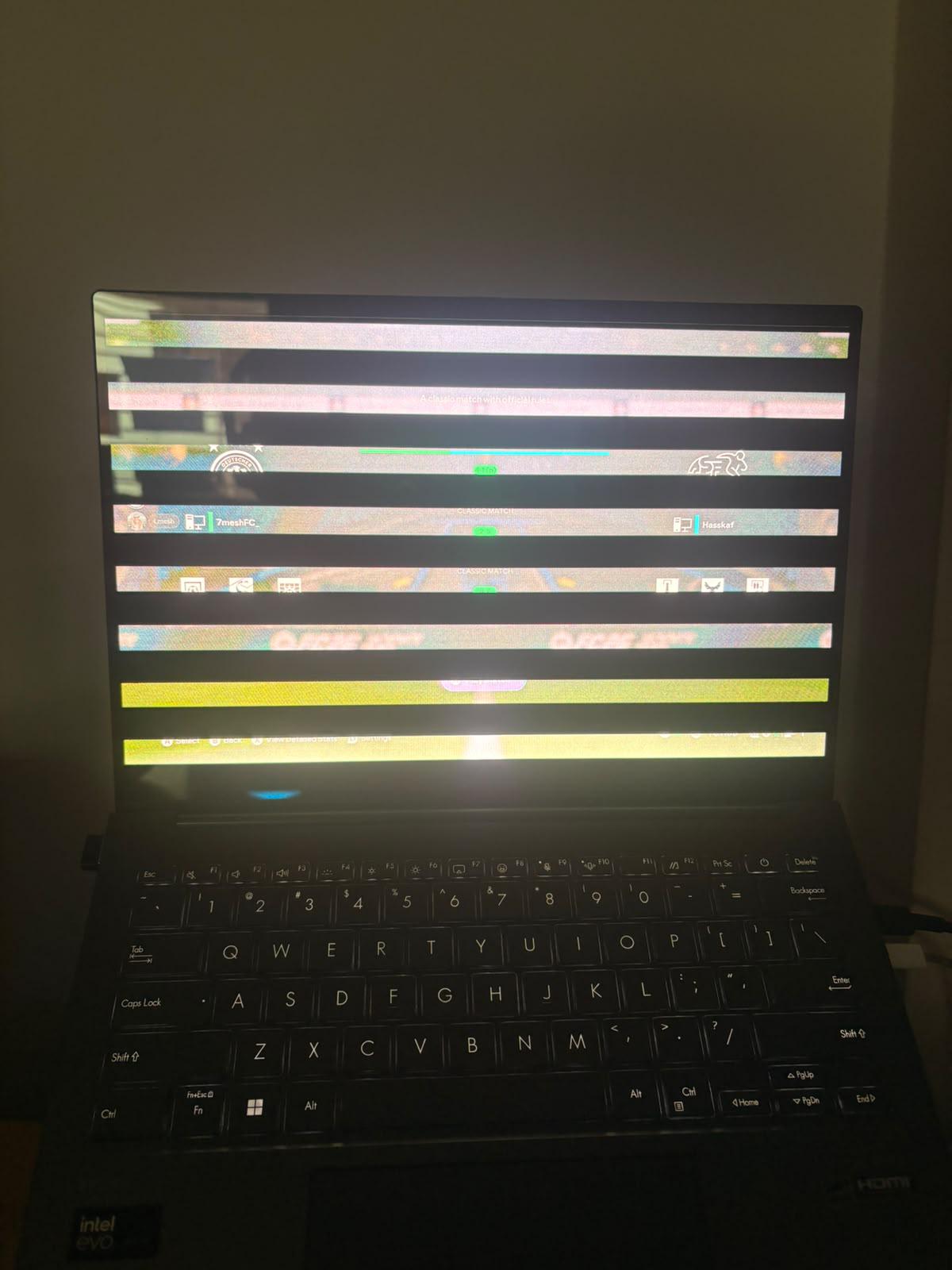
My laptop randomly freezes, and several weird horizontal black lines appear across the display (I've attached a photo showing what it looks like). When this happens, the entire laptop becomes unresponsive, and I can't do anything except hold down the power button for around 10 seconds to force a shutdown.
After turning it back on, everything works normally again, as if nothing happened.
I've particularly noticed that this tends to happen when I'm playing games. Initially, it was quite rare, but recently it's been happening more and more frequently.
I'm concerned that this could be a GPU, display driver, overheating, or possibly a hardware-related issue.
I recently bought the ROG Strix OLED XG34WCDMS, and one of the main features I wanted was the KVM. My previous OLED, an MSI, had a KVM that switched automatically based on the active input (USB-C or HDMI/DP with USB-B).
The Asus monitor works well with my work laptop over USB-C DP Alt Mode it wakes the laptop and stays connected. The problem is with my gaming PC, which is connected via HDMI with the USB-B 3.0 upstream cable. The monitor is able to wake the PC, but once the PC is awake the USB connection drops and doesn't come back. To fix it, I have to open the KVM settings, switch from USB-B to USB-C, then back to USB-B.
It's really annoying, and what's strange is the PC stays connected, but then when it wakes it disconnects for some reason.
Things I've tested:
The issue still occurs with the USB-C cable completely unplugged.
It happens on other computers too, so it doesn't seem to be specific to my PC.
I've tried setting "USB Hub" to on during standby and to off during standby (and back again), with no effect either way.
I've tried to turn off/on "Auto KVM Detection", no effect.
Has anyone else run into this, or found a fix? Any help is appreciated.
I have been trying to make a project that requires a miniture motherboard. I set on the CN60 and I took the Mainboard out of the case, it was working perfectly fine outside the case but a few hours ago when I pluged it in after putting the ram SSD and wifi card the power button flashed blue and I think I was imagining this but there might have been a pop from the off/on button, I tried all the tricks like moving the ram removing the cmos battery than adding it back. but it refuses to even flash when I click the power button, anyone got a solution for this other than buying a new one as my budget for this project already got extremely depleted just by the mainboard
i have an older Asus vg27aq and a newer vg27aq3a that I’ve had for a few years now. I decided to replace my Asus vg27aq3a because I found it not that bright. Rated at 250 nits but was getting about 210-220 Even at 100 brightness When compared to my Asus vg27aq which is rated 350 nits it was noticeably dimmer So I bought a new one on Amazon (vg27aql5a) and I’m honestly disappointed with it not being as bright as my Asus vg27aq. Both these monitors are rated at 350 nits. Is there a reason for this ? In the picture you can tell it’s noticeably dimmer when you look at the white task bar at the bottom. Both monitors are set to 100 brightness Is this just new standard look for newer Asus monitors ?
I recently got an ASUS V16 (V3607, Intel Core 7 240H, RTX 5070, 32GB RAM) and the real-world performance is well below what reviews and benchmarks show for this exact model.
The main issues I'm experiencing:
Audio crackling/cutouts and screen stutters on desktop: This happens constantly even during basic tasks like web browsing or listening to music, with zero external peripherals connected.
Frequent 95 °C thermal wall & severe FPS drops: In games like Deadlock (even on Low settings with DLSS), frames drop constantly from ~100 FPS down to 40 FPS, and the CPU repeatedly hits its 95 °C thermal ceiling even with fans at full speed (and even reached 100 °C when testing without Intel DTT drivers).
What I've already tried:
Full clean Windows 11 format/reinstall.
Testing the laptop completely standalone (no external monitors, mouse, or headphones).
Has anyone else with the V16 (V3607) experienced this DPC latency / audio + screen stuttering right out of the box or after a clean install? Trying to figure out if there's a specific BIOS/driver fix for this chassis or if I got a defective unit that needs an RMA. Any help is appreciated
Recently got the ASUS ROG Swift OLED PG32UCDM, and I’ve been absolutely loving it! Unfortunately, I disassembled part of the original stand and now can’t figure out how to put it back together. Everything looks undamaged, but the stand won’t fit back into the monitor. If anyone owns the same monitor and could share pictures of the circular mounting/hinge mechanism or explain how it’s assembled, I’d really appreciate the help!
I’d hate to buy a replacement stand over something this simple. Thanks!
I'm planning to buy the ASUS ExpertBook P3 with the Core Ultra 7 255H (P3406CCAP model).
I've been looking into this laptop for a while, but I've come across a few posts mentioning issues with ASUS ExpertBook laptops. So I'm a bit confused about whether I should go ahead with the purchase.
If anyone here owns this model or has been using an ExpertBook for some time, could you share your experience?
How is the overall performance? Any heating or battery issues? What about build quality, keyboard, and long-term reliability?
Also, have you faced any hardware or software issues, and how is ASUS after-sales service?
I would really appreciate some honest feedback, especially from people who have actually used these laptops.
Would you recommend buying it, or is it better to look at other options in a similar price range?
Was checking out the recently launched Zenbook 14 UX3480KA and noticed the Zabriskie Beige finish. It’s a nice change from the usual silver and grey laptop colours. The Ceraluminum lid also gives it a distinctive look. Personally, I quite like seeing more neutral, understated finishes on laptops.
Hola! Llevo más de 2 años con mi ordenador, placa base Asus, y no he tenido problemas hasta ahora con la sincronización de los LEDS, pero llevo ya varios días que cada vez que enciendo el ordenador, la sincronización que tenía establecida se desactiva y tengo que abrir el programa y ponerlo manualmente, sinceramente, es un coñazo. No se si ha sido por una actualización, pero yo no he cambiado nada.