r/AMDHelp • u/CorvetteCole • Aug 11 '16
Announcement Please make sure to flair your posts! Especially make sure to change the flair to resolved once solved!
160
Upvotes
Thanks guys.
r/AMDHelp
•
u/Fragrant-Ad2694
•
Jun 30 '25
🌞Created in 2025 and kept fully updated for 2026
If you’re facing low FPS, lag, stuttering, or crashes on a new or old AMD setup (AMD CPU with Radeon/NVIDIA GPU, or Intel CPU with Radeon GPU), you are in the right place. This guide has tested and proven solutions and user tips to maximize your system's performance. You will be see hardware checks, BIOS configurations, Windows tweaks, and driver changes here. Real-world solutions that work, not guesswork.
Disclaimer- The following optimizations are based on community-tested methods that have safely improved AMD system performance for most users. Since every setup is unique, results may vary. Proceed carefully and apply these tweaks at your own discretion. (This guide follows the Acer Community format.)
Read all Important Notes and Notes in each step. They contain vital information to guide you on how to avoid issues and when to revert to earlier changes.

Before you adjust BIOS or Windows settings, ensure your hardware is properly set up. Most issues such as low FPS, stuttering, and crashes are caused by minor errors such as installing the GPU in the improper slot or RAM, etc. This section contains crucial checks which have resolved serious issues for many users. Even if your PC boots and is usable, these kinds of issues might be latent, and resolving them can have a massive difference to performance.
Always install your graphics card in the top PCIe x16 slot, Which is the slot nearest to the CPU.
Why it's important:
•It is configured for full x16 bandwidth and is plugged directly into the CPU.
•Lower slots have x8 or x4 speeds, limiting GPU performance and bringing in bottlenecks based on the board.
Common mistake:
Most users inadvertently install the GPU in a lower PCIe slot or fail to confirm if the top PCIe x16 slot is delivering the GPU’s full bandwidth supported as per their GPU (such as x16 or x8), resulting in low FPS or instability.
Confirm true Speed:
Download and Open GPU-Z, then check the “Bus Interface” field. The left side (before “@”) shows your GPU’s maximum lanes and PCIe generation (e.g., x8 5.0), while the right side (after “@”) shows the current active lanes and gen speed (e.g., x8 1.1).
If it shows “1.1”, that means the GPU is idle, run the GPU-Z Render Test (“?”) to display your true gen under load. Both sides (lanes and gen) should match your GPU and platform. If the current gen is lower than the max, it’s usually due to motherboard, CPU, riser, or extension cable limitations, this is normal unless you upgrade hardware.
The same can apply to lane count, but that’s more important than gen speed. The lane width/speed (like x8, x16) should match on both sides or reach the maximum your system supports, as a lower lane width can noticeably affect performance.
If lanes are lower than expected, reseat the GPU, check if the PCIe lanes are shared with other slots (see your motherboard manual), and ensure no riser/extender or older CPU is limiting bandwidth.
• Insert the monitor cable directly into the GPU HDMI or DisplayPort (DP) port. Avoid inserting the monitor into the motherboard port.
• Utilize all CPU power connectors or CPU power headers that your motherboard has
• Always use specialized PSU cables. Never use splitters or adapters for EPS power. Connect cables directly from your PSU to your motherboard. Don't be cheap; don't go cheap.
•Always Use quality, dedicated PCIe cables from your PSU to each power connector on the GPU. Avoid daisy-chaining (using a single cable for multiple connectors) as it can cause instability or crashes, especially on high-power GPUs. Also, make sure your PSU meets the recommended wattage for your GPU.
• Always use good-quality PSU cables, never buy cheap extensions or riser cables.
• If your PC slows down, freezes, shows low CPU clocks despite a proper setup or lag and stutters while gaming , try plugging it directly into a wall socket or a high-quality strip. Faulty/old power strips can cause poor power delivery and hidden throttling issues.
You guys must check this as nothing can work if hardware configuration is not proper.
To get the best performance from your RAM, ensure it is installed in the right slot and properly configured. Many systems perform poorly due to incorrect slot placement or missing BIOS settings.
• Install RAM in the correct slots
If you have 2 sticks, plug them into slot 2 and 4 (usually marked A2 and B2) as these slots are typically the second and fourth slots away from the CPU. This allows dual-channel mode for optimal performance.
If you insert them into the wrong slots, the system will run in single-channel mode, lowering memory bandwidth and reducing FPS in games. Always refer to your motherboard manual for the slots layout and double-check it if you're unsure.
• Enable XMP or EXPO in BIOS
Enter the BIOS and enable XMP (or EXPO for AMD kits). This will set your RAM's rated speed and timings. Just ensure the profile you choose does not exceed your motherboard's highest supported memory frequency, as a higher profile can lead to instability.
Some motherboards have a few profiles; pick the one that matches your RAM's highest rated speed (like 3200, 3600, or 6000 MHz), as long as it's within your motherboard's support range.
If you don't enable XMP or EXPO, your RAM will run at default JEDEC speeds like 2133 or 2400 MHz, which seriously bottleneck your system.
• Confirm settings in Windows Open Task manager → Performance → Memory. Check that the Speed value matches your RAM's XMP/EXPO profile speed that you set in the BIOS and is not a different number.
Download CPU-Z, go to the Memory tab, and make sure Channel displays Dual or 2×64-bit for DDR4 and 4x32-bit for DDR5. If your speed or channel is wrong, check your BIOS settings and RAM slots again.
• Check RAM Stability (Must be done after building/installing new RAM )
Test your RAM with MemTest86. If you got any errors with the highest XMP/DOCP profile selected, then test the next lower profile, such as from XMP Profile at 6000MHz to XMP Profile at 5800MHz, and continue lowering until you find a stable profile. It’s crucial that your RAM is fully stable to ensure reliable system performance.
Once your hardware and power is set up, change the key BIOS settings that impact AMD CPU, RAM, and GPU performance. These can fix instability, crashes, and poor performance. Only modify the settings mentioned here. BIOS menus can differ by brand, so names or locations may vary; if you don’t see a setting, look around.
If you are facing RAM instability, poor CPU/GPU performance, updating your BIOS may help, especially on AMD systems where the BIOS updates usually improve stability and compatibility.
To Update BIOS:
Visit your motherboard manufacturer’s website, download your most recent stable BIOS for your specific model, and carefully follow their official instructions to update safely.
Note- BIOS update may reset all BIOS settings. If this occurs, don't forget to re-apply all changes from the BIOS Optimization & Tweaks section.
Changing Global C-State Control from "Auto" to "Enabled" will help fix FPS drops, downclocking, or instability. Most people with Ryzen CPUs (such as X3D chips) see less stuttering and smoother gaming performance when C-States are enabled. Many have found that "Auto" behaves like "Disabled." Therefore, I strongly recommend switching it from Auto to Enabled.
To change the Global C-State Control setting:
→ Press BIOS/UEFI key during boot to access the BIOS.
→ Click on the Advanced or AMD CBS tab and find Global C-State Control (perhaps be under CPU Configuration or Advanced).
→ Change the value from Auto to Enabled, this fix works for most users.
→ Save and exit BIOS, then check performance.
Important Note- Rarely, some boards (e.g., certain ASUS models) may get mouse lag, freezes, or black screens. If that happens, revert to the original setting. If it causes a black screen or boot issue, reset CMOS to recover.
On some motherboards, leaving PCIe generation in Auto mode can lead to compatibility or performance issues like black screens, no signal, or reduced GPU bandwidth.
Manually selecting a stable PCIe version —Gen 3, Gen 4, or Gen 5 can fix these problems.
To configure PCIe Gen mode:
→ Boot into BIOS at startup.
→ Go to the Advanced, Chipset, or NBIO Common Options section.
→ Locate PCIe x16 Link Speed (or similar), then Switch the setting from Auto to a specific version:
• If you have a Gen 5-Capable GPU and motherboard: set to Gen 5.
--If you encounter instability, crashes, black screens, or signal loss, lower the setting to Gen 4.
• If you have a Gen 4-capable GPU and motherboard, set to Gen 4
-- If experience instability, reduce the setting further to Gen 3.
• If you have a gen 3 GPU then set Gen 3.
→ Save changes and exit BIOS.
These features allow the GPU to access larger memory blocks directly, which can improve the performance of most games in use today. It is turned off by default even on some compatible boards due to component compatibility problems and must be tested. Most of users will get great results.
To Enable these settings:
→ Boot into BIOS at startup
→ Go to Advanced Mode
→ Disable CSM (From Boot Section, Set Launch CSM to Disabled).
→ Now, Go to PCI Subsystem tab/menu and set Above 4G Decoding to Enabled. (Location may vary, so find and confirm).
→ Then set Resizable BAR to Enabled (option appears after Enabling 4G Decoding).
→ Save & exit BIOS, then test performance.
Important Note - Disabled by default even on supported boards because of component compatibility issues, so users will have to test it. On a system where these settings are unstable, it can lead to crashes, performance issues or boot problems particularly with old components.
So, Test thoroughly and immediately disable it if you notice any instability or performance issues after enabling.
This section outlines important Windows settings and tweaks to address stuttering, latency spikes, FPS fluctuations, or overall system lag. These tips work for both NVIDIA and AMD systems.
Some of you may be facing game crashes, stutters, or random freezes. These issues often arise from a faulty AMD driver or because Windows Update quietly replaced your GPU driver, causing instability. You might also see errors like:
• “Radeon Software and Driver versions do not match...” or similar errors.
• Missing AMD software features like FSR 4, etc.
If you're facing these issues, this step shows how to clean install a stable AMD driver and stop Windows from replacing it again.
Important prerequisite - Before starting, disable Fast Startup to avoid boot conflicts that can cause sudden FPS drops, driver timeout or future issues.
Follow these steps one by one:
• First, we will download 4 files and save them in a new desktop folder. They will include the AMD software installer, DDU, AMD chipset driver, and Microsoft Update Hide Tool.
• Don't install, just download and save both the AMD software installer (.exe) as well as the AMD chipset driver installer software from the official AMD driver site that you want to install. Make sure you're downloading the specific version, not the auto-detect Tool.
Note - Newer AMD drivers can have system-specific stability issues like crashes. Try the latest version first. If problems arise, revert to 26.9.2. If you still encounter problems, try 26.3.1 as a fallback. If facing driver timeouts or crashes, also follow Step 13 of this guide after completing this step
• Download DDU and Microsoft Update Hide Tool from these links:
Microsoft Update Hide Tool (wushowhide.diagcab) - https://download.microsoft.com/download/f/2/2/f22d5fdb-59cd-4275-8c95-1be17bf70b21/wushowhide.diagcab
DDU - https://www.guru3d.com/files-details/display-driver-uninstaller-download.html
• Now pause Windows Update and disconnect Wi-Fi or Ethernet, whichever you use, and don't connect or resume updates until I say.
• Boot into Safe Mode, then extract DDU and open it. Select Device type GPU, then select AMD and click on Clean and Restart. Wait for completion until DDU uninstalls the driver properly.
• After restart, right-click on the Windows icon, then click on Installed Apps. From here, find and uninstall any chipset driver software. If it's not available, then you never installed the chipset driver manually and those users skip this point. After uninstalling the chipset driver software, click on Restart.
• After restart, open the folder where you placed the AMD driver software installer (.exe) and install it.
• After installation, restart your PC or laptop.
• Now connect to Wi-Fi, then immediately open the Microsoft update hide tool (wushowhide.diagcab). Click on "Hide Update," then select every update whose name starts with "AMD" or "Advanced Micro Devices," etc. Make sure to select all updates labeled as "AMD" or "Advanced Micro."
(If you don't see these updates in the windows hide tool then you can skip this part as windows is not overwriting the driver in your system so there's nothing to hide.)
• After selecting all, click Next. All updates you selected will be shown as fixed on the next screen. If it shows, then you have successfully done this.
• Now restart and Windows will not overwrite AMD drivers anymore. You can now resume the Windows Update.
• Now install the AMD chipset driver software. After installation, it will give two options. You need to click on View Summary and make sure all chipset drivers are installed properly. It will say Success or Installed. If properly installed.
For those users, whose summary shows any Failed chipset driver, uninstall the chipset driver again from Windows Settings and run chipset driver software again. If it still shows the same, then uninstall it again and download and install a different chipset driver version.
Note: Big Windows updates may reset this setting. If that happens, follow these steps again, but that's rare.
Implement the system-wide changes from the following link. These are general Windows steps that work on any PC or laptop, regardless of brand. The guide is simply hosted on Acer’s community forum, but it is not Acer-specific. It have been successfully applied by millions of users across many hardware setups. This is one of the most tested and effective Windows optimization guides available.
Following this optimization guide (hosted on the Acer community) fully can boost 1% lows, improve FPS stability, and fix stutters or lag while gaming by optimizing windows.
→ NVIDIA users: The Windows optimizations in the community guide linked below can further improve performance and stability. For the best performance benefits, follow all of the steps. For NVIDIA crashing issues while gaming can often be fixed by following Steps 1 and 9 of the guide.
→ AMD users: Skip Step 1 in the community guide and start directly from Step 2 (Chris Titus Tech utility step) through the end for stable FPS and improved performance. Don’t follow Step 1, as it’s already covered in this Reddit guide.
Here is the community guide:
https://community.acer.com/en/discussion/612495/windows-10-optimization-guide-for-gaming/p1
→ This guide Covers important issues like system lag, background processes, turning off unnecessary Windows functions, etc in one place.
Most modern gaming mice have dedicated software (e.g., Logitech G Hub, Razer Synapse, SteelSeries GG) that allows to adjust the polling rate, how often the mouse reports its position to the system. If you don’t have the software, download it from your mouse manufacturer's website based on your specific model.
To change the polling rate, Open your mouse software and set:
• 500Hz for solid, sufficient performance with lower system load. Use it for Single-player (AAA), slower-paced, or visually rich games.
• 1000Hz for esports as it provides faster response.
There's really no benefit going higher than 1000hz, so don't waste your system performance.
Note- If you still want to use polling rates above 1000Hz (like 2000Hz or 4000Hz), test for any lag or stuttering, as higher polling rates will consume the CPU more.
AMD's default driver settings aren't always the best for smooth gaming. These info have helped many improve FPS consistency, reduce input delay, and eliminate stutters.
Part - 1 Recommended Adrenalin Settings:
Make these adjustments in the Graphics section under the Gaming tab of the AMD Adrenalin Software. This way, the settings apply to every game, including new additions and those launched from the desktop.
• Radeon Anti-Lag → Disabled (This feature often causes micro-stutters. It's wise to turn it off and use it in those games which can really get benefits from this feature. It works great in GPU-Limited scenarios. Test per game and use if its stable)
• AMD Fluid Motion Frames (AFMF) → Test First (It's a frame gen and they often adds input lag. Test it per game, if the game runs well and input lag isn’t an issue (or it feels fine), then you can use it.)
• FSR 4 (Driver-Level) → Use if Available
• Radeon Chill → Disabled/Enable (Enable this only if you want to cap your FPS, and set both the min and max values to the same number for best results.)
• Radeon Boost → Disabled (May lead visual artifacts and stutter. It works by blurring motion. Test and use this feature if you wish)
• Enhanced Sync → Disable/Enable (It can cause stutters or unstable frame pacing in some games, so it’s generally safer to keep it off and use FreeSync if available. If you want to use it, test for stability first. It works best when your FPS is well above your monitor’s refresh rate, for example, 120 FPS on a 60Hz display offers smoother gameplay than V-Sync, with less tearing and lower input lag).
• Reset Shader Cache → Expand Advanced Settings, then find and click the Reset Shader Cache option to clear stored shaders and fix performance issues. Highly recommended after driver or game updates. Expect longer loads or brief stutters at first as shaders rebuild, performance stabilizes once cache regenerates.
Note - If you had games added before this, reapply the same settings manually in each game under the Gaming tab.
• Turn off ReLive features (Especially Instant Replay): → Go Record & Stream tab, then find and disable ReLive recording features like Instant Replay, Record Desktop, Streaming, etc. Instant Replay is particularly responsible for stutters, FPS drops, and driver timeouts. Turning this off alone can resolve your issue.
• Disable Unnecessary Features→Click the Settings gear icon, Go to Preferences, then disable web browser, Advertisements, Game Adjustment Tracking and Notifications, Tutorials, Animation & Effects. while keeping System Tray Menu and Toast Notifications enabled for better responsiveness.
Another setting in the Preferences tab is the AMD Overlay, which many people use, so I didn’t include it with the other disabled options above. However, some users have reported that the AMD Overlay can cause major performance issues for them, so if you’re facing stutters or FPS drops, try disabling it and test again.
Important prerequisite - Before starting, disable Fast Startup from Windows settings and clear shader cache. This is highly recommended after driver or game updates or when facing performance issues. Use this NVIDIA link to clear the shader cache properly:
https://nvidia.custhelp.com/app/answers/detail/a_id/5735/~/deleting-nvidia-shader-cache-files
And Expect longer loads or brief stutters at first as shaders rebuild; performance stabilizes once cache regenerates.
NVIDIA App Settings
Follow these NVIDIA App settings for the best optimized gaming experience. This will Optimize GPU performance, reduce input lag, and eliminate common stuttering across all games.
Where to Apply Settings:
Laptop - In NVIDIA App (Settings > Graphics tab > Per-App Settings), add each game.exe, set Preferred Graphics Processor to High-performance NVIDIA Processor, then apply settings per-game for max performance.
Desktop - In NVIDIA App (Settings > Graphics tab > Global Settings), apply settings globally to affect all games.
Essential settings:
• Power Management Mode → Prefer Maximum Performance (Prevents frequency drops that cause stutters.)
• Shader Cache Size→ Unlimited (Helps reduce shader compilation stutters.) Here in Shader Cache settings, Set Automatic Shader Compilation → On, keep System Utilization → Medium (Default), then click Apply.
• Set PhysX Configuration to NVIDIA GPU. To set Go to Settings → Configure Surround, PhysX. check path in nvidia app yourself. (Avoid CPU or Auto-select, it causes stutter and high CPU usage.)
Laptop Users:
• In NVIDIA App, Go to Graphics > Global Settings > scroll down, click Show Legacy Settings > → turn off Whisper Mode.
Now for the features tab:
In NVIDIA App > Settings > Features tab.
• Turn off "Game Filters and Photo Mode". You can sue this feature if you want but know that this also causes performance drop.
• For max performance, Also turn off NVIDIA Overlay from there. It's features like Instant Replay can cause stutters and FPS drops.
• Turn OFF "Automatically optimize newly added games and mods".
Now, click on the Privacy tab and Turn OFF:
• "Configuration, performance, and usage data".
• "Error and crash data".
• Keep "Required data" as it may be needed for basic functionality.
Some systems with the Realtek PCIe 2.5GbE Family Controller can have issues, even if you use Wi-Fi only, don’t skip this step. The controller can cause random stutters, FPS drops, audio glitches, or ping spikes even when not in active use. For a Quick test, Disable it in Device Manager under Network adaptors, and play your offline game or online via wifi; if fixed, it's the culprit.
You have two straightforward choices:
• Keep it disabled in Device Manager and play your offline games and online using Wi-Fi smoothly (Ethernet won't work in this option).
• Fix the Realtek PCIe 2.5GbE Family Controller. driver with these steps (detailed below) to use Ethernet smoothly.
Solution:
Download and save this 10.54.1111.2021 stable driver version of this controller- https://catalog.s.download.windowsupdate.com/c/msdownload/update/driver/drvs/2022/05/2e830a2a-a689-4e43-96be-06bd8dc7e75b_e5bc281dbf962e2551cc18cdee4abd0b55949b61.cab
Installation:
• Pause windows updates and open Device Manager → Network adapters → right-click Realtek PCIe 2.5GbE Family Controller → Uninstall device → check “Delete the driver software” (if available) → Restart.
• Extract the .cab file to a folder of your choice
• Go to Device manager → Network adapters → right-click Realtek PCIe 2.5GbE Family Controller → update driver. → "Browse my computer for drivers" → "Let me pick from a list..." → "Have Disk".
• Browse to the folder where you extracted the driver, open it and select the inf file and click Ok, Wait for installation.
After installation,
• Disable automatic driver updates so Windows Update doesn’t overwrite this version:
Go to Settings → System → About → Advanced system settings → Hardware → Device Installation Settings → select No, save → Resume windows update and Restart your pc.
• This setting stops most automatic driver installs, but a big Windows update can still change the driver later; if that happens, which can know why checking the driver version or if it stutters appears again.
Open Device Manager → right‑click the ethernet driver in network adapters → Properties → Driver → Roll Back Driver and follow screen instructions to get back to the stable version.
• Now, play your games
Note: This solution fixes the issue for most users, but not all systems respond the same. If you still experience stutters, lag, or audio glitches even after following this solution, the only reliable workaround is to disable the Realtek PCIe 2.5GbE Family Controller in Device Manager and use Wi-Fi instead.
Important prerequisite: First, open the case and reseat the GPU power cable, making sure the connection is secure at both ends (GPU and PSU) with no cable bending near the connector, then reseat the RAM and GPU in the PCIe slot properly. Now follow this step.
If you use an AMD GPU, all points are applicable. If you use an Nvidia GPU, skip the AMD‑only sub‑ section and start from “Stability steps for both AMD & Nvidia”. Apply each fix one by one, checking after each.
AMD‑only steps (Radeon users):
Follow Step 8 fully before continuing to ensure the crash fixes below work correctly.
• Disable Anti-Lag, Radeon ReLive features (especially Instant Replay) and Issue detection in AMD Software -
First, Go to the Gear icon then System tab → Disable Issue Detection Service (triggers false TDR timeouts/black screens).
Second, Gaming > Global Graphics → Disable Anti-Lag (causes insane stutters and crashes depending on game). If you want to use it, then test it per game. Keep it off globally.
Third, Go Record & Stream tab, then find and disable ReLive recording features like Instant Replay, Record Desktop, Streaming, etc. Instant Replay is particularly responsible for stutters, FPS drops, and driver timeouts.
•★★Manual Clock Tuning ( For All RDNA GPUs)★★ - AMD GPUs boost beyond their stable frequency due to automatic tuning or Hypr-RX, and lead to crashes and driver timeouts.
To fix this, open AMD Software → Performance → Tuning, switch to Manual Tuning (Custom), enable GPU Tuning and Advanced Control. Find your GPU’s official Boost Clock by AMD (e.g. 2600MHz for RX 6750XT) and use it as your Max Frequency, replacing higher default values like 2850-2900MHz or any factory overclock applied.
As for RDNA 4 Users: Set the max frequency offset to a negative value (like -300 MHz or lower). First, compare your in-game boost clock to the official spec for your GPU. Adjust the negative offset until the in-game boost matches the official value exactly.
Note- Per-game tuning overrides global settings when a per-game profile is created. Otherwise, global/manual settings apply by default. Always check for existing profiles and ensure this manual clocking setting is applied. Also, make sure Hypr-RX is turned off to prevent it from overwriting your settings. It can remain enabled in per-game profiles, so check the Gaming tab for previously launched games and disable it if needed. Then, test your system.
Stability Steps for both AMD & Nvidia:
• Disable iGPU (if present) - If your CPU has an integrated GPU, disable it in BIOS to prevent possible crashes or driver conflicts with your dedicated AMD GPU, especially during gaming and high loads.
• Disable HAGS - Go to Settings > System > Display > Graphics > Default graphics settings > Turn off Hardware-accelerated GPU scheduling > Restart. Recent newer drivers and games seem to be causing crashes when HAGS is on. Note- Nvidia users need it on for frame gen and enable it again if it doesn't fix your issue
• Disable hardware acceleration in Background Apps- If you have any apps that run in the background and support hardware acceleration, such as Discord, Game launchers or web browsers, disable this feature via their settings to prevent possible GPU conflicts.
• Ram Overclocking Adjustment (XMP/EXPO or Equivalent) - In BIOS, go to the memory or its overclocking section and test each XMP/EXPO (or its equivalent) lower memory profile one by one (e.g. 3600 MHz → 3200 MHz → 3000 MHz). If none work, disable memory overclocking and test again. if issue remains then restore your highest stable profile and follow below suggestions.
If the issue persists, update your BIOS (Step 4) and follow step 14. If problem still persist, check your setup as in Step 2, look for a failing PSU or loose cables, and note that unstable undervolts or overclocks can cause the same issues.
• Uninstall Your RGB softwares like Lian Li L-Connect 3, OpenRGB, SignalRGB, iCUE, Razer Synapse, Aura Sync, Mystic Light ,etc which have caused performance issues for many users) if using these RGB software or any other with compatible components, these can frequently cause 1% low FPS stutters, crashing and frame drops.
Not all but many cause same issue, so you must check and confirm by uninstalling it. Even on high end systems like Ryzen 9800X3D + RTX 5090, this was the cause of the performance issue.
• If your system has both HDD and SSD Windows automatically spreads the pagefile across both drives by default, this forces memory swaps to hit the slow HDD during gaming peaks, causing stutters/hitching even with plenty of free RAM.
To fix: Right-click This PC > Properties > Advanced system settings > Performance Settings > Advanced tab > Virtual memory Change > uncheck "Automatically manage paging file size for all drives" > select your HDD drive > choose "No paging file" > Set > then select your SSD > choose "System managed size" > Set > OK through all dialogs > restart immediately.
• If you installed Wallpaper Engine and it's running in the background (even paused) causes frequent stutters and performance drops for many gamers.
Close it via tray > Exit, then then check Task Manager (Processes tab) for any lingering "Wallpaper Engine" entries and End task if present. Now play your game. Do this every time if you still have Wallpaper Engine installed.
Additionally some users also reported, that adding per-game rules: In Wallpaper Engine Settings > Performance tab > Edit Application Rules > Create new rule for your game's .exe > Set Condition "Is running" > Wallpaper playback "Stop (free memory)". Also fix issue but thats not widely tested so not sure if it work for all.
• Disconnect unnecessary USB devices- If you see random crashes, reboots, or freezes, unplug non-essential USB devices/accessories (especially USB hubs, fans, or other powered devices) and test again, as a faulty and incompatible USB device or driver can sometimes cause system instability.
• DRAM-less SSDs Performance Issues- Some DRAM-less SSDs can experience performance drops under certain workloads, potentially contributing to game stutters. If you have one, then move Windows and games to a DRAM-equipped NVMe SSD, then temporarily disconnect the DRAM-less SSD (if you can) and retest. If stuttering improves or get fixed, investigate further and consider replacing the drive if necessary. DRAM-less SSDs do not inherently cause stuttering, so test before replacing.
• A silently failing, cheap, or aging display cable can cause microstutters only during gaming, making diagnosis tough. Users facing performance issues should Test by swapping cables as well as ports (HDMI to DP or DP to HDMI).
Also, the same can apply to faulty PSU cables.
MPO is a Windows feature aimed at improving rendering performance, but on some systems it used to cause some issues. This feature is now a key part of Windows 11, so DO NOT forget to re-enable it if it wasn’t the source of your issue.
Common issue linked to MPO is Stutters and frame drops ,when alt-tabbing persist for a number of users, especially on the latest Windows 11 builds.
NVIDIA advises disabling MPO for these issues, use their official method, which works for AMD too.
Here is the official link to do this: https://nvidia.custhelp.com/app/answers/detail/a_id/5157
This step helps prevent overheating and extend component lifespan of Gaming Laptops. A trusted guide from the Acer Community works for all gaming laptops.
Important note to avoid confusion:
The Acer Community cooling guide applies to all gaming laptops. Steps 1 to 4 are less time taking and should be followed first. If overheating issues persist, continue with Step 5. While the Nitro 5 is used as an example there, the process is the same for other laptops, repasting and cleaning the cooling system by detaching the heatsink, and cleaning fans and vents inside and out. This is the only reliable fix for high temperatures.
Here is the Cooling guide here:
https://community.acer.com/en/discussion/724763/ultimate-laptop-cooling-optimization-guide
Most people only check CPU and GPU core temps, but it’s just as important to monitor GPU VRAM (memory junction) and GPU hotspot temps, which can run much hotter and trigger throttling under heavy loads. NVMe SSD temps should also be watched separately, as they can overheat during sustained writes and cause sudden performance drops even when CPU and GPU temps look fine.
Critical Temperature Limits (Avoid Getting Close to These):
• CPU TJ Max: Intel 100 °C, AMD 95–105 °C (consider reducing it if it reaches the 90s)
• GPU Temp: NVIDIA 88–93 °C, AMD 100– 110 °C (consider reducing it if it reaches the 90s)
• GPU Hotspot/Junction (AMD & NVIDIA): Up to 110 °C (typically 10–30 °C higher than core temp). While the maximum operating hotspot temperature can be around 110°C, it's best to keep it below 100°C.
• VRAM/Memory Junction (AMD & NVIDIA): 95–105 °C is acceptable but should be monitored closely, as throttling usually begins at 110 °C.
• SSD Throttling: Begins at 70 °C, severe at 85 °C (though this varies by drive, it holds true for most models)
Monitoring Temperatures Effectively
• Use AMD/NVIDIA Software Overlay:
Use AMD Adrenalin or the NVIDIA GeForce Experience overlay to monitor CPU and GPU temperatures. Some versions also show GPU hotspot and VRAM/memory junction temperatures. If any readings are missing (e.g., GPU junction or VRAM temps), check the second method below.
• Second Good Alternative Method – HWiNFO:
HWiNFO provides full monitoring for CPU, GPU (including hotspot and VRAM), and all other sensors. For real-time monitoring, you can use HWiNFO’s shared memory feature with MSI Afterburner to display these stats directly in Afterburner while gaming. Alternatively, you can let HWiNFO run in the background, play your game, and check afterward—it shows average, maximum, and minimum temperatures. If you have a dual-monitor setup, keep HWiNFO open on the second monitor for live tracking.
• SSD Temperatures:
Run CrystalDiskMark benchmark and check or use HWiNFO while gaming. Note that speeds will reduce once the SSD reaches its maximum temperature limit.
Steps to Reduce Component Temperatures
• CPU Temperature Fix:
• GPU, Hotspot & Memory junction temperature Fix:
• SSD Temperature Fix:
Install an NVMe heatsink (most modern motherboards include one, or you can buy aftermarket). Ensure case airflow reaches the SSD area, as poor circulation causes heat buildup.
[✓] Restart and You're Done! Time to Play.
If this guide helped you, please consider upvoting, sharing your results, or leaving a quick comment about what worked. It helps others and increases visibility in the community.
r/AMDHelp • u/CorvetteCole • Aug 11 '16
Thanks guys.
r/AMDHelp • u/xXmusab_101Xx • 10h ago

I have a laptop. r9 6900hs and a 3070ti, currently trying to figure out why my games keep stuttering. thinking this may be the cause.
r/AMDHelp • u/Below-avg-chef • 1h ago
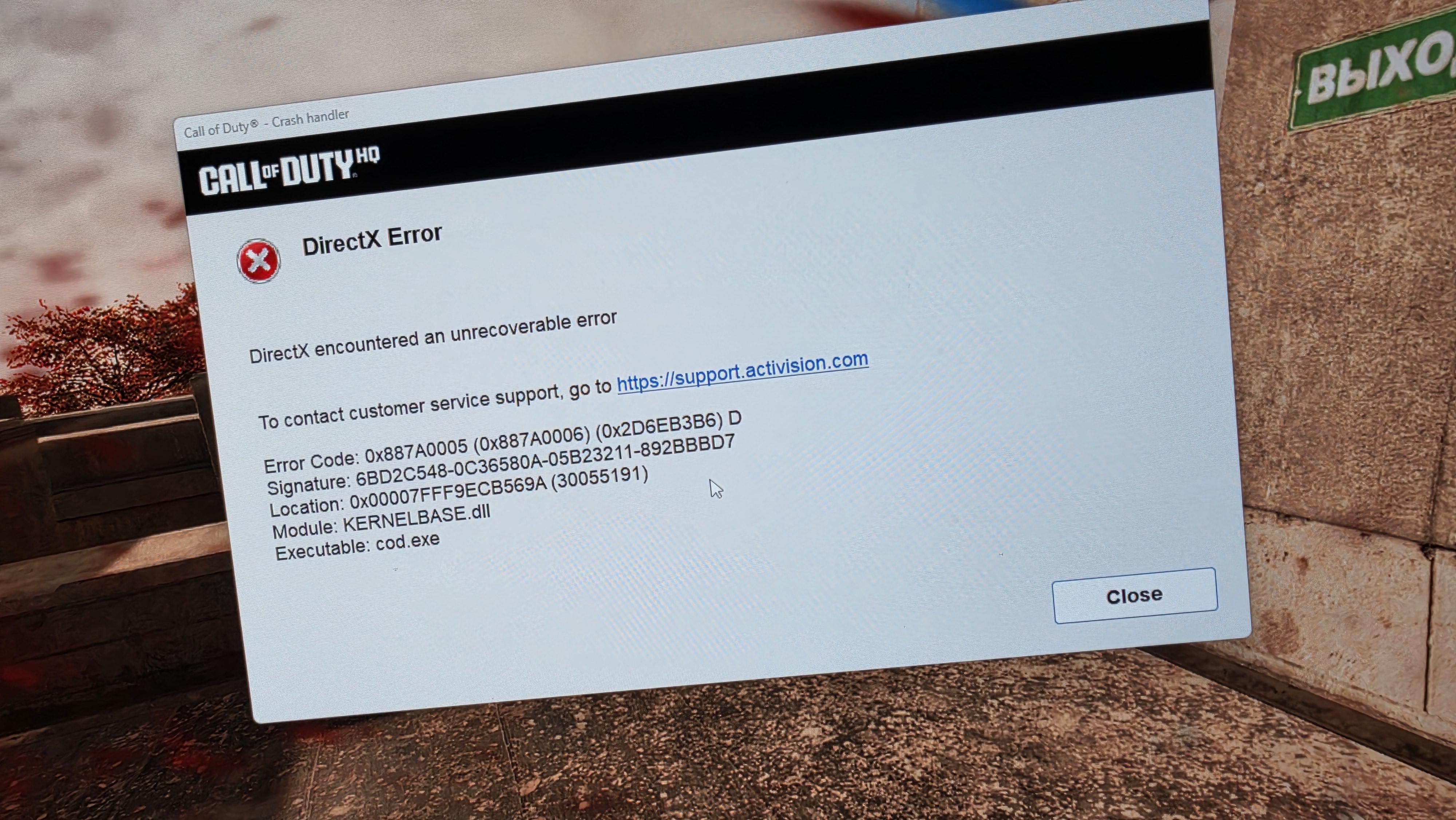
Bought a 7900xtx sapphire nitro and This stupid fucking driver timeout error on any AAA game I play. Drivers have been updated, BIOS is updated, firmware is updated. PSU has 3 individual 8 pin PCie.
Finally Built a brand new PC and carried only this card forward. Fresh SSD, Fresh windows install, mobo, ram, cpu... this shit card is still timing out. Its a fucking shame because ive recommended AMD for years for the price/preformance but im fucking over the constant driver issues.
r/AMDHelp • u/HowNOT2playy • 7h ago
I use Amd Radeon 7600**,** I have instaled Adrenalin 26.6.1 I think? (idk how to check previous versions of the drivers - I updated them inside adrenalin). The Helldivers 2 I played were doing just fine, then I updated drivers to newest one because they were recommended and it started crashing so I downgraded it back and it was fine but it still sometimes crashed, I blamed it on Helldivers. Now after half a year I turned on Subnautica 2 and it was going smooth, no problem for like an hour or more, then it crashed and the more I played the game the more it started crashing to the point where it breaks few seconds or minutes in the game. I installed the newest drivers again since they uploaded newer ones hoping it will fix it but no. It still crashes.
What's worse I realized amd adrenalin crashes itself. I tried using funcion to "start logging" but when the game crashed I couldn't click "stop logging" because it just closed by itself. If I succeed I will drop crash logs later
I had an issue where slay the spire 2 would slow down in the menu masively as well but I fixed it.
Wtf am I supposed to do? What version of Adrenalin would you guys recommend for me? I'm not that advanced into this stuff and Idk if I should just keep downgrading or look for issue somewhere else...
Yes I restarted pc after installing new ones and it only happens inside of the games.
Idk should I change my settings or something? I didn't mess a lot there, only keybindings and recording/clipping.
Here are my specs

r/AMDHelp • u/StopPeekingThat • 5h ago

Computer Type: Desktop
GPU: AMD 9070xt
CPU: RYZEN 9 5900x
Description of Original Problem: In Siege and ONLY Siege. I have a symmetrical texture bug only with my 9070xt. This issue does not happen with my old 3070 in the exact same system. The pattern flickers when moving in game and is on all wall/floor textures but not base walls or characters. It makes the game unplayable because their is constant flickering in the corner of your eye.
Bizarrely, the squares stay the exact same size on screen as you get closer and further away from the texture impacted.
Troubleshooting: I've tried disabling FSR, AA, Adaptive Sync(all syncs really), DDU + Fresh install, every single in game graphics setting turned on and off 1 by 1, drivers as current as 26.11.2 and as old as 25.12.11. I've tried DDU and back to 3070 to double check other components, issue vanishes. DDU and back to 9070xt, issue returns. Uninstalled and reinstalled games, cleared NVIDIA shader cache, cleared AMD shader cache, turned off all in game overlays, found and cleared ubisoft launcher caches, verified game files before trying reinstall and after.
r/AMDHelp • u/xKirinKazuya • 8h ago
I just recently got a 2nd monitor about 2 weeks already and ever since I've been getting GPU timeouts and it usually happens when I'm playing games. Can the cause really be the 2nd monitor
The PROBLEM that happens, during gaming sessions usually the monitor I'm gaming on will go black following up with my 2nd one and after like a good 5 seconds, it comes back with everything still fine except the game which I'd say crashed? Another NOTE is that during the 5 seconds black screen, if I have any audio running like YouTube and such I can still hear everything.
Reliability History gives me LiveKernelEvent 117 and from what I know it's still a wide range of problems.
Things I've tried doing:
.Fresh install driver such as the newest 26.11.2 and older version 26.8.1(used DDU)
.Used Monitor default Displayport cable and a store bought one
.Checked temps on Hwinfo and everything is fine(also used Afterburner and Armory Crate)
.Just now changed my Ram speed from 3200 to 3000 so idk if that's gonna change something.
I wanted to try using just 1 monitor for the meantime but troubleshooting it that way takes SO MUCH time since it doesn't always happen cuz sometimes it'll be good the entire day, sometimes it'll happen once or twice and sometimes it'll happen like 2-3 times back to back when I try to reopen the game immediately afterwards or so.
Idk if the Displayport cable could be the issue but I was planning to get one for like $15 from Ugreen but then again could both Displayport cable I already really be the culprit?
Specs:
Ryzen 7 5700x and SWFT RX6600
r/AMDHelp • u/fishtanksssss • 2h ago
r/AMDHelp • u/Granolabar36_ • 14h ago

I've just bought rdr2 and went to play it and I am currently getting this error message. When I bypass this error message it gives another error saying that "my computer doesn't meet the minimum recommend video memory specifications". I currently have a Ryzen 7 7800x3d and a 9060 xt 16gb GPU. Apparently, the game is somehow using the integrated graphics that comes with the card or something automatically or something I don't know and I need help.
edit: removing integrated graphics from bios and updating the graphics drivers led to it all working in the end. thank you all
r/AMDHelp • u/DajCigaru • 10h ago
I'm getting visible colour banding on smooth gradients across the whole system: desktop, browser, image viewers, DaVinci Resolve, everything. It's not specific to one app or file. It also shows on known clean test gradients like the Lagom ones, not just compressed content.
Setup
Current settings
What I've already tried, with no change
The problem seems to be on the PC side, not the monitor. Has anyone with an RDNA4 card or this ProArt seen this? Is there a known driver or dithering issue, a registry setting, or something else I'm missing?
r/AMDHelp • u/Afraid_Injury_3882 • 5h ago
r/AMDHelp • u/OGCarbot • 1d ago
Hey guys!
Attached video is showing what my problem is. The screen will go black during certain games for a brief moment, usually when the graphics are getting a little intense. I have dealt with this for a while, but some AMD driver updates will cause it to not happen at all, and others will make it happen more frequently. This recent update has been the worst it's ever been and I have tried so many things to fix it:
- turning freesync / Vsync off
- using MorePowerTool + TechPowerUp GPU-Z fix
- lowering graphics settings and resolution (turning the game to bordered / windowed does make it stop)
- switching cables from HDMI to DP
- i usually use 2 monitors but have been only using 1 (ultra wide) because of this
I have an AMD Radeon RX 6700 XT. idk what the problem is or what solution i could try. LMK if anyone has dealt with this before! TIA
r/AMDHelp • u/Optimal_Bunch_929 • 6h ago
So I recently bought a legion pro 5 laptop with AMD processor.
Processor cpu- and Ryzen 9955hx
Gpu- nvdia rtx 5060 8 GB
Ram - 16 GB
Storage -1 tb
So I used to see temperature of 40-45 on normal works to 50-60 on gaming maybe so also like my fan and thermal monitoring was perfect no heat increase or processor heat was normal about 50 maybe
But since yesterday update on bios update utility 11 I been seeing some temperature rises like on normal work only temp rising to 71 to 56 to 70 on processor CPU amd one only also when gaming I saw like some 90-100 with warning signs so I had to close it as am worried . Also like my laptop fan speed used to be normal and not fast when gaming too but since bios update some issues are happening fan suddenly sound high then slow
Also my laptop is cool even when the temperature rises to 90-100
Anyone knows why?
r/AMDHelp • u/MisToast • 12h ago
PC specs:
The problem:
I've been experiencing intermittent display freezes and black screens. It happens both while gaming and doing normal desktop tasks, including college assignments.
The symptoms vary:
It isn't limited to demanding games. I've experienced it during normal desktop use too.
Timeline:
The GPU was installed on 25 December 2025 and worked without noticeable problems initially. Reliability Monitor shows graphics-related errors going back to August 2026, with more frequent reports in October and November.
What I've investigated so far:
I've checked Windows Reliability Monitor and found multiple hardware error reports, including LiveKernelEvents 193, 141 and 1a8.
I've also opened several of the dump files in WinDbg and run !analyze -v.
The most interesting findings:
1. August 22 – LiveKernelEvent 193
VIDEO_DXGKRNL_LIVEDUMPdxgkrnl.sys and dwm.exe0x80e2. August 26 – LiveKernelEvent 141
VIDEO_ENGINE_TIMEOUT_DETECTEDLKD_0x141_IMAGE_amdkmdag.sysamdkmdag.sys32.0.31041.1004dxgmms2 and dxgkrnl graphics recovery functions.3. November 20 – LiveKernelEvent 141
VIDEO_ENGINE_TIMEOUT_DETECTEDamdkmdag.sys32.0.32029.20104. November 25 – LiveKernelEvent 1a8
VIDEO_DXGKRNL_BLACK_SCREEN_LIVEDUMPOther things I've checked:
What I haven't done yet:
What I'm trying to work out:
Could this be an AMD driver issue, a faulty/unstable GPU, PSU power delivery, PCIe/motherboard instability, or something else?
The repeated VIDEO_ENGINE_TIMEOUT_DETECTED (141) errors pointing to amdkmdag.sys are what stand out to me, especially because they appear across two different driver versions.
I'd appreciate any suggestions on what to investigate next before spending money replacing components. Thanks!
r/AMDHelp • u/South-Idea-6696 • 7h ago
r/AMDHelp • u/Longjumping_Rock_635 • 1d ago
Computer Type: Desktop
GPU: GIGABYTE Radeon RX 9060 XT Gaming OC 16G Graphics Card, PCIe 5.0, 16GB GDDR6
CPU: AMD Ryzen 7 7800X3D 8-Core, 16-Thread Desktop Processor
Motherboard: ASUS ROG Strix B850-A Gaming WiFi AMD AM5 B850 ATX Motherboard 14+2+2 Power Stages, DDR5 AEMP, 2.5G LAN, Wi-Fi 7 with Q-Antenna, 4X M.2, PCIe® 5.0, USB 20Gbps Type-C, AI Networking II
BIOS Version: BIOS Version 032.019.000.008
RAM: Kingston FURY Renegade White RGB 32GB (2x16GB) 6400MT/s CL32 DDR5 DIMM
PSU: GIGABYTE UD750GM PG5 V2 ICE
Case: DarkFlash DY470 Full-Tower ATX Gaming PC Case with 4 PWM ARGB Fans, White
Operating System & Version: WINDOWS 11 Home 26h2
GPU Drivers: 25.10.45.29-261112a-206089C-AMD-Software-Adrenalin-Edition
Chipset Drivers: AMD Chipset driver v8.03.25.247 for Windows 10/11 64-bit.
Background Applications: DISCORD, CHROME, STEAM
Description of Original Problem: I recently put together a new pc, however I have run into the fact that though it runs normal games fine stronger games such as BG3, Elden Ring, Nioh 2, Armor Core, and the like stutter and lag to the point its unplayable, however games like Nioh 1 and such have zero issues. Iv been trying to find ways to fix it and maybe I am missing something obvious.
Troubleshooting: I have:
-Updated the drivers
-Removed and added adrenaline
-Changed PCIE to gen 3 and tried gen 4
-Set steam and said games to high performance
-Enabled EXPO
-Turned on wait for vertical refresh
-Lowered 3d shade cache
-Ram sticks are in their proper slots 32 gigs 2x 16 DDR5
-Added motherboard drivers
-Plastics were removed from motherboard
=================
Edit: Currently tried plugging the HDMI into the GPU however it does not register that it’s connected to a monitor besides the one in the motherboard and multiple displays does not detect it either.
Edit 2: After tinkering I have managed to make it finally display the Monitor via plugged into GPU, however despite this though it sped up the fps a little bit the games are still functionally really slow and hard to call playable.
r/AMDHelp • u/AccurateFix8443 • 7h ago
Hi! I need to replace my CPU on a very tight budget, and I want to avoid buying something I'll regret.
Current build:
* CPU: Ryzen 5 5600G
* GPU: RX 9070
* Mobo: Gigabyte B550 Aorus Elite V2
* RAM: 4x8GB Corsair Vengeance RGB PRO DDR4 3600 CL18
* PSU: Corsair CX650
* Cooler: Cooler Master Hyper 212
* Monitor: 1080p 144Hz
Use: gaming only, no editing or streaming.
Options (prices in Italy/EU):
* 5700X (tray): new, ~€118 on AliExpress (ships from France, with Black Friday coupons), or €139 + shipping (~€145) from an Italian shop (Italian warranty, but ships in 7–10 business days)
* 5500X3D: new, ~€167 (AliExpress, ships from Italy), or used ~€200
* 5700X3D / 5800X3D: €290–390, out of budget
* 5800X: ~€150–200 used, I don't think it makes sense over a 5700X
From the benchmarks I found, the 5500X3D averages about +6% FPS over the 5700X. It wins in BG3, CS2, Far Cry 6 and RDR2, but loses badly in core-heavy titles (Total War: Warhammer III −18%, Starfield and TLOU2 1% lows −11–13%).
Questions:
Thanks in advance!
r/AMDHelp • u/Dordervelli • 11h ago
Hi everyone!
I've been experiencing recurring system freezes with my RX 9070 XT, and I'm trying to figure out whether this is a driver issue, a GPU hardware problem, or something else entirely.
The GPU is powered using three separate PCIe power cables, one for each 8-pin connector.
My PC occasionally freezes completely, but not in the typical way:
Interestingly, I don't recall this ever happening while gaming. The freezes have mostly occurred during normal desktop use, for example while using Discord or something else quite lightweight.
The issue is intermittent. It doesn't happen every day, and I haven't identified a consistent trigger.
I've analyzed several crash dumps using WinDbg. AI has been used here because I don't understand much, but I hope someone else could find something useful in these reports :D
Multiple reports point towards the AMD graphics driver:
Relevant output:
BUGCHECK_CODE: a0000001
PROCESS_NAME: System

STACK_TEXT:
nt!KeBugCheckEx
amdkmdag_fffff807a1bb0000+0xf15d

SYMBOL_NAME: amdkmdag_fffff807a1bb0000+f15d
MODULE_NAME: amdkmdag_fffff807a1bb0000
IMAGE_NAME: amdkmdag.sys
The stack trace points directly to the AMD graphics driver, which appears to have called KeBugCheckEx.
Relevant output:
BUGCHECK_CODE: 133
BUGCHECK_P1: 1
BUGCHECK_P2: 1e00

DPC_TIMEOUT_TYPE: DPC_QUEUE_EXECUTION_TIMEOUT_EXCEEDED

PROCESS_NAME: firefox.exe

STACK_TEXT:
nt!KeBugCheckEx
nt!KeAccumulateTicks
nt!KiUpdateRunTime
nt!KeClockInterruptNotify
nt!KiCallInterruptServiceRoutine
nt!KiInterruptDispatchNoLockNoEtw
nt!HalpTimerStallExecutionProcessor
nt!KeStallExecutionProcessor
amdkmdag+0x199a07e

SYMBOL_NAME: amdkmdag+199a07e
MODULE_NAME: amdkmdag
IMAGE_NAME: amdkmdag.sys
The watchdog detected excessive time spent at elevated IRQL, and the stack trace includes the AMD graphics driver in the interrupt/DPC-related execution path.
Another crash dump showed:
Failure.Bucket: LKD_0x117_IMAGE_amdkmdag.sys
MODULE_NAME: amdkmdag
IMAGE_NAME: amdkmdag.sys
SYMBOL_NAME: amdkmdag+1e7750
PROCESS_NAME: dwm.exe
Windows detected that graphics work had stopped progressing, with the AMD driver identified at the failure location.
I've also had multiple VIDEO_DXGKRNL_LIVEDUMP (193) reports.
Relevant details:
0x80edwm.exedxgkrnl.sysThese reports occurred on separate occasions.
I've also had several VIDEO_MINIPORT_BLACK_SCREEN_LIVEDUMP (1b8) reports.
So far, I've tried or checked the following:
I am currently testing disabling HAGS but it is hard to say if that is working, because the freezes happen very randomly, once or a couple times a week.
Given the repeated references to amdkmdag.sys in different crash reports, I'm wondering whether this is a broader AMD driver issue or potentially a hardware problem with the GPU, or something entirely different.
I'd particularly like to hear from other RX 9070 XT owners:
0xA0000001, 0x133, or LiveKernelEvent 193?I'm especially interested in hearing from people who have experienced similar symptoms and managed to identify the underlying cause.
Thanks in advance for any help!
r/AMDHelp • u/TemporaryAd9325 • 12h ago
Specs: GPU: XFX Radeon RX 6750 XT CPU: AMD Ryzen 5 7600 PSU: be quiet! Dark Power 750W (Platinum) RAM: 32GB Kingston Fury DDR5 Motherboard: ASUS TUF Gaming B650E-Plus WIFI
SSD: kingston fury 1TB
I’ve been dealing with a frustrating PC issue for a long time now, so to give as much context as possible, I’ll start from the beginning. When I first bought the PC about 2 years ago, it worked completely fine until one day it stopped outputting display to my monitor on boot. Windows still boots and everything runs in the background, I just get no signal on the screen. I sent the PC to repair shops multiple times and it spent around 6 months in service altogether. I switched the PSU from a be quiet! Straight Power 750W Gold to a be quiet! Dark Power 750W Platinum. I also went from an ASRock B650M board (forgot the exact model name) to a Gigabyte board that was trash, and now I’m on an ASUS TUF Gaming B650E-Plus WiFi because I thought smaller motherboards were causing issues or preventing the GPU from seating properly in the PCIe slot. Whenever I swapped a part, the PC would work fine for a while and then the exact same issue would come back. I’ve tried literally everything—swapping out half the parts in the rig first, changing all cables, testing different monitors. For a while, my brother and I even swapped GPUs: I used his RTX 3060 and he used my RX 6750 XT. My card worked flawlessly in his PC, and his card worked in mine without a single issue.
I’ve also reinstalled Windows, reinstalled drivers, updated the BIOS, tweaked BIOS and Windows settings, and tried pretty much every fix I can think of. I’ve been trying to solve this for roughly a year now. I double-checked component compatibility and everything is compatible. It even crossed my mind whether the RX 6750 XT somehow isn't compatible with an AM5 Ryzen 5 7600, though that makes no sense since the PC ran normally for a whole year in every game and workload—and even now, whenever it decides to cooperate, performance is great and everything runs smoothly.
My only issue is no display output to the monitor, and occasionally it feels like Windows isn't detecting the GPU. Recently, the white VGA debug LED on the motherboard has also started staying lit. I’ve asked everyone I know and tried every AI out there, from free ones to the most expensive ones available, and nothing has fixed it.
I feel completely stuck and don't know what to do anymore. I’m honestly fed up and beyond annoyed with this whole situation. I’ve spent way too much money and time on this PC with no real resolution. Please, if anyone knows anything or has dealt with something similar, help me out. Sorry for any typos, grammar mistakes, or jumping around—I’m just super stressed and exhausted from not being able to fix this damn PC problem. My backup plan is parting it out or setting the whole thing on fire and buying a new one (kidding, I’m just really frustrated and want it fixed).
r/AMDHelp • u/Fancy_Comfort_6377 • 8h ago
Please help me fix the lagging and stuttering issue while watching streams on Discord. The audio keeps playing normally, but the video stutters. I turned off Hardware Acceleration, but to no avail. The stream behaves as shown in the video.
i have windows 10 ghost spectre
ryzen 5 5600g
RAM 16gb
TV 43
r/AMDHelp • u/SereneOrbit • 9h ago
r/AMDHelp • u/SereneOrbit • 9h ago
r/AMDHelp • u/dezra1n • 9h ago
I've noticed some unusual noises coming from my RX 7800 XT Phantom Gaming when the fans are spinning below 2000rpm
The gpu is approximately 1.5 years old. The noise seems to be related to fan speed, but I'm not entirely sure what is causing it
Could this be a fan bearing issue, something vibrating, or possibly something else?
Has anyone experienced anything similar? Any help would be appreciated