Hello!
With the new SailFish update I thought I would make a tips and tricks guide to update your traveler as the firmware update process troublesome (especially for new users or for those of us who haven't updated in a while).
OVERVIEW: Put device in Idle/Sleep to get the update, need to wait 15-20 minutes for new updates to even register as available.
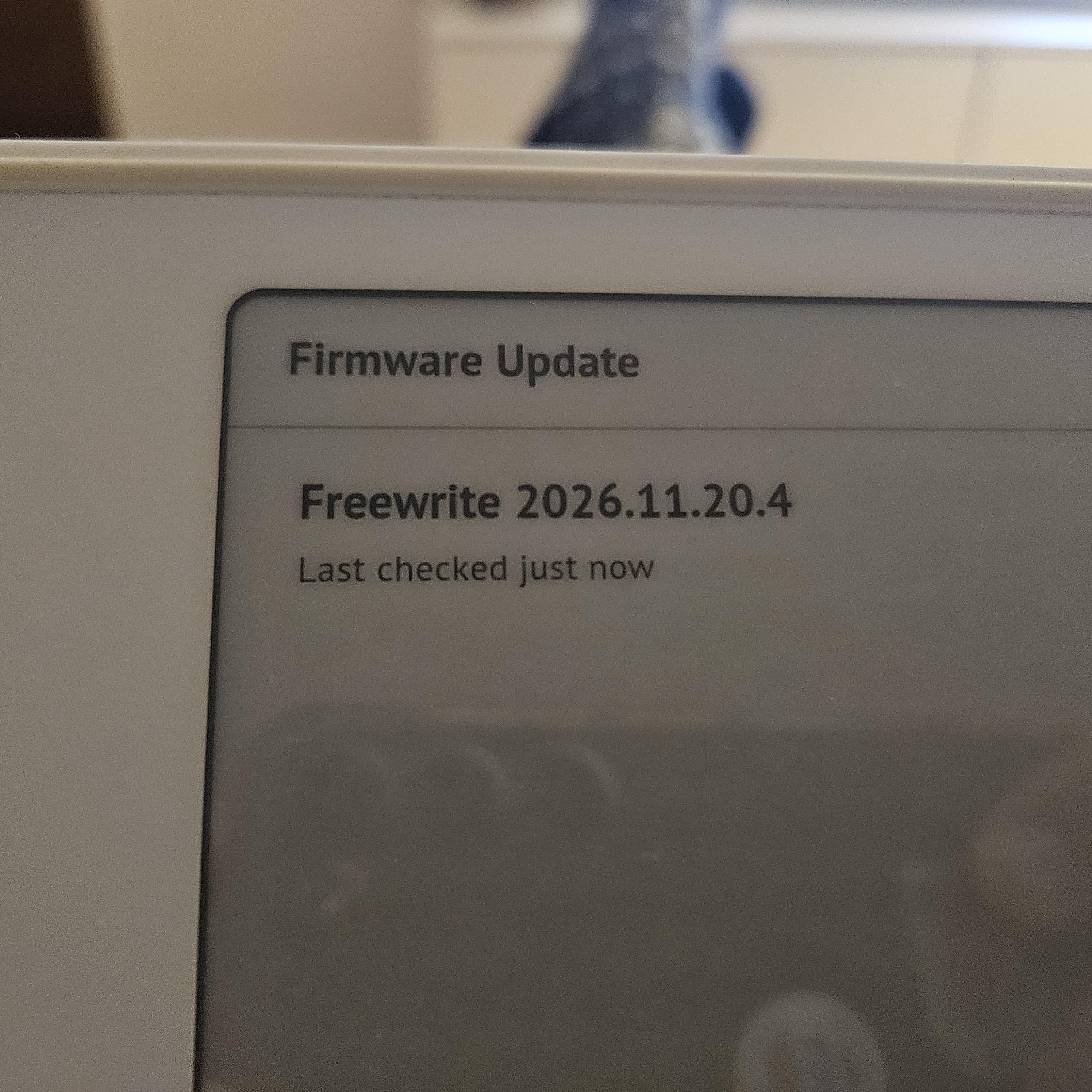
(To check what is OS you are running on, press the (new) button on the WiFi button cluster)
Plug in Freewrite and connect to Wifi and Login to Postbox
- To check Wifi Connection: You can check the Status Screen (the smaller of the two screens). A line should appear on both sides of your email. If they line is broken in half on both sides you are not connected to Wifi
- If your status screen is not showing your email. Open a new document (or any document) by pressing LEFT [NEW] and Right [NEW] at the same time. Then press [SPECIAL] button to shuffle through the status screen options.
Manually check for an update
- Press and hold at the same time RIGHT [NEW], [SHIFT], [F] (For versions before v1.1.5)
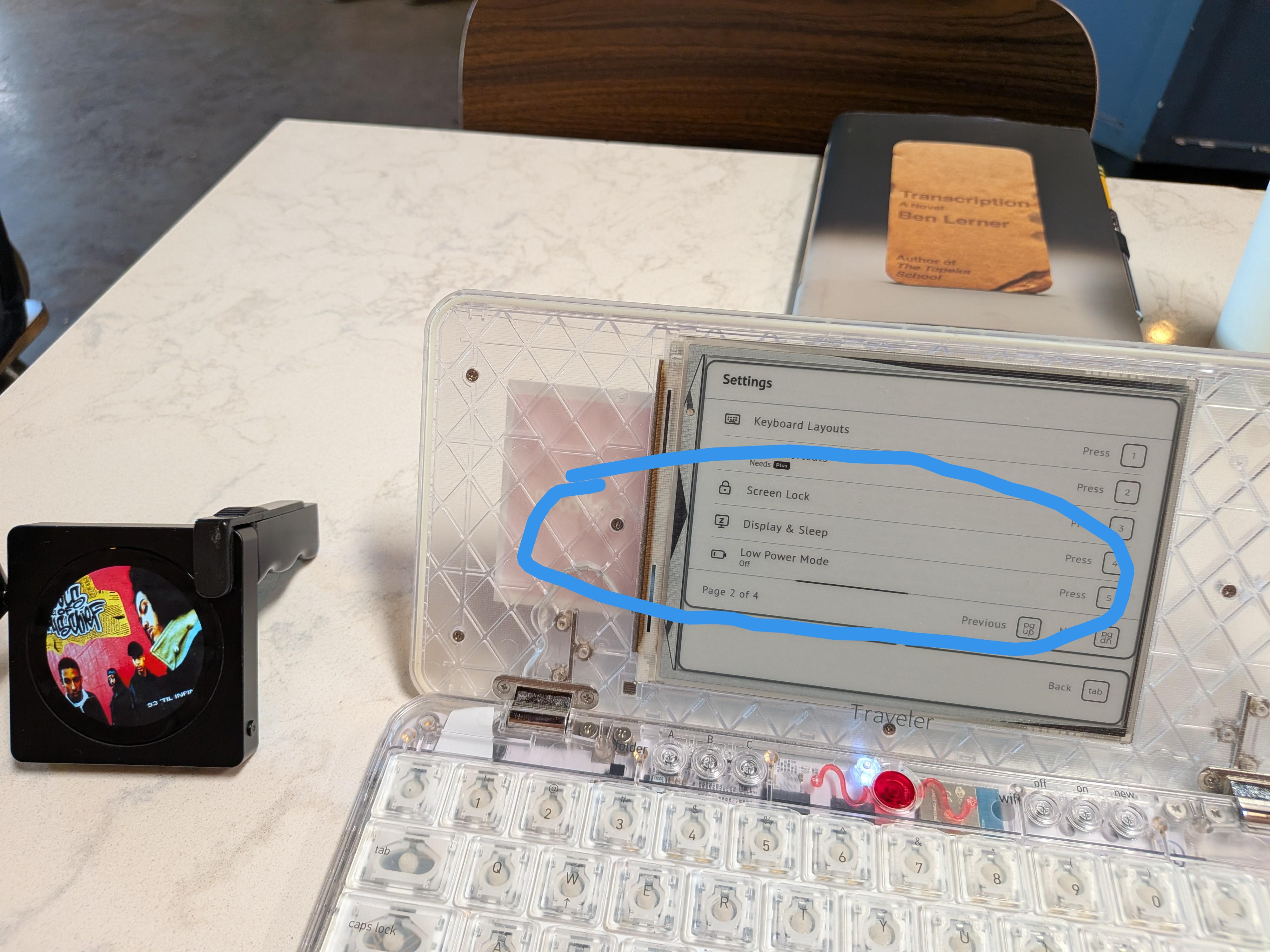
- Hold down Power Button [Red Circle Button] for 3 seconds to reach Settings Menu and then press [3] for Firmware. (For versions after v1.1.5)
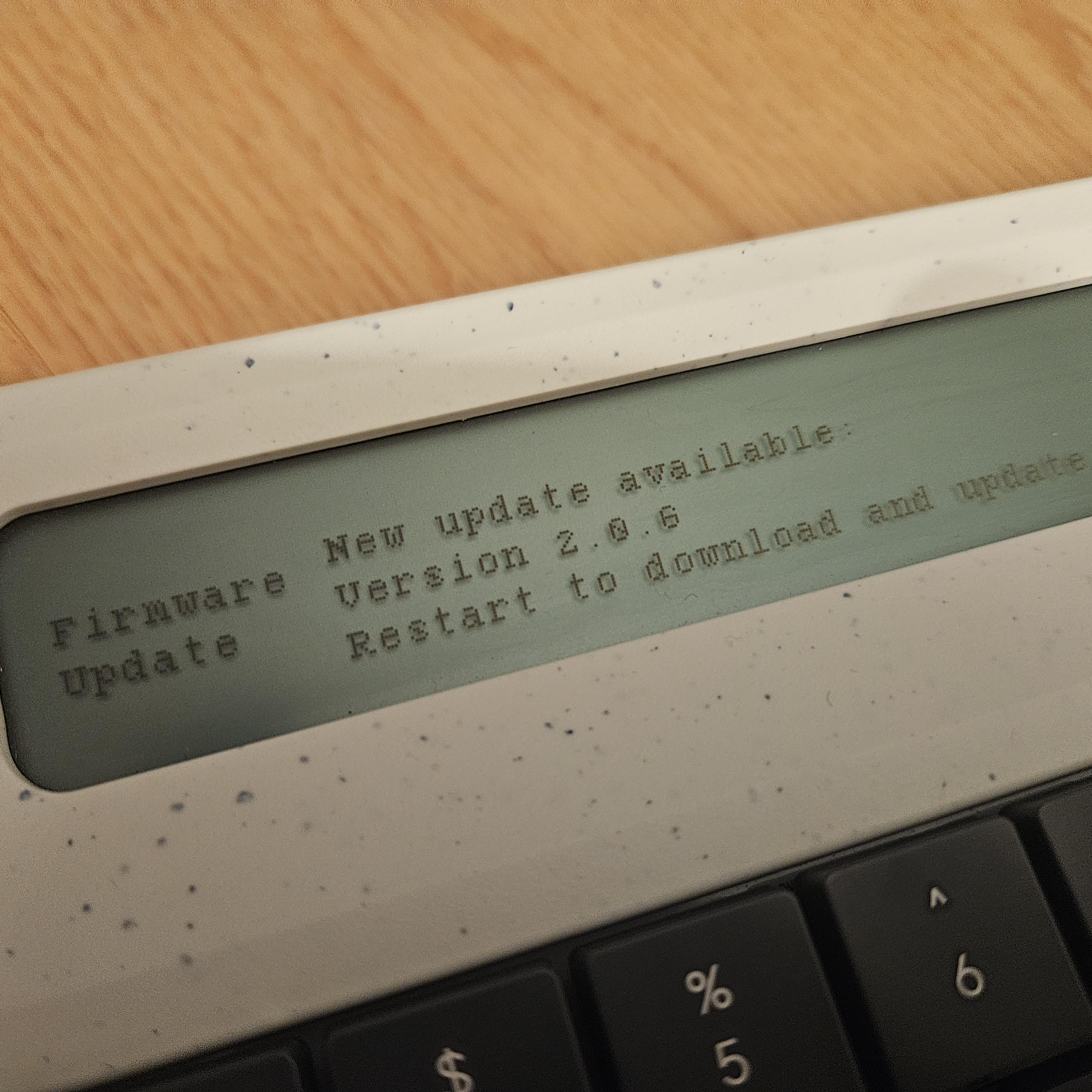
"Update Available" - Should appear on the Status Screen (the smaller of the two screens)
- Place Freewrite in Idle/Sleep mode. Press once Power Button [Red Circle Button] the save screen should appear. Let it sit it will let you know when the download is ready.
Update Ready: Once the download is ready a "Freewrite is Ready to Update Screen" should appear on the main screen. It will prompt you to press and hold the Power Button [Red Circle Button] for 5 seconds.
- "Freewrite is updating screen" will appear.
- Do not turn off power
- Do not hard rest at this time
- Do not unplug the Freewrite
- The free write will auto reboot back up and bring you back to an open document when it is done. You do not need to power it off or do anything.
*MY FREEWRITE SAYS NO UPDATE AVAILABLE?
You manually checked for an update and it said none available, but you know there is an update. Don't worry! There are two routes.
Make sure Freewrite is still plugged in and connected to Wifi and Logged in to Postbox
1a. Place Freewrite in Idle/Sleep mode. Press once Power Button [Red Circle Button] the save screen should appear.
2a. Wait 15-20 minutes The update should automatically register after sometime and then continue with Step 5 from above.
If it doesn't automatically register
3a. Take the Freewrite out of idle. Press once Power Button [Red Circle Button]
4a. Manually check for an update:
- Press and hold at the same time RIGHT [NEW], [SHIFT], [F] (For versions before v1.1.5)
- Hold down Power Button [Red Circle Button] for 3 seconds to reach Settings Menu and then press [3] for Firmware. (For versions after v1.1.5)
If "Update Available" appears: continue with Step 4 from above.
If "No Update Available" appears: Repeat steps 1a, 2a, 3a, 4a.
- Essentially keep putting the device in idle for 15-20mins until the device auto registers the update or you manually go back and check for an update.
(If you are updating from an older OS the device won't immediate register the next update and will often say "No Update Available". You also have to update one update at a time meaning you can't jump from 1.1.6 to 3.1.6. You have to update for every update in-between those.)
Best of Luck
LIST OF UPDATES:
(From what I can remember, so you know how many updates you need to do)
- 1.1.6
- 1.3.0
- 1.5.0
- 2.0.0
- 2.0.3
- 3.0.2 (SailFish)
- 3.1.4 also known as 2026.11.24.1 (Nov 2026)