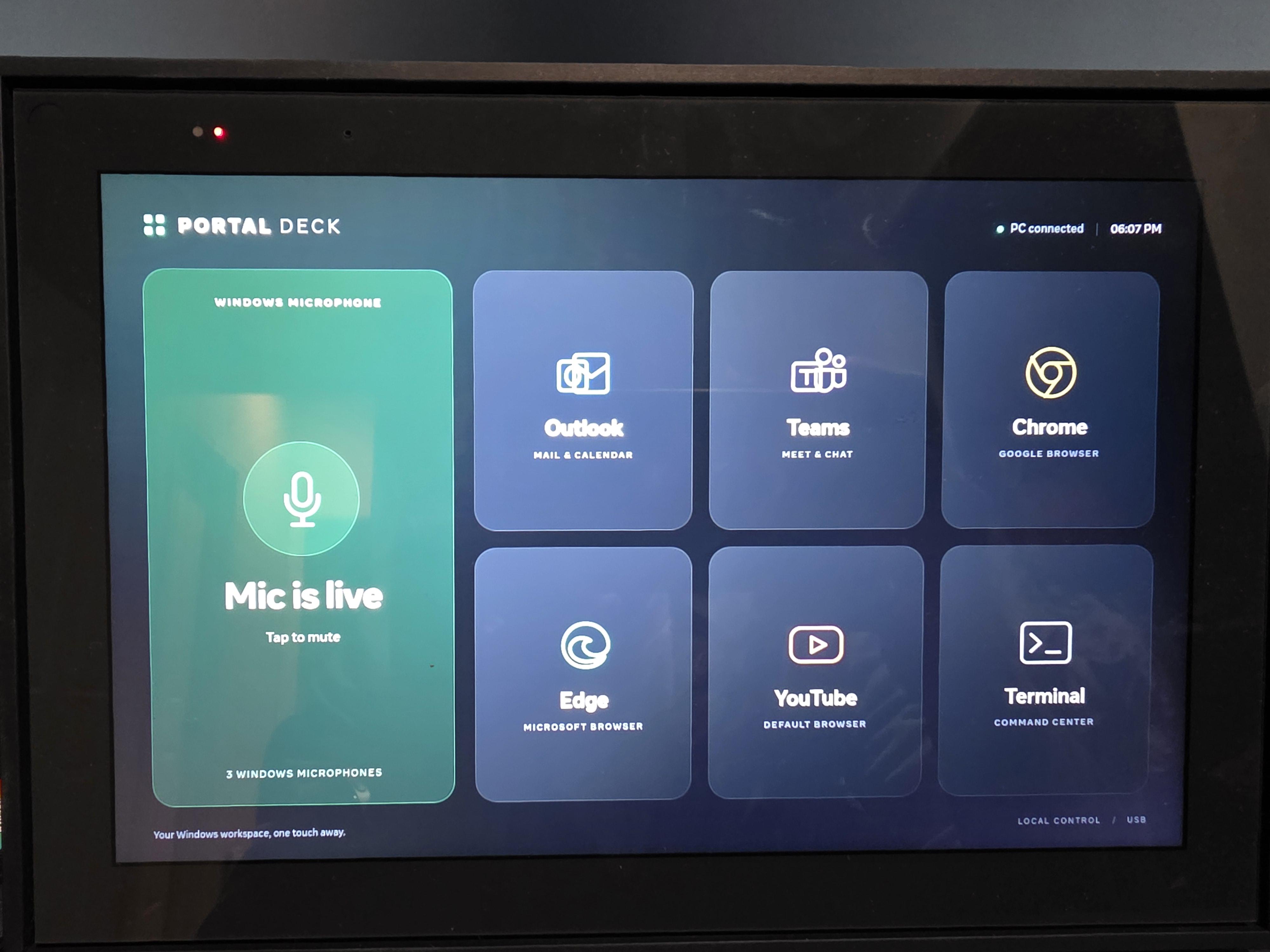
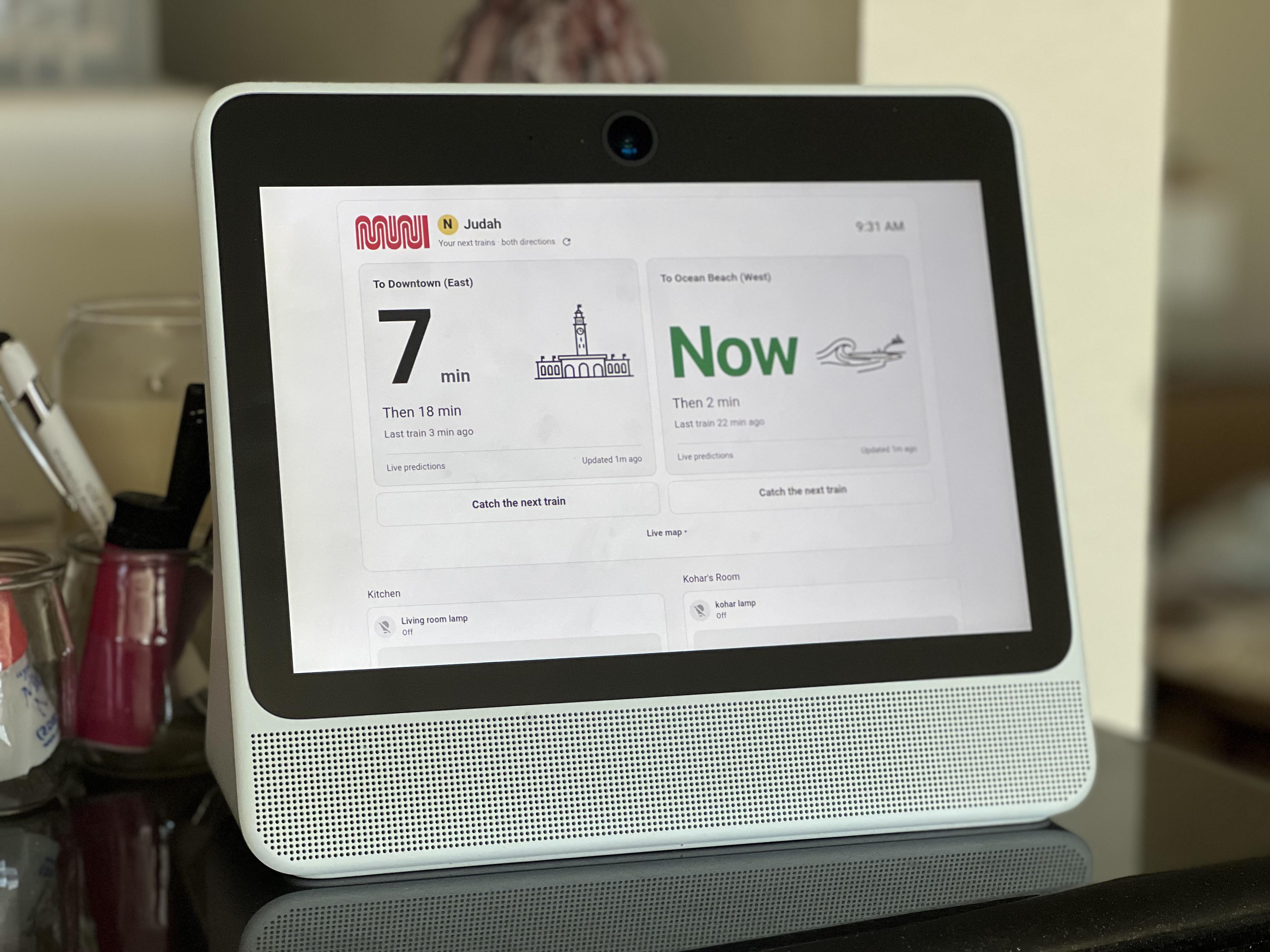
Inspired from this subreddit, (A)I built a "Portal DECK". started with a super simple prompt and built on to it. here's my prompt for anyone who wants to give it a try. I tried it on windows. i dont see why this wouldn't work on other platforms unless the underlying sdk is locked.
BUILD PROMPT: PORTAL DECK FOR A WINDOWS PC

Build, test, and deploy a Stream Deck-style touchscreen dashboard on my
Android-based Meta/Facebook Portal. It should control this Windows PC over
the existing USB/ADB connection, not over Wi-Fi.

Do the implementation end to end. Inspect the machine and device, create
the source code, build the Windows companion and Android APK, test them,
install the APK on the Portal, and leave the dashboard running.

DASHBOARD AND BUTTONS

Use a polished, dark, fullscreen landscape layout sized for the Portal's
1280 x 800 display. Keep the screen awake while the dashboard is open.
Provide large touch-friendly tiles, recognizable icons, clear feedback,
connection status, and a clock.

Include these nine controls:

1. Microphone: mute/unmute all active Windows recording endpoints, including
   the Jabra headset, built-in microphone, and webcam microphone. Read actual
   Windows Core Audio mute states rather than assuming a toggle succeeded.
   Show live/muted status, handle mixed states, and update if the state changes
   outside the dashboard. If any microphone is live, tapping should mute all;
   if all are muted, tapping should unmute all. Do not change speaker volume.

2. Outlook: open the installed Outlook app on the PC.
3. Teams: open the installed Microsoft Teams app on the PC.
4. Chrome: open Google Chrome on the PC.
5. Edge: open Microsoft Edge on the PC.
6. YouTube: open https://www.youtube.com/ in Windows' default browser.
7. Terminal: open the installed Windows Terminal app.

8. Camera: toggle the camera in the current Teams meeting or pre-join screen.
   This is NOT a button to open Windows Camera or globally disable camera
   hardware. Target Teams' camera control specifically, preferably using
   Windows UI Automation. Never send an untargeted keyboard shortcut to
   whichever app happens to have focus. If a meeting camera control is not
   available, show a clear message. Do not claim the camera is on or off
   unless that state has actually been verified.

9. Lock PC: lock the Windows session using the supported Windows lock API.
   Do not sign out, shut down, sleep, or change passwords. Unlocking must
   still be performed normally on the Windows PC.

Keep the microphone tile prominent and arrange the remaining eight buttons
in a four-column, two-row grid.

WINDOWS COMPANION

Use existing tools where possible. A small C#/.NET Windows tray application
is suitable. Resolve installed app paths or application identifiers instead
of assuming every app is a traditional EXE.

Run the companion in the signed-in user's session, without requiring admin
rights. Add a per-user Windows sign-in startup shortcut. Include a tray
menu for opening the dashboard locally, reconnecting the Portal, and exiting.

Use a loopback-only HTTP service, for example 127.0.0.1:8731, and ADB reverse
forwarding so the Portal can reach it over USB. Automatically repair the
tunnel after reconnects. Keep API actions allowlisted; do not expose an
arbitrary command runner. Require a cryptographically random pairing token,
validate origins, and require POST for actions. Never embed credentials or
pairing tokens in committed source, browser history, or logs. Do not expose
the service to the LAN or internet.

ANDROID APP

An Android WebView shell around the dashboard is acceptable. Request only
the permissions it actually needs. Restrict navigation to the companion,
disable unnecessary file/content access, and limit cleartext HTTP to the
loopback host. Preserve pairing across app restarts, show an offline or
waiting screen when needed, and reconnect automatically.

Use adb devices -l to identify the authorized Portal. ADB is installed under:
%USERPROFILE%\Downloads\platform-tools-latest-windows\platform-tools\adb.exe

Inspect the device's API level and architecture before building. Do not
overwrite unrelated apps, change the Portal's launcher, or factory-reset it.

PROJECT AND BUILD

Keep the project under %USERPROFILE%\PortalDeck, including Android source,
Windows source, web assets, configuration, Build.ps1, Deploy.ps1, and Test.ps1.
Keep generated binaries, local signing keys, pairing tokens, and downloaded
tooling separate from source and excluded from version control.

The PC may be Windows on ARM64. Inspect installed compilers and SDKs first.
If tools are missing, use official, checksum-verified portable downloads
when practical. Keep the solution small and avoid unnecessary frameworks.

Build and sign an installable APK. Deploy it with adb install -r, establish
ADB reverse forwarding, pair it without exposing the token, wake the Portal,
and launch the dashboard. Leave the Windows companion running persistently.

VALIDATION AND DELIVERY

Test authentication, cross-origin rejection, allowed app launches, malformed
requests, actual microphone mute/unmute, and restoration of original
microphone states after testing.

Test the camera-control detection and invocation behavior, including the
case where no Teams meeting is open. Do not join or create a real meeting
just to test, and do not claim a live Teams camera toggle was verified if
only the no-meeting behavior was tested.

Verify the Portal's actual touch buttons, rendering, app-restart pairing,
USB tunnel recovery, companion responsiveness, and sign-in startup.
Account for the new grid positions in any coordinate-based touch tests.
Test locking last because it interrupts normal desktop interaction.
Do not attempt to unlock or bypass the Windows lock screen.

Finish with a concise summary of what was deployed, what was tested, any
material limitations, and the reminder that USB must remain connected.