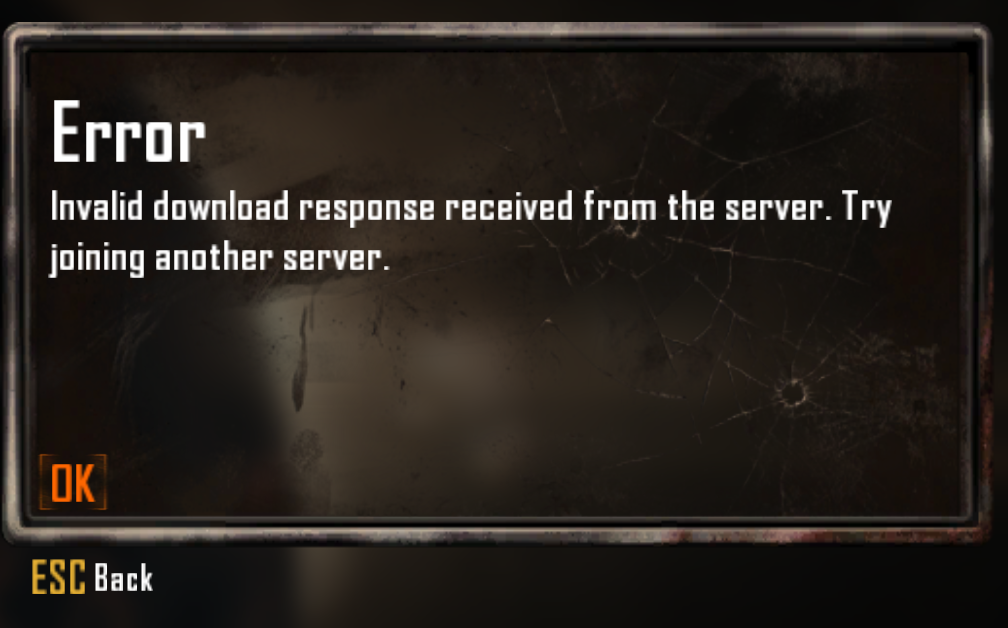
As some of you may already be aware, Activision has recently pushed a surprise update to Modern Warfare 3 (IW5) on Steam, changing the game from 32-bit to 64-bit. This has created compatibility issues with playing IW5 on Plutonium, as Plutonium currently only works with the 32-bit version. If Steam automatically updates your game, Plutonium will no longer be able to properly read the game files.
Here's what you need to do to keep playing IW5 properly on Plutonium:
If your game HAS NOT updated yet
Do not let Steam update the game! There are two options for preventing this:
- Right-click MW3 in your Steam library > Properties > Updates > Set to "Only update this game when I launch it". (Since you launch through Plutonium, Steam won't trigger the update).
- Copy your entire MW3 game folder out of the Steam directory and paste it somewhere else entirely (for example,
C:\Games\IW5) so that Steam can't update it. Open Plutonium, go to Game Settings, and repoint the launcher to this new folder.
If your game HAS ALREADY updated
You'll need to manually download the 32-bit game files directly from Steam's servers. Here is the official workaround from the Plutonium team:
Step 1: Open the Steam Console
- Press
Win + R on your keyboard to open the Run command. - Type
steam://nav/console and hit Enter. Steam will open with a new "Console" tab at the top.
Step 2: Download the Old 32-bit Files
- Copy and paste this exact line into the Steam console and hit Enter:
download_depot 42680 42682 2661317971072643596 - Wait for it to finish (there is no progress bar, just wait for it to say "Depot download complete").
- Next, copy and paste this second line and hit Enter:
download_depot 42680 42683 1595601894688570808
Step 3: Move and Merge the Files
- Navigate to your Steam content folder. By default, this is:
C:\Program Files (x86)\Steam\steamapps\content\app_42680 - Inside, you'll see two folders:
depot_42682 (base game) and depot_42683 (English language files). - Create a brand new folder somewhere outside of Steam (e.g.,
C:\Games\IW5). - Copy all the files inside the
depot_42682 folder and paste them into your new IW5 folder. - Do the exact same thing for the files inside the
depot_42683 folder.
Step 4: Repoint Plutonium
- Open your Plutonium Launcher and select PlutoIW5.
- Click Game Settings (next to the Play button).
- Click Select Dir in the top right side of the launcher.
- Select your newly created
C:\Games\IW5 folder as your game path. - Hit Play.
Tips
Navigating Faster: You can quickly jump to the hidden Steam depot folder by pressing Win + R (or clicking the address bar in File Explorer) and pasting %ProgramFiles(x86)%\Steam\steamapps\content\app_42680
Secondary Drives: You don't have to use your C: drive to store the new folder. You can store the game on any secondary drive (such as D:\Games\IW5 or E:\Games\IW5) if you wish to do so. Just avoid installing it on a system RECOVERY drive.
Important Notes
Missing DLCs: The Steam console commands above only download the base game and English language files. They do not include the DLC files. You will need to source the DLC files separately if you wish to play those specific maps.
Offline Bots: If you simply want to play offline against bots using the Bot Warfare mod, you can use LanLauncher to run Plutonium offline.
The development team is actively evaluating long-term solutions for this matter, but this is the required fix for the time being. Updates will be shared here as they become available.