Kobo FAQ (Last Updated: 2022/06/13)
Basic Questions About the Kobo eReader
What is a Kobo?
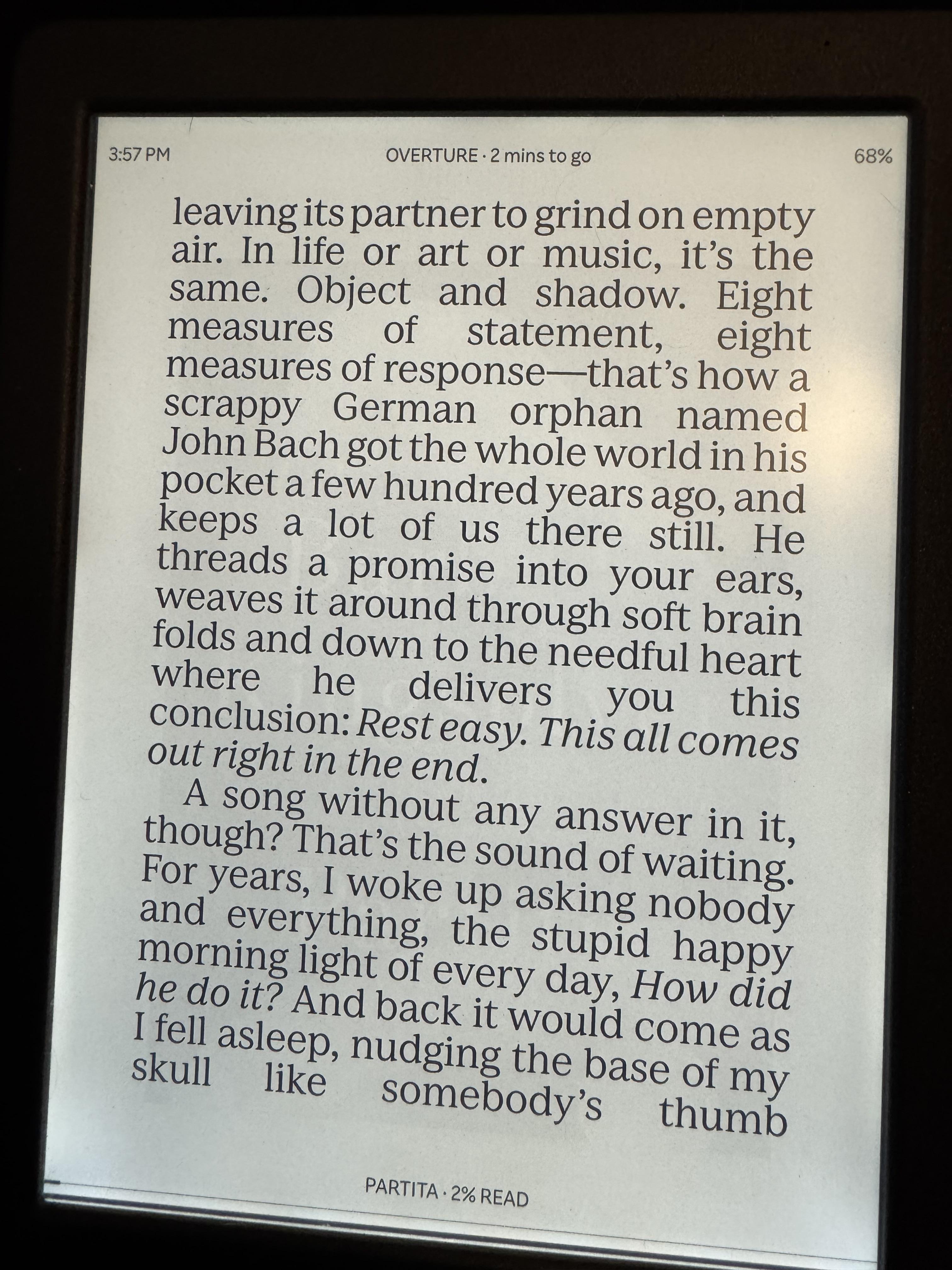
The Kobo is an e-reader developed by Kobo, Inc. The Kobo eReader line products all use electronic ink screens on their devices, allowing the text to look sharper and better in natural sunlight than you might otherwise see on a computer, smartphone, or tablet screen.
Who makes it?
All Kobos are manufactured by Kobo Inc, now Rakuten Kobo Inc, a subsidiary of Rakuten, a Japanese e-commerce company.
What models for the Kobo are currently for sale?
As of this writing (June 2022), the currently available models are:
- Kobo Nia - 6" screen, 1024x758 resolution, 212 PPI, 8GB storage. Kobo's cheapest model at $100. Closest comparable model to Amazon would be the base Kindle model.
- Kobo Clara HD - 6" screen, 1448x1072 resolution, 8GB storage. Kobo's best 6" screen device at $120. Closest comparable model to Amazon would be the Kindle Paperwhite.
- Kobo Libra 2 - 7" screen, 1680x1264 resolution, 32GB storage, Waterproof IPX8. Supports Kobo Audiobooks with Bluetooth, and USB-C charging. Employs asymmetric design with manual page-turn buttons and a clearly designated spot to hold. Retails for $179. Also supports Kobo Audiobooks. Closest comparable model to Amazon would be the Kindle Oasis.
- Kobo Forma - 8" screen, 1440 × 1920 resolution, 8GB or 32GB storage. Waterproof IPX8. Kobo's former top-of-the-line model. Employs asymmetric design with manual page-turn buttons and a clearly designated spot to hold. Retails for $250. No comparable Kindle model.
- Kobo Sage - 8" screen, 1440 × 1920 resolution, 32GB storage. Waterproof IPX8. Supports Kobo Audiobooks with Bluetooth, and USB-C charging. Kobo's current top-of-the-line model for conventional e-readers. Employs asymmetric design with manual page-turn buttons and a clearly designated spot to hold. Also supports the Kobo Stylus for making highlights/annotations on ebooks. Retails for $259. No comparable Kindle model.
- Kobo Elipsa. 10" screen, 1404 x 1872 resolution (227 PPI). 32GB storage. Supports Kobo Audiobooks with Bluetooth, and USB-C charging. Kobo's largest and most expensive model, designed to be more like an e-ink notebook than a pure e-reader device. It comes with a Kobo stylus, and is aimed at students, academics, or anyone else who has need to regularly view and annotate PDF files. Currently sold as a "bundle" for $400, which includes the Kobo stylus and sleepcover.
All currently sold models average out to 300 ppi screen density, except for the Kobo Nia and Elipsa. All current models also include the ComfortLight feature. Newer models (starting with the Sage) now ship with USB-C charging instead of legacy microUSB.
The models above are the only ones that you can still "buy" from Kobo. However, if you happen to run across an older device for cheap on eBay or elsewhere, don't despair! The device may still be perfectly usable, as Kobo provides OS updates to their devices long after they have ceased to be sold. Check the Wikipedia page to see the specs on all past and current models.
What e-book formats do the Kobo eReaders support?
15 file formats are supported natively: EPUB, EPUB3, FlePub, PDF, MOBI, JPEG, GIF, PNG, BMP, TIFF, TXT, HTML, RTF, CBZ, CBR. More formats may be supported through third-party OS's.
What the hell is a "FlePub"?
Kobo started adding this one to their supported formats, recently. A "FlePub" is a "Fixed-Layout EPUB", designed for books "where a fixed page layout is integral to the reading experience (ie. cookbooks, children’s books, comics and graphic novels or art books)"
Should I buy a Kobo?
Only you can answer that question. Good reasons for purchasing an e-reader (and a Kobo in particular) include:
- You enjoy reading
- You like the idea of carrying your entire e-book library around in your pocket/purse/backpack
- You find reading paperback books can be cumbersome due to tiny font or inadequate lighting conditions
- You find the battery of your phone/tablet is insufficient for reading on it for long periods
- You cannot read on your phone/tablet effectively because the screen is hard to see in direct sunlight, or keeps you awake at night
- You save many articles to Pocket/Read it Later
- You are willing to pay for a device solely dedicated to reading if it offers a sufficiently improved experience over your current phone/tablet/laptop solution.
Kobo vs Kindle
Why should I buy a Kobo instead of a Kindle?
In most categories, the Kobo offers a comparable experience to a Kindle. They each have models with similar dimensions (see model listing above), their screens are of comparable quality, and they both have attached e-book vendors that should allow the average person to purchase most of the books they might want to read on their respective device. The Kobo has a couple of shortcomings compared to the Kindle (mostly with regards to its market presence), but a number of advantages as well. Some of these advantages include:
- Greater format compatibility. The Kobo is designed from the ground up to support the EPUB format, the industry standard for e-books. Amazon does not support the EPUB, and instead uses a proprietary format.
- All current Kobo models support the ComfortLight Pro feature (except for the Elipsa, which uses the earlier ComfortLight). This is a "blue light" filter designed for night time use, which makes the screen warmer and less harsh on the eyes if you're reading in low-light conditions. Only Amazon's most expensive Kindle, the Oasis, currently supports this feature in its 10th gen and beyond models.
- The Kobo includes a built-in integration with the Pocket/Read it Later service. As soon as you log into your Kobo device with your Pocket credentials, you can read your existing backlog of Pocket articles, add new ones, and archive/delete ones that you've already read. The Kindle has roundabout support for Pocket articles, but this requires e-mailing them to yourself, and you cannot manage your Pocket library through the Kindle.
- The Kobo includes built-in support for OverDrive, an e-book lending service that is integrated with many public libraries. Again, Amazon supports OverDrive indirectly, but it requires performing the actual "check out" through a browser, while the entire lending process from beginning-to-end can be performed on a Kobo device. This is largely enabled by Overdrive and Kobo being owned by the same parent company, Rakuten.
- Some Kobo models (although fewer current models) support memory/storage "upgrades" by virtue of the fact that the entire system is stored on a microSD card inside the device. Those wishing to upgrade their devices from the standard 8GB storage to a larger capacity can flash a system image onto a larger SD card (e.g. 32GB), and replace the card within the device. Note that doing so will void the device warranty, so this is not really a "standard" feature.
- In the same vein as above, the Kobo OS runs on Linux, and is considered a more "hackable" device for hardware enthusiasts. An entirely separate OS can be sideloaded onto the Kobo, if desired. Again, this does void the warranty, so it is not recommended if you are happy with the Kobo's default reading capabilities.
- You are weary of Amazon, and wish to support the competition to ensure that competition will still exist in ten years.
- The Kobo does not show ads on its lockscreen.
Why might I wish to stick with a Kindle?
- Much greater market presence. Amazon holds the majority market share when it comes to e-book distribution. The vast majority of publishers work with Amazon, and may not work as thoroughly with other platforms (Kobo, B&N, iTunes, Google Play, etc.).
- Some publishers put little effort into digital releases outside of Kindle support. It is not uncommon for an e-book to be offered in exactly two formats: AZW3, or PDF. AZW3 books can be converted to a Kobo-compatible format, but this is an extra step, and may be additionally cumbersome if the book is DRM-protected.
- Amazon often works with publishers to get Kindle-exclusive sales, so some books may be available more cheaply on Amazon than on other platforms.
- If you like to read digital versions of magazines, many magazines have digital versions available through Amazon/Kindle, but not through Kobo.
- If you already have a large library of ebooks through Amazon, or have a collection of books you have "borrowed" via Amazon Prime Reading. These books can be stripped of their DRM and converted to Kobo-compatible formats via a process, but it requires a computer to do so, and many non-technically minded readers may find the process too cumbersome to be worthwhile.
- Amazon's browser and Wikipedia article viewer are a tad more responsive than Kobo's experimental browser. If you are a power-reader of longform Wikipedia articles, the Kindle seems better tuned to the process. Kobo users can open the Wikipedia article in the experimental browser and save it to Pocket for a slightly better experience.
- Amazon gives everyone with an Amazon account a "private" cloud account, which they can use to host Kindle content. The Kindle's cloud account and Kindle e-mail address allow you to wirelessly transfer books to your Kindle by e-mailing the e-mail address associated with that Kindle device and including the e-book in a compatible format as an attachment. Once the book shows up within your Kindle account, Amazon will also sync the reading progress on the e-book between devices (i.e. you can start reading on your phone and pick up at that spot later on your Kindle). Kobo does not provide a cloud account, and so there is no wireless transfer option, nor is there a means of syncing progress between sideloaded books. Books purchases officially through the Kobo store can be read on multiple devices via the Kobo app and sync their progress, however this will not work for books that have been manually transferred onto Kobo devices.
E-book Collection Conversion and Management
How do I manage my growing collection of e-books?
Despite frequent advice you might read to download Calibre, you are not forced to organize your e-books or use any specific software in order to transfer e-books to your Kobo device. When the Kobo is connected to a laptop or desktop computer via the microUSB cable, the device should show up within your OS's file explorer as though it were any other removable flash drive. You can drag and drop supported files into the Kobo storage device as desired, and the Kobo device will see them once the device is disconnected.
However, if you wish to organize your collection into a metadata-rich database (ala iTunes) and automate the transfer process, e-book enthusiasts generally recommend a FOSS (Free and Open Source Software) application called Calibre to handle your e-book library management. Calibre is an amazing program that attempts to provide tools for nearly every aspect of e-book library management, including:
- tools for tagging and organizing the e-book metadata
- tools for converting the e-books between formats
- plug-ins for potentially removing copy protection on DRM-encrypted e-books
- a software e-book reader for desktop previewing or reading
- drivers for interfacing with various e-book hardware (Kobo included), to allow easily pushing or pulling e-books off the eReader device
Again, Calibre is not strictly necessary. But few e-book applications can claim to do as much as it does, in addition to being completely free, open source, and well-supported across Windows, MacOS, and Linux.
What format should I store my e-books in for use with Kobo?
Kobo eReaders support a number of formats (see above), and so you can use whichever formats you are most comfortable with. "EPUB" is the universal standard for distributing eBooks, however, for additional integration with the Kobo eReader, you may wish to consider keeping at least a copy of your collection in KEPUB format. "KEPUB" is a Kobo-specific variant of the standard EPUB format which is optimized for Kobo devices. While not required, you may notice some performance boosts when reading KEPUBS on a Kobo device versus a regular EPUB.
If you wish to have all the advantages of the KEPUB on your Kobo device without needing to keep an extra copy of your e-book in your Calibre library, the Kobo Touch Extended Driver for Calibre includes the ability to convert a regular EPUB to KEPUB just before transferring the book to the connected Kobo, discarding it once finished. You may wish to use this over the standard Kobo driver if you want this feature.
Why should I use EPUB instead of PDF? Book scans in PDF are ubiquitous.
At its core, the EPUB format is a series of HTML documents with extra semantic markings, wrapped up in a container. With this, you get all of the standard elements you might otherwise expect out of an HTML page: CSS styling, variable fonts, and reflowable text. By contrast, a scanned e-book PDF is a static, digital representation that is trying to preserve the physical dimensions of the source material. If the source of the PDF was a digitized 8.5x11" sheet of paper, you are effectively trying to fit an 8.5x11" picture onto your 6" e-ink screen. Even the largest Kobo models cannot reproduce that image at a 1:1 scale--you would have to get a screen closer to something like an iPad Pro to be able to do so. Meanwhile, on most e-reader devices, you are forced to either look at the PDF zoomed out to a fraction of its native size, or you will need to pinch and zoom and pan around to see the whole document on your Kobo.
By contrast, when reading a digital format like an EPUB, the contents of the page can be dynamically redrawn to better accommodate your preferences. You do not need to "zoom in" on the page if you're having trouble reading the font: you can increase the font size, and the entire book adjusts automatically to the new font or font-size and re-paginates itself. Additionally, since all of the content is stored as plaintext, you can select and copy any section out of the book (no OCR required).
To be sure, the Kobo can read PDFs, and if you're trying to read something like a textbook or an older book for other digital options do not exist, you may have no other choice. But when available, EPUBs will usually be your best choice.
How do I convert my existing Kindle book collection to EPUBs?
Most ebooks purchased through Amazon are protected by a DRM encryption scheme (unless the publisher specifically requested that the book be distributed DRM-free), which makes the book theoretically unreadable on any device other than the Kindle device you downloaded it on. In order to convert the Kindle book to another format and read it on your Kobo, you must first remove the DRM from the Kindle e-book. Note that doing this may be illegal in some countries, as it technically violates the "license" of the Kindle book. For this reason, there will be no explicit links to DRM-removal tools.
The complete conversion process takes quite a bit of initial setup time, but once everything is in place, it's maybe a 60-second procedure from then on. The basic process looks something like this:
- Search the web for "Apprentice Alf's Blog" and download the DeDRM tools (or the "noDRM" fork) in the form and OS-flavor of your choice. While there are standalone tools, most people use the Calibre plugins to streamline the workflow. AA's Blog also details the process from beginning to end, and so if the summary here is not detailed enough, look there for concrete steps.
- Download the Kindle for PC/Mac program from Amazon (Linux users will need to download the PC version and try to get it working under Wine or Crossover). You will need to download version 1.26 or older, as Kindle for PC v1.27 is not yet supported. Amazon periodically changes the DRM-encryption schemes when the previous method is cracked, so this section may quickly become out-of-date. If you cannot locate v1.26 from Amazon directly, you may need to search the web for archived versions of the installer.
- Install the Kindle for PC/Mac program. Once installed, you will need to remove/rename one of the associated programs within the Kindle for PC/Mac installation directory. Removing this program will disable the newer Kindle formats and force the Kindle program to provide the ebook download in the older AZW3 format, thinking that you must be using an old model. This is desirable because the encryption on AZW3 files is more easily defeated by our tools.
- Copy one of the tools provided by the DeDRM/noDRM package into the Kindle for PC directory and let it run. This will extract the decryption key from the Kindle for PC app and make it possible for the Calibre plugin to decrypt the books.
- Sign into your Amazon account from the Kindle for PC application and download the desired books. They should be saved to your local hard-drive.
- Open Calibre and configure the DeDRM/noDRM plugins using the decryption key retrieved earlier.
- Import the Kindle books you downloaded earlier into your Calibre library. If the DeDRM/noDRM plugin was correctly configured, the DRM will be removed upon import. You can verify this by opening the e-book within Calibre's e-book viewer. If the book was probably decrypted, it should open--if not, Calibre will tell you that it is unable to open the book because it is encrypted.
- With the AZW3 book now in your library, convert the book to the desired format. If you are going to put it onto your Kobo, your best bet is to convert it either to an EPUB or KEPUB. If EPUB is your desired target, you may wish to install the KindleUnpack plug-in instead, and extract the EPUB directly out of the AZW3/MOBI file instead of converting it. This may result in a "cleaner" EPUB than what you would otherwise get via Calibre's conversion utility.
As you can see above, while extensive, steps #1-6 are only done once (unless you migrate computers). Once your Kindle for PC app is properly installed and your DeDRM/noDRM plugins for Calibre are properly configured, the workflow for converting books purchased from Amazon simplifies to:
- Run Kindle for PC and download your newly purchased book.
- Import the book into Calibre. DRM should be automatically stripped upon import.
- Convert or unpack the Kindle book into desired format.
How do I wirelessly transfer books to my Kobo?
Any books purchased through the Kobo store will be wirelessly delivered to your Kobo devices, provided they are connected to WiFi. This works from any device connected to your Kobo account (i.e. you can buy a book from the Kobo smartphone app and it should soon show up on your Kobo e-Reader). However, most Kobo models do not have a built-in mechanism for wirelessly delivering sideloaded/personal books to the Kobo device. At this point in time (June 2022), the Kobo Forma, Sage, and Elipsa have some limited support for wireless/cloud transfer: these models may be connected to a Dropbox account and transfer books that way. This feature looks to be limited to newer, premium devices only: Dropbox functionality is not available on the Libra 2, nor has it been backported to the Clara HD or other older devices, even though they continue to receive updates.
For those not afraid to try a DIY solution, you have a couple of options:
- Download the unofficial KoboCloud tool and follow the instructions to download and deploy the scripts. A handful of cloud solutions are currently supported: owncloud/Nextcloud, Dropbox, and Google Drive.
- Configure Calibre's Content Server to share out your Calibre library on your local network. Once it has been configured and turned on, open your Kobo's experimental browser and punch in the IP address of the Calibre server into the address bar. You can then grab the desired books from Calibre's network share.
- If you have a personal domain/website, upload the books to your website, and perform the same as Step #2 above: bring it up in the experimental browser and download the books.
- (Reverse direction) Install an SSH/SFTP server or alternative Kobo interface like KOReader to your Kobo, which includes an SFTP server built-in. Enable SSH login and then SSH/SFTP to your Kobo device from your computer (you'll probably need to install a dedicated SSH/SFTP program like PuTTY or WinSCP if you're on Windows; Mac and Linux have built-in terminal apps). You can then SFTP your desired books over from your computer or smartphone onto your Kobo device.
- A Reddit member maintains a personal website Send to Kobo/Kindle where you can upload EPUB files that you wish to deliver to your Kobo. The site will then generate a unique URL where the book can be retrieved and downloaded using the experimental browser on your Kobo device. No guarantees are made about the continued availability of this service, however, so use at your own risk.
E-book Buying and Acquisition
Where can I buy Kobo-compatible ebooks?
The easiest way to buy a book that is compatible with your Kobo is to purchase the books directly from Kobo's store. Once you have created a Kobo account (a prerequisite for using your Kobo), you can login to it and browse the storefront from any device, including the Kobo e-Reader itself. Some brick-and-mortar shops (such as Wal-Mart) allow you to purchase vouchers for specific e-books which can then be redeemed on your Kobo device by entering a serial code. In this way, you can make the purchase directly through Wal-Mart if you do not wish to trust Kobo with your credit card information. You may purchase Kobo giftcards from various storefronts to achieve the same effect.
If you would like to buy books from a third party and read them on your Kobo, you will need to make sure that the book is in a compatible format, and is free of DRM. As mentioned above in the supported formats section, EPUB, PDF, and MOBI are all supported, but EPUB will probably be your best bet for an optimized reading experience (KEPUB would be even better if you don't mind the additional conversion step).
How do I buy e-books that are only available in other countries?
NOTE: This process is not officially sanctioned by Kobo. Some Kobo books are not available in certain countries because the publishers in those regions are not uniform. For example, the US publisher of One Hundred Years of Solitude is Harper Perennial. In the UK, the digital e-book version of One Hundred Years of Solitude is published by Penguin Books. For this reason, you cannot purchase the UK edition from Kobo's website if you are in the US, as Penguin Books does not hold the publishing rights for that region; and for whatever reason, Harper Perennial has not made their own e-book version available. For many readers, this puts them at an impasse. However, there is a way around this.
Kobo generally bases your account's "region" on the address details provided in the account or payment information. So if you choose to pay via a credit card, it will detect your region based on the zip code of the credit card's billing address. This would normally prevent a US customer from making a UK-store purchase or vice-versa, because the zip codes wouldn't match the correct region. However, Kobo allows the purchase of gift cards. When a gift card has been redeemed to your account, the funds are added to your account's "balance," and the balance will be converted into local currency if the associated region of your account changes. For example, if a $20 gift card is redeemed towards your Kobo account and you then switch the region to the UK, the balance should automatically be converted to roughly £15.87. If the purchase of a book is paid entirely through the gift card balance, the payment information is never validated beyond the zipcode, meaning it can be faked (since your "card" is not actually being charged). Once the zipcode is updated and saved, Kobo should reset your region to the country of the matching zipcode, allowing you to make purchases from that store.
The beginning-to-end process of a US customer purchasing a UK-store-only Kobo book would look something like this:
- Go to Wal-Mart (or other stores that sell them) and buy a Kobo gift card.
- Log into the Kobo account and redeem the gift card so that the balance is credited to the account.
- Go to the Payment / Billing information of the account.
- Change your country code to UK and the zip code to somewhere in London ("020", according to Wikipedia).
- Save the changes. Kobo should now redirect you to their Great Britain homepage. If not, you can manually click on the flag icon at the top of the page and select UK from the drop-down.
- Add your books to the cart and check out. Your USD gift card balance should be converted to pounds, and, assuming you bought enough credit, it should deduct from the balance, making your final cost $0.00.
- When finished, go back into your payment settings and revert the country/zip code to whatever you had before.
Where can I find free e-books?
WARNING: Most "free" e-books you will find on the web are crap. Since there is very little technical knowledge required to self-publish an e-book, and practically zero distribution cost compared to physical publishing, many free e-books are haphazardly cobbled together with little oversight or peer review. This should in no way dissuade you from seeking them out: you are merely advised to be cautious.
SECOND WARNING: "Free" books in the sense of books still under copyright that have been hosted online against the wish of the publishers will not be discussed here, as that is considered piracy.
"Free" books in the sense of books that are in the public domain are highly encouraged, and may be pulled from a number of sources. Some public domain books are easily available from either Amazon or the Kobo stores: you can use the price filter to indicate a cost of $0 and see what is available. Depending on where you look, you are likely to see the same book titles over and over: The Adventures of Sherlock Holmes, The Complete Works of Jane Austen, A Collection of Poetry by Edgar Allen Poe, etc. The reason why these books are "free" is that their copyright has expired, and so they are in the public domain. No one may hold copyright on them once they have lapsed, and so the works may be reprinted without any royalties due.
For widely available Public Domain e-books, The Gutenberg Project is a great resource, and should have many books available in a variety of formats. However, Gutenberg books are often optimized to be read on a computer, and so many of them are known to encounter issues on dedicated e-Reader devices, even if a native EPUB or MOBI file is available. Standard Ebooks is another resource (albeit with a smaller collection) of free e-books that have been specifically optimized for modern e-reader devices. Books are freely available in EPUB and even KEPUB format, making them especially well-suited to Kobo devices. Best of all, the Standard Ebooks website is fairly easy to navigate, and could be reached right from your Kobo device's experimental browser, if so desired. From there, it is only two to three clicks to find a book worth reading and download it directly onto your Kobo. For another large collection (maintained entirely by one woman!) of e-books that includes some categories that Standard Ebooks won't touch, consider checking out Global Grey Books.
Finally, /r/FreeBooks exists for this purpose.
Kobo Integrations
What is Pocket / How do I sync my Pocket account to my Kobo?
Pocket (formerly called "Read It Later") is a service that allows you to save an article/web page to a remote server for later reading. Originally for Desktop computers, the idea was that you could save everything you wanted to read later into a managed reading list, rather than having 50 idle browser tabs open. The service then spread to smartphones and tablets, where the idea of locally caching the articles offline became popular, so that you could read the articles even when your device is in Airplane mode. Pocket additionally helps make articles more "readable" by extracting the core content out of the web page and removing all of the surrounding ads/banners. If you are the kind of person who sees a long internet article and thinks, "This article looks interesting, but I don't know if I want to spend 45 minutes sitting in front of a computer screen to read it," then you might like Pocket.
To use Pocket on your Kobo, you'll first need to create a Pocket account, or login with your existing account. Once the device is connected to your Pocket account, it should pull down any non-archived articles from your Pocket account. You can then read those articles on your Kobo and Archive/Favorite/Delete them as desired.
Your Kobo is primarily a "consumption" device for reading Pocket articles. For actually adding articles to your Pocket account, you will probably want to download a browser extension for your browser of choice, so that you can easily add articles that you may run across on the web. Pocket has a dedicated smartphone app, as well, which can let you add, view, or manage existing Pocket articles, as well as see recommendations for other popular Pocket articles.
If you like the idea of Pocket but need something to read, Longform.org(EDIT: Original site shut down, replacing with a similar contemporary) Longreads is a curated collection of interesting longform journalism articles, and makes an excellent companion to Pocket.
What is OverDrive / How do I sign into OverDrive from my Kobo?
OverDrive is a service that allows public libraries to make some portion of their inventory available for digital lending. In effect, it allows you to check-out or borrow an e-book from your library, just as you might a physical book. On other platforms (such as Android or iOS), you might need to use a dedicated OverDrive/Libby app in order to read the borrowed book. However, since Kobo's parent company Rakuten purchased OverDrive the company, the Kobo line now has first-class, built-in integration with OverDrive so that you may check out and read digital borrowed books directly on your Kobo e-Reader.
To make use of the OverDrive service, you will first need to register for an OverDrive account. During the registration process, you may need to select an available public library in your area with which OverDrive has a relationship, and provide your library card number as proof of membership. Once you have "connected" your OverDrive account to the public library, you should be able to browse the library's inventory via the OverDrive tab on your Kobo and borrow books that are available. You may also Search for books as you would search in the Kobo store, and specify that you wish to search against the OverDrive database. Some books may not be available. Others may be available in general but are currently loaned out to as many people as possible, requiring you to enter a wait-list.
When the book has been borrowed, you will have a finite period of time within which to read it. After that time has passed, the book is automatically "returned" to the library, and will no longer be accessible on your device unless checked out again. In this way, there are no "late fees" associated with checkout--you simply can't read the book anymore after the due date has passed.
Which models support Dropbox integration?
Dropbox integration is currently supported for the Kobo Forma, Sage, and Elipsa models as a way of wirelessly transferring ebooks to your Kobo using a Dropbox account.
Why do books that I sideload onto my Kobo not show up on my Kobo Android/iOS app, and vice-versa?
See the earlier bullet point under "Why might I wish to stick with a Kindle?". Essentially, in the Kindle world, every book to you upload via the "Send to Kindle" is stored in cloud storage under your account on Amazon's servers. This allows the mobi file you upload to be visible to your Kindle, your Kindle Fire, your Kindle app on your smartphone, etc. In the Kobo world, only ebooks purchased directly from Kobo exist in the cloud--everything else exists strictly on the local device. This is why the book you side-loaded on your Kobo iOS app is not visible to your Kobo Clara HD, etc. Kobo does not offer a "private cloud" at this time, and the fact that their newer models outsource the syncing functionality to Dropbox suggests that they probably will not be offering any in-house solution anytime soon.
Advanced Tinkering
Can I use a Kobo without signing up for a Kobo account?
Until recently, this was quite difficult, as it required modifying a sqlite database in order to be able to bypass the initial device setup screen. Now, Kobo has a [Sideloaded Mode] which, when enabled, will keep the device in offline mode and remove buttons referring you to the Kobo store. This mode is really only of value to privacy enthusiasts and those who intend to load their entire library onto the Kobo from other sources, because it removes access to the Kobo storefront.
How do I sideload additional fonts onto my Kobo?
Please see the following resources for detailed instructions. At a high level, you will create a new directory on the root of your Kobo device called "fonts"; you will then drop any of your custom fonts in there. You will most likely have three-to-four files per font, as fonts change appearance depending on whether the font is bold or underlined or bold underlined. So make sure you have the complete font family, or else the font may not display correctly under all circumstances. Fonts can be found all over the web, but for a list of community fonts that have already been tested with the Kobo, see here.
Can I enable Dropbox on other Kobo devices?
Dropbox integration is only officially offered on the Forma, Sage, and Elipsa models. However, there are unofficial methods for getting Dropbox integration onto devices like the Libra 2 or the Clara HD. Please be advised that this method is not supported by Kobo, so they will not offer any help if you brick your device in the process. I would not advise beginners trying this unless the lack of a wireless transfer option is an absolute deal-breaker for you.
How do I export my highlights and annotations?
Please see the following guide for instructions on how to export your Kobo annotations using the Annotations plugin for Calibre.
Can I sync my reading stats between devices?
Yes, if you don't mind manually extracting the SQLite database from one device and copying it over to the other. See instructions here.
What else can I do with the Kobo?
Plenty. You can install a different menu to the Kobo, which enables some development-only features on the device. You can enable a screensaver to pick from random images to use on the lockscreen instead of your current book cover. You can install KoReader, a separate reader application/engine with some popular enthusiast features (like wireless transfer and progress sync between KOReader devices!). You can turn on devmode and play Sudoku on your Kobo device.
For all things tinkering, I highly suggest consulting the experts at MobileRead, from which many of my instructions are sourced. You will not find a more enthusiastic Kobo community on the web.