r/MacStack • • Sep 05 '26

DockStacks is now available in the EU App Store!

3 Upvotes

Small update — Very happy to say DockStacks (my Dock organizer app for macOS) just cleared EU App Store Connect compliance, so it's now available to Mac users across the EU. Thank you to everyone who’s asked about this!

For anyone unfamiliar: DockStacks lets you group apps, folders, files, and links into named floating stacks that sit alongside your regular Dock, instead of dumping everything into one long row of icons.

Getting EU listing took a bit of sorting through DSA/DMA trader disclosure requirements, so if any other indie devs here are working through that for their own apps, happy to compare notes.

App Store [US$4.99 equivalent]: https://apple.co/3Rz9FB6

Website: https://dockstacks.app


r/MacStack • • Sep 04 '26

Muro 4.0 is out: Native Live Wallpapers for macOS, now on Intel Macs too

24 Upvotes

App: Muro : Native Live Wallpapers for macOS

Price: Free. Open source under MIT. No subscription, no one-time fee, no Pro tier, no account, nothing locked.

Source: https://github.com/MrRockySL/Muro

Download: https://github.com/MrRockySL/Muro/releases/latest

Requires: macOS 14 or newer, Apple Silicon or Intel. Lock screen live wallpapers need macOS 26.

Quick reminder for anyone who has not seen it: Muro plays looping video wallpapers on every display, and on the lock screen. Native Swift and AVFoundation, decoding handled by your Mac's video hardware instead of the CPU, low CPU and RAM usage, and it pauses the moment something covers it.

What is new in 4.0:

💻 Intel Macs. Muro runs on Intel now, not just Apple Silicon. Same app, macOS 14 or newer.

🔒 Lock screen fixed on macOS 26. If your desktop and lock screen shared one live wallpaper, it kept showing Apple's picture. Not any more.

🖼️ 169 Live wallpapers in the gallery, New ones arrive on their own, no update needed.

🌍 Explore loads everywhere now. The wallpapers moved to Muro's own domain.

Along with major bug fixes and improvements

Intel support is working. It could still use more eyes on real machines, so if you are on an Intel Mac and something is off, you are very welcome to open an issue and I will fix it: https://github.com/MrRockySL/Muro/issues/9

If you like it, a star on the repo is the free way to support it and genuinely helps people find it. If you want to go further there is GitHub Sponsors (https://github.com/sponsors/MrRockySL)

Happy to hear what is missing. Most of this release came from people asking.


r/MacStack • • Sep 04 '26

We built a lightweight affiliate platform for Mac devs after watching Safari ITP break our referrals

Post image
1 Upvotes

r/MacStack • • Sep 04 '26

Intego ONE at 50% off is a stupid-good deal for Mac and iPhone users

6 Upvotes

TL;DR: At 50% off, Intego ONE Complete is a stupid-good Mac and iPhone security bundle, especially for older supported Intel Macs. If the deal is still live at checkout, grab it here.

Most antivirus promos are easy to scroll past. This one is not. If the checkout still shows $3.13 a month for two years of Intego ONE Complete on one Mac and one iPhone, just get the Complete plan. That is an absurdly good price for a bundle that gives you Mac antivirus, a firewall, cleanup tools, and a VPN for both your Mac and iPhone.

The best part is that it does not feel like a random pile of features. The Mac gets real-time protection, scans, quarantine, app connection controls, SmartClean, and the VPN. The iPhone gets the VPN, Wi-Fi safety and speed checks, plus a quick way to spot security settings that need attention. It is one subscription for the devices most people actually carry around.

Why this deal is actually worth grabbing

At the advertised price, the Complete plan is cheap enough that the bundle makes sense even if you only use a couple of its tools regularly. Use the VPN on campus or hotel Wi-Fi, let the Mac tools handle scans and cleanup, and you have already got your money's worth. You do not need to build a weird stack of half-free utilities and hope they behave well together.

macOS already has good security built in, and that is great. Intego is still an easy yes when you want more control over what apps connect to the internet, a VPN that also works on your phone, and a simple place to check your Mac. This is the version to buy because Complete is the only plan that also covers the iPhone.

This is goated for older supported Macs

If you are keeping an older Intel Mac alive, this is a genuinely nice fit. Intego ONE supports both Intel and Apple silicon Macs. It needs macOS 12.4 or later, 8 GB of memory, and 2 GB of free storage. That means a well-kept older Intel machine that still runs a current enough version of macOS can use the same plan as a brand-new Mac.

That does not mean every old Mac qualifies. If yours cannot run macOS 12.4 or later, Intego ONE will not install. But for an older Mac that is still supported, the requirements are reasonable, and the bundle is far more useful than treating that machine like a lost cause.

The iPhone part makes the whole thing better

The iPhone app is not pretending to be antivirus. iPhones do not need that in the same way Macs and PCs do. Instead, it helps with the stuff that comes up when you are away from home: connecting privately on public Wi-Fi, checking a network before you trust it, and catching security settings that deserve a look.

That is why Complete feels better than a Mac-only plan. Your laptop does not live in a vacuum. You use your phone on the same networks, sign into the same accounts, and carry it everywhere. Having the VPN and basic security checks on both devices is the kind of thing you will appreciate the first time you are stuck on sketchy airport Wi-Fi.

Should you buy Intego ONE Complete?

Yes. If you have a Mac and an iPhone, use public Wi-Fi even occasionally, or want more visibility than the default macOS tools give you, this is a buy at 50% off. The $3.13 monthly price for the two-year, one-Mac-plus-one-iPhone option is the sweet spot.

There are only two things to check before you hit buy. Make sure the deal still appears in checkout, and look at the renewal terms because the subscription renews automatically. If you are good with those, grab it. This is one of the few security bundles where the sale price and the actual feature set line up. Check it out by clicking here.


r/MacStack • • Sep 04 '26

One terminal for you and your AI agent

Post image
2 Upvotes

I built Grove

It finds project scripts automatically and lets you control the same processes from the menu bar, CLI, or MCP.

When a script crashes, Apple Intelligence can explain why, on device.

https://grove.publishstudio.one


r/MacStack • • Sep 03 '26

Start Menu for Mac - the new customizable app launcher for macOS

0 Upvotes

I'm the developer of Start Menu for Mac, a new menu bar app for macOS that organizes your favorite apps in a popup menu, making them readily available all in one place. It's like the Start menu in Windows, but focused on organizing and launching apps. No more wading through endless rows of icons to find the app you want.

Start Menu for Mac is designed to be a better choice compared to other macOS app launchers such as Launchey, Start, and XMenu. Works with macOS 14 Sonoma and newer.

The Start Menu on macOS 26 Tahoe.

Features

  • Your usual macOS apps as well as many popular apps (web browsers, productivity, cloud file clients, software development tools/IDEs) are organized out-of-the-box into app categories
  • Pin your favorite apps to the My Apps menu for quick access
  • Organize your apps in just a few clicks from a context menu, or use the Organizer to create your own app categories and assign apps to them
  • Browse your installed apps in the All Apps menu, or click Search to look for an app by name
  • Automatically picks up newly installed and removed apps - no need to restart
  • Customize the My Apps menu with options such as limiting expanded app categories to one at a time
  • A clean and friendly design that gets out of your way
  • Crafted by hand without the use of AI

Learn more about Start Menu for Mac and browse the screenshots from the First Letter Software website: https://firstlettersoftware.com/startmenu4mac

Get Early Access

A preview release of Start Menu for Mac is now available. Be one of the first users to try it out and help shape version 1.0! Feature requests, bug reports and general feedback are welcome.

The preview release is free to use, but will expire 90 days after installation. Licenses will be available for purchase closer to the version 1.0 release.


r/MacStack • • Sep 03 '26

Keyboard Maestro on Mac: Five Automations That Replace Daily Busywork

12 Upvotes

Keyboard Maestro gets described as an app that can automate almost anything on a Mac. That is accurate, but it isn't a useful starting point. A blank macro editor with hundreds of actions can turn into a weekend project before it saves a minute.

A better starter setup is five narrow macros, each tied to a task you already repeat. The goal isn't to build a second operating system. It is to remove the little sequences where you open the same folder, copy the same fields, or prepare the same draft every day.

As of September 3, 2026, Keyboard Maestro 11.1.1 is the current version shown on the official site. A new version 11 license costs US$36 plus tax, with no subscription, and a version 11 license can be used indefinitely. The current upgrade price is US$25. Licensing is per user for up to five Macs. Version 11 requires macOS 10.13 or later and runs natively on Apple silicon. The current release notes include fixes for Tahoe and later, so this is still maintained software rather than an abandoned macro utility.

Do the boring setup first

Move Keyboard Maestro into Applications with Finder, then enable its Engine at login. The editor only needs to be open while changing macros, but the background Engine has to run for triggers to work.

Most of the useful system-control features require Accessibility permission for both Keyboard Maestro and Keyboard Maestro Engine. On modern macOS, Input Monitoring can also affect keyboard triggers if either component appears in that permission list. Grant access deliberately in System Settings, Privacy & Security.

Do not grant every other permission just because it is available. None of the five macros below needs Screen Recording because none relies on screen capture or image matching. Full Disk Access is only relevant if a macro must reach protected locations. A watched folder inside Documents may instead produce a narrower Files and Folders request. Browser control has its own setup, covered below.

Create one macro group called Daily Busywork, but do not leave every macro globally active. Limit form macros to the relevant browser, email macros to the email app, and typed triggers to compose windows where possible. Application launch triggers are the exception: the official documentation warns that a launch-triggered macro can miss the event if its group only becomes active after the target app has launched.

1. One hotkey that opens a project's working set

This is the safest first macro because it doesn't click anything or modify data.

Use a hotkey such as Control-Option-P. Add a Prompt With List action containing the small set of active projects. Route each choice through a Switch/Case block, then:

  1. Activate the main application for that project.
  2. Open its working folder in Finder.
  3. Open the brief or notes file.
  4. Open the relevant task-board or reference URL.

Keyboard Maestro's Activate a Specific Application action launches the app if needed. Keep window placement out of this macro unless there is a real need for it. Built-in macOS tiling already handles basic placement, while file paths and URLs are much less likely to break when a display is disconnected.

The maintenance rule is simple: one branch per project, and no more than four or five actions in a branch. Before opening a file, add a condition that it exists. If it does not, show an alert instead of letting the rest of the macro stumble onward. When a project ends, remove its branch.

2. A guarded handoff when an export finishes

Do not point this at Downloads and try to invent a full filing system. Make a dedicated folder such as Documents/Ready for Review, then use a Folder trigger that runs when an item is added directly to that folder.

Keyboard Maestro can wait for a copied or downloaded file to stop changing, and the folder trigger passes the new item's full path as its trigger value. Build the actions in this order:

  1. Continue only if the extension is one your workflow expects, such as PDF or MP4.
  2. Show the detected filename in a confirmation prompt.
  3. Ask for a short project code.
  4. Build a dated destination name while preserving the original extension.
  5. Use the File action to rename the item, then reveal it in Finder.

Keep the confirmation. An automatic folder trigger has no judgment, and a broad match will eventually catch a temporary file or the wrong export. The File action also fails if its destination already exists rather than silently overwriting it, which is a useful safety boundary. There is no reason to add a permanent-delete action here.

One limitation matters: the Folder trigger watches items added directly to the chosen folder, not changes buried in subfolders. That is fine for a deliberately flat handoff folder and a poor fit for policing an entire directory tree.

3. Open reference material when a work app launches

Suppose opening an invoicing app is always followed by opening the current month's receipts folder and a tracking spreadsheet. Use an Application trigger set to Launches, followed by two Open File, Folder or Application actions.

Use Launches, not Is Running. The latter fires once and then periodically while the app remains open, which is unnecessary for a one-time companion routine. Put this macro in a group that is active before the invoicing app launches, then add conditions so it does not reopen documents that are already available.

This pattern also works for a video editor plus an assets folder, a writing app plus a style guide, or an IDE plus a local documentation page. It should not become an app-launch Rube Goldberg machine. If the companion files change constantly, prompt for the current project or use the explicit project hotkey from the first macro instead.

4. Fill a repetitive web form, but stop before submission

A weekly time-entry form is a good example. Put the macro in a group active only in Safari or Chrome and give it a hotkey. First use Prompt for User Input to collect the project, date, hours, and note. Menu fields work well for values such as project or work type because they prevent spelling variants.

Then use Keyboard Maestro's Browser Form actions to set the corresponding fields. Finish by focusing the final field or displaying a review notification. Do not add Submit Form until the workflow has proved boringly reliable, and even then a manual submit is usually the better trade.

There is real setup friction here. Keyboard Maestro Engine needs Automation permission to control the browser, and Safari or Chrome must allow JavaScript from Apple Events. Some sites generate changing field identifiers or rebuild their pages regularly, so a previously working field action can stop matching. Treat that as a reason to leave submission manual, not as an invitation to replace every field with coordinate clicks.

Never put passwords, one-time codes, card details, or other secrets in this macro. A password manager should continue to own credentials.

5. Generate a reviewable email draft from a small form

Create a Client follow-up draft macro with a hotkey that is active only in Apple Mail. Use Prompt for Snippet to ask for the contact name, project, promised date, and the few lines that actually change. The rest of the message stays in the template.

Pass that result into Send Mail Message with create new message and leave open selected. Populate the subject from the same project and date variables. The macro should prepare the message, not send it.

Keyboard Maestro's mail action works only with Apple Mail. Its body field is plain text, and it directly supports one attachment. Anyone who needs a rich signature, multiple attachments, or Outlook-specific behavior is better off generating the text and pasting it into an existing compose window instead.

A typed-string trigger can make this feel quick, but choose something hard to enter accidentally, such as ;followup;, and scope it to a Mail compose window. Keyboard Maestro's documentation specifically warns that common strings can fire unexpectedly. A plain hotkey is safer if there is any doubt.

The part that keeps these macros working

UI automation fails when it assumes the Mac is ready after an arbitrary delay. Prefer an application, window, or file condition and Pause Until over a fixed two-second pause. Prefer named menu items and browser fields over pixel coordinates. If a macro still fails, Keyboard Maestro includes a debugger that can step through actions, inspect recently changed variables, and write details to its Engine log.

Keep any imported macros disabled until their actions have been inspected. A macro can run scripts, move files, control apps, and send data, so an impressive forum download deserves the same caution as any other executable automation.

Multi-Mac sync also needs restraint. Keyboard Maestro sync is all or nothing, works between identical app versions, and can lose changes when two Macs edit before the sync file catches up. The documentation specifically warns that iCloud Drive can be slow here. Only macros sync, not preferences, variables, or clipboards. Exporting a known-good group before enabling sync is a sensible recovery point.

Why not just use Shortcuts or Automator?

For a one-shot Finder transformation, a Share Sheet action, or an app that exposes good native actions, start with Apple's built-in Shortcuts app. Automator still supports custom workflows and Finder Quick Actions, and existing Automator workflows can be imported into Shortcuts. Those tools cost nothing and may also fit better when a workflow should run across Apple devices.

Keyboard Maestro earns its place when the missing piece is a Mac event trigger, an app-specific hotkey, controlled UI interaction, or a sequence spanning several apps that do not expose matching Shortcuts actions. It is not automatically the right tool for every automation merely because it can be made to do the job.

The conditional verdict is straightforward: the US$36 version 11 license makes sense for someone who can name several recurring Mac chores like the five above and is willing to maintain them when apps change. Start with the free trial and build one small macro before buying. Skip it if the need is mostly basic file Quick Actions, a few text replacements, or automations that must sync seamlessly with an iPhone. In those cases, the built-in tools or a focused utility will be easier to own.


r/MacStack • • Sep 03 '26

10 native Mac apps that solve one job really well

Thumbnail
reddit.com
1 Upvotes

r/MacStack • • Sep 03 '26

Sankore - Convert documents to clean Markdown, entirely on your Mac (built for feeding into Claude/ChatGPT)

2 Upvotes
Sankore App Conversion to Markdown

I built Sankore because I kept needing a reliable way to get real documents into clean Markdown for AI tools, without anything actually leaving my Mac. The existing options either were not private enough or produced messy output.

What it does: converts PDF, DOCX, XLSX, and PPTX files into clean Markdown, entirely on-device. No API keys, no cloud calls, nothing uploaded anywhere.

Who it is for: Anyone who regularly needs to paste real documents into Claude, Claude Code, ChatGPT, or similar tools and wants clean, well-structured input rather than a messy copy-paste from Preview or Word.

Pricing: Free tier handles single-file conversion, no card needed. Sankore Premium is now a one-time $4.99 unlock for batch conversion and consolidating multiple files into one.

Limitations: Apple Silicon only, no Intel support.

Download's about 1GB, since it bundles real on-device OCR/layout models rather than calling out to the cloud.

Website: https://sankoreapp.com

Good or critical feedback, genuinely want to hear it.


r/MacStack • • Sep 02 '26

I built Grambo, an offline Grammarly alternative that lets you write first, then fix

13 Upvotes

Hey everyone!

I'm an independent developer, and I built Grambo, a native writing assistant for macOS.

The idea came from my own writing workflow.

I used Grammarly for a long time, but eventually the constant underlines, popups, and suggestions started interrupting my writing. I found myself fixing sentences while I was still trying to get my thoughts down.

Then I started using AI tools like ChatGPT for rewriting. They worked well, but the workflow was slow: copy the text, switch apps, paste it, enter a prompt, copy the result back, and continue writing.

So I built Grambo around a different idea:

Write first. Fix later.

Grambo stays out of your way while you're writing. When you're finished, select your text and use the keyboard shortcut to fix grammar, rewrite it, or change its tone.

Some of the things it offers:

  • Grammar fixing using Local AI
  • Grammar and spelling correction
  • AI-powered rewrites and tone changes
  • A keyboard-first workflow that works across macOS apps
  • Custom prompts for your own writing workflows
  • Memory for names and writing context
  • Rewrite history
  • Comparison tools to see what changed
  • BYOK support
  • Local AI with Ollama
  • Custom server URLs for OpenAI-compatible providers
  • Optional Grambo Cloud for users who don't want to manage API keys

Privacy was also important to me. Grammar correction can work locally on-device, API keys are stored in the macOS Keychain, and Grambo doesn't require you to create an account to use it.

Pricing:

Lifetime license: $14.99
Ideal if you use BYOK or local AI.

Grambo Cloud: $2.99/month
For users who want AI features without managing their own API keys.

I'm still actively building the app and improving it based on feedback from users.

I'd love to hear how you handle grammar correction and AI writing on your Mac. Do you prefer something that works in the background as you type, or do you prefer triggering it only when you're ready?

Website: https://gramboapp.com
Developer: https://profile.sabeencs.com
Privacy: https://gramboapp.com/privacy-policy
Terms: https://gramboapp.com/terms-of-service

Happy to answer any questions or hear feedback.


r/MacStack • • Sep 03 '26

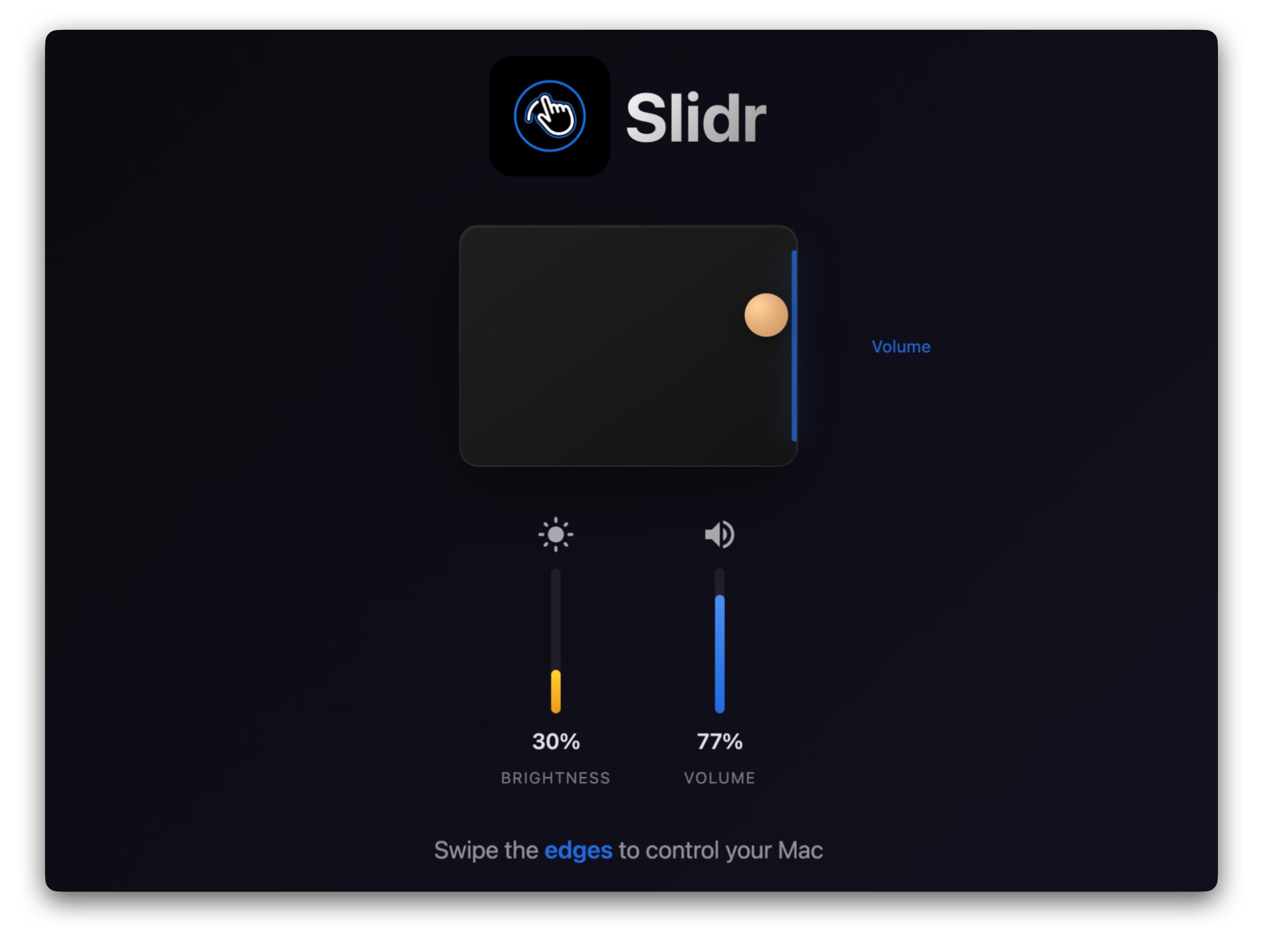
The MOST satisfying way to change volume on a Mac

Post image
1 Upvotes

MacOS volume and brightness controls move in large steps. You can use smaller steps by holding shift+option, but when watching netflix in bed pressing 3 buttons at once is not ideal.

The app has made around £650($876) so far from my website and setapp combined, with just under 16% conversion rate from free trials to purchase.

BetterTouchTool (25$ lifetime) and Swish(15$ lifetime) are utilities that require setup and configuration. I realised from a LOT of beta testers that a lot of people want simplicity and convenience. If you prefer these apps or have them already then Slidr might not be for you. Slidr was made for simplicity. Download and slide your trackpad edge for smooth, precise volume and brightness control with haptic feedback. Native macOS HUD, no overlays, no config. Install and it just works.
Why not lean forward to press your volume/brightness keys? I am lazy so I made a solution to make my netflix sessions even more chill. just slide

Core features:

- Slide one edge for volume, the other for brightness
- Precision micro adjustments (no big jumps)
- Native macOS HUD (no custom overlays)
- Haptic feedback on every adjustment
- Menu bar app, minimal resource usage - UNDER 3MB
- Modifier keys to enable/disable slidr (toggle or hold) if you prefer

The haptic feedback as you slide is quite addictive and you feel every tiny micro adjustment through the trackpad. I use it mostly in bed lying back to slide to the perfect volume while watching something and I haven't touched my volume or brightness keys once since I built it.

$4.99 one-time, 3 day free trial:

Personal website:
https://slidr.xyz

Buy on Setapp:
reddit doesnt allow setapp links so you can find it through my website^

ENJOY!

Changelog on the homepage


r/MacStack • • Sep 02 '26

Mac Clipboard Manager Privacy: A Safer Setup for Passwords and Private Data

1 Upvotes

A clipboard manager can fail without a breach, a shady developer, or a broken encryption scheme. It only has to do its job too well.

The system clipboard is normally a temporary handoff. A history tool turns that handoff into a searchable archive. A password, recovery code, private message, customer record, or production token that was exposed for a few seconds can remain available for days. If sync is on, it may also become a copy on several devices.

That is why "stored locally" is useful information, but not a complete privacy policy. The safer question is: what gets recorded, for how long, where else does it go, and how will I notice when an exclusion stops working?

Here is the setup I would use on a current Mac.

Start by deciding whether history belongs on this Mac

macOS Tahoe has clipboard history in Spotlight. Press Command-Space and then Command-4 to open it. Apple explicitly warns that sensitive information may appear there. Its settings offer a Clipboard Search switch, and Spotlight's More menu can clear the history.

For someone who only occasionally needs the last few copied items, the built-in option is the sensible free baseline. It avoids another background app and another database. It does not, however, remove the privacy problem. Apple's public guide does not document per-app exclusions or a user-selectable retention period.

On a shared Mac, a managed work Mac, or a machine used for regulated data, my default would be no persistent clipboard history at all. Clear the existing history, then turn off Clipboard Search. Keep in mind that this is separate from the live system clipboard. Universal Clipboard can still briefly send the current item to nearby Apple devices when Handoff is enabled.

If you do need a third-party manager, check the Tahoe history setting too. The system history and the app's history have separate controls, so clear and test both rather than assuming one replaced the other.

Build the policy from the source outward

The best exclusion is not a clever password detector. It is refusing to record from an app that regularly handles secrets.

  1. Prefer an allowlist when the tool offers one. PastePal can record only from named apps. Current Maccy settings also support an allowlist-style mode. A small list containing a browser used for ordinary research, a notes app, and an editor is easier to reason about than a growing list of exceptions.
  2. Otherwise, exclude high-risk sources. Start with the desktop password manager, authenticator, banking and finance apps, private messaging apps, remote desktop or virtual machine clients, and any work app containing customer or health data. Consider Terminal too if you routinely copy tokens or private keys there.
  3. Treat browsers as one large source. Paste's own documentation points out a nasty edge case: some password-manager browser extensions copy in a way Paste cannot identify as confidential. Excluding the desktop password manager does not cover a password copied by its extension, because the source may appear to be the browser. The reliable choices are to copy secrets from the excluded desktop app, exclude the entire browser, or pause recording before the copy. Excluding a browser is effective but expensive if web research is the main reason you wanted history.
  4. Keep private-item detection enabled, but call it a backstop. Maccy ignores common transient, concealed, and password-manager pasteboard types. Copy 'Em has an option to ignore copies that the source marks private. Paste and PastePal have similar confidential-content controls. These safeguards depend on the source app marking data in a recognizable way. A token copied as ordinary plain text from a terminal, support chat, or web page can look exactly like any other text.
  5. Use content patterns only as another backstop. Maccy and PastePal can ignore matching content. That can help with a stable company identifier or a known token format, but it is not a general password filter. Secrets do not share one reliable shape, and a broad expression will quietly discard legitimate clips.

Configure exclusions before doing sensitive work. Then clear the old history. Paste explicitly notes that adding an ignored app affects future copies, not items already saved. That is a useful rule to follow with every manager.

Make retention genuinely short

Retention is the blast-radius control for everything the filters miss.

Paste starts at 30 days and offers intervals from one day through forever. PastePal offers timed cleanup. Maccy uses a history-size cap from 1 to 999 items. Copy 'Em defaults to 1,000 recent unstarred items and lets that limit be changed. These are different dials, but the principle is the same: choose the smallest window or item count that solves the actual problem.

There is an important footnote in every cleanup system: saved items often survive it. Paste keeps pinned items and Pinboards. PastePal excludes named, locked, and collection items from retention cleanup. Copy 'Em allows unlimited starred items. Maccy's ordinary clear action preserves pinned items unless the all-items variant is used.

Never pin, star, name, or file a secret into a collection. After changing retention, use the product's real all-history command and verify that saved groups are empty too. A tidy main timeline is not proof that the archive is gone.

Leave sync off unless it solves a specific need

Maccy's history is stored on the Mac. Paste, PastePal, and Copy 'Em can keep data on-device or optionally sync it through iCloud. The vendors say that optional iCloud data does not pass through their own servers, which is better than an opaque vendor account. It still widens the set of devices and stored copies that can expose a clip.

For a work Mac, local-only is the clean recommendation. For a personal Mac and iPhone workflow, enable sync only after the same lock-screen, account, exclusion, and cleanup policy exists on every device. Paste's documentation also notes that uninstalling its app does not remove the iCloud copy; that data has to be deleted separately in iCloud settings.

Do not confuse history sync with Universal Clipboard. Apple's feature carries the current clipboard item to nearby devices for a short period. A history manager running on one of those devices may then record that item. Maccy even documents a pasteboard type that can be excluded to ignore Universal Clipboard items. If cross-device copying is not needed, turning off Handoff removes that route entirely.

Grant the smallest set of permissions that still works

On current macOS, programmatic access to the general pasteboard can be set per app to Ask, Always Allow, or Always Deny after the app requests it. A history manager needs background reads to record copies. Always Allow is therefore functional consent to recording, not a privacy guarantee about what happens afterward.

Accessibility is a separate choice. Maccy, Paste, PastePal, and Copy 'Em document it for automatically pasting a selected item into another app. Their basic history workflow can still put an item back on the clipboard without that permission, followed by a manual Command-V. If direct paste is not valuable, leave Accessibility off.

Screen Recording should be off unless you intentionally use an image or text-capture feature that needs it. PastePal documents it for user-triggered Capture Text, and Copy 'Em uses it for screenshot features. It is not required merely to remember copied text.

Revisit these permissions after major app or macOS updates. Do not approve a new prompt by reflex just because the app already had a different permission.

Test the setup with canaries, not real secrets

Privacy settings are easy to admire and surprisingly hard to verify. Use a harmless, unique string such as CANARY-NOT-A-SECRET-2026-09.

  • Copy it from the excluded desktop password manager or another excluded app.
  • Copy a second unique string through the password manager's browser extension.
  • Search the third-party manager, its saved collections, and Tahoe's Spotlight clipboard history.
  • If sync is enabled, search every connected device after giving sync time to complete.
  • Quit and reopen the manager, then search again so a memory-only assumption does not hide persistent storage.
  • Delete the canaries and clear both histories when the test is done.

The browser-extension test matters even if the desktop-app test passes. Repeat the canary check after changing browsers, password managers, exclusion rules, or sync settings, and after a major update. It tests the behavior you care about without putting a real credential at risk.

No clipboard setup protects an unlocked Mac from another process or person with access to the account. FileVault and a quick Control-Command-Q screen lock are still worthwhile: they protect the machine when it is shut down or locked. They do not sanitize a searchable history during an active session.

A practical recommendation

For light use on Tahoe, use Apple's built-in history and remember that it has no documented per-app exclusion controls. If the contents are sensitive enough that this is uncomfortable, clear the history and turn Clipboard Search off rather than trying to make it something it is not.

For deeper history on one personal Mac, choose a maintained local-first tool, set the smallest useful retention limit, use an allowlist or source exclusions, keep sync off, and skip Accessibility unless direct paste is essential. Maccy is the simplest fit for that policy because it is open source, local, current, and has both source and content exclusions. Its current 2.7.1 release requires macOS 14, and the official release binary includes native Apple silicon and Intel code.

Paste, PastePal, and Copy 'Em make more sense when their richer organization or cross-device workflows justify a broader archive. As of this writing, Paste requires macOS 14, PastePal 2.21.2 requires macOS 13, and Copy 'Em 3.3.0 requires macOS 14.5. All are actively maintained for current Macs, but none can promise that ordinary text from every app will be recognized as sensitive.

The verdict is less exciting than a perfect password-detection toggle: store less, from fewer places, for less time, on fewer devices, and prove the exclusions with harmless data. That is a privacy setup you can actually audit.


r/MacStack • • Sep 02 '26

I wanted a tiny non-invasive desktop cat, so I made this!

2 Upvotes