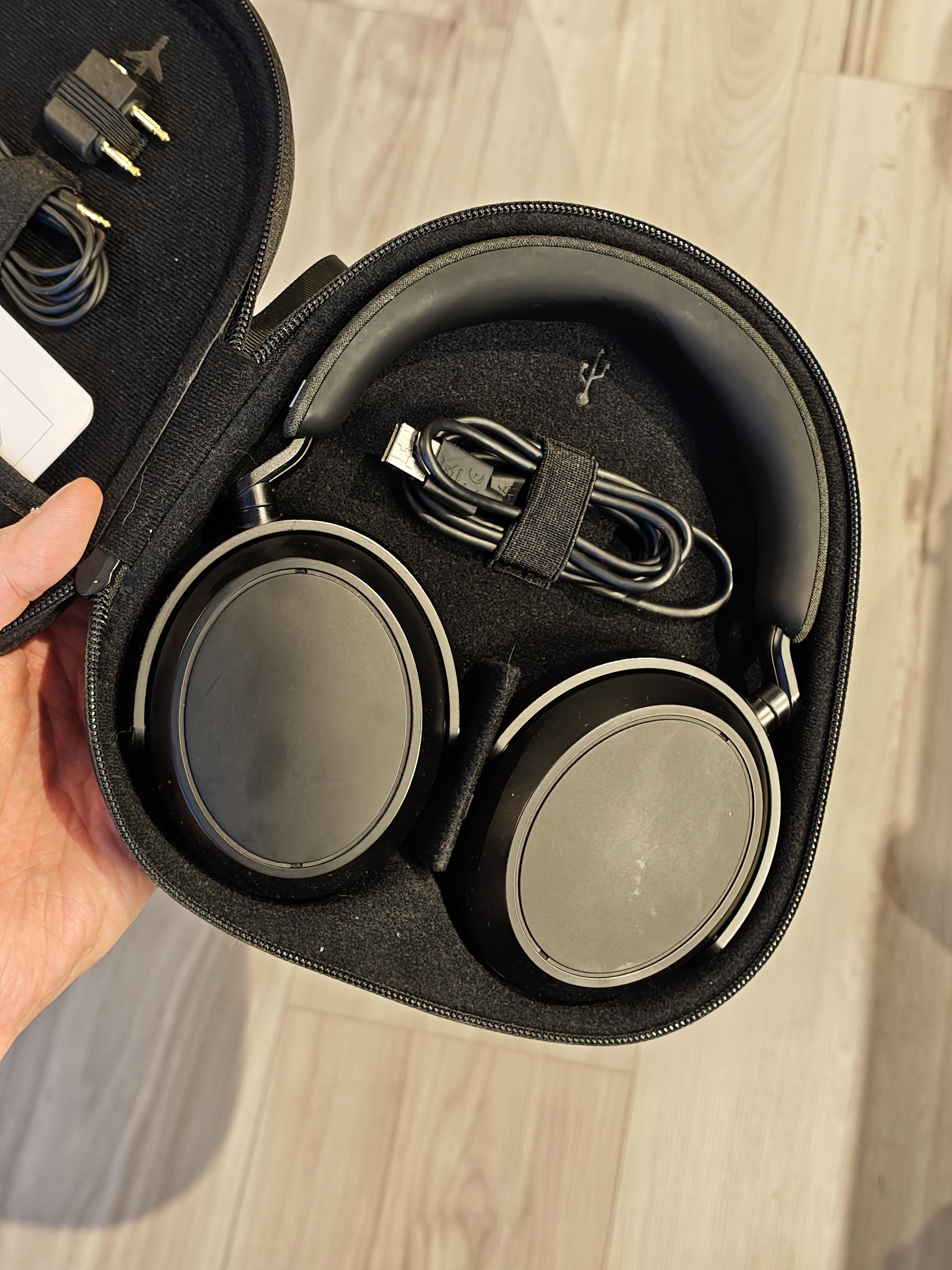
If you are an Android OS user, and are looking to optimize sound quality, there are FOUR things you can (and should) do, with some experimenting.
Doing so greatly improves the sound quality (in my case, Momentum 4) with better resolution, air, instrument separation, sound stage, and tighter bass (less dark overall).
1.) Download the app USB Audio Player Pro (UAPP) onto your phone (This is the most important step IMO). It's a paid app (thank god) and not a free trash app. It's worth it. Just buy it. $8 (I have encountered occasional playback quirks, but this will be situational and still entirely worth it)
- Link your streaming service to this app and use this app to play your music. Not your native streamer app
2.) Run Sennheiser's Sound Personalization feature
- Do this before tweaking any of the Sennheiser manual EQ
3.) Toggle Android's Dolby Atmos sound settings
4.) Verify your phone's bluetooth codec
Edit: I don't know what this post is getting downvoted LOL. This advice is based on years of using android, which is something it took me awhile to understand (coming from iPhone) and applied to my recent use of the Momentums. But yeah...please post a comment if I'm missing something here..
---
Below is Gemini generated steps and rationale to doing all of this. I'm only using Gemini to describe everything clearly and save me time; this post or these findings aren't AI generated. I discovered this tinkering with the Samsung/Motorola Android UI and getting tips from forums (like the UAPP app).
These steps involve some nuances that admittedly might take you down a bit of a minor rabbit hole (like how Dolby Atmos, a system-wide audio profile layers on top of both Sennheiser's Sound Personalization profile, or how Dolby layers on top of what UAPP is doing)
Personally, I'm running all three things in unison and they work great. Thankfully Dolby app is easy to navigate and toggle on/off to test.
I know some users are familiar with Android's resampling process, but many (many) are not. These are absolute MUSTS if you are looking to get the most out of your Android audio and HiFi gear/headphones.
For iPhone users, the native bitrates and codecs are different (where the UAPP app doesn't apply or transform the native bitrate) but you should still follow the advice for Sound Personalization and experimenting with Dolby Atmos (which works on an app-only level, not system wide).
Gemini summary:
4 Ways to Maximize Source Audio Quality on Android
1. Sennheiser Sound Personalization (Hardware-Level Tuning)
- The Rationale: Instead of a basic multi-band graphic equalizer, this algorithm (developed with Fraunhofer IDMT) builds a complex, multi-point parametric curve tailored to your specific hearing thresholds. It also applies Fletcher-Munson (equal-loudness) compensation, dynamically scaling bass and treble at lower volumes so your music never sounds thin. Because Motorola and stock Android lack a built-in hearing test (unlike Samsung's Adapt Sound), this serves as your primary ear-tailored calibration.
The Steps:
- Open the Sennheiser Smart Control Plus app and connect your headphones.
- Tap Sound Personalization (inside the Equalizer tile) and follow the interactive A/B listening prompts using a familiar track.
- Save the profile directly to the headphones' onboard memory so it stays active across devices.
- Caveat: While phenomenal for casual listening, it uses dynamic DSP compression—turn it off and use a flat EQ if doing critical audio editing or mixing.
2. USB Audio Player PRO / UAPP (Cleanest Source Decoding & Bypass)
The Rationale:
- Over USB-C (Wired): Bypasses Android’s native audio mixer (which resamples everything to 48kHz) to send a 100% unaltered, "bit-perfect" digital stream straight to your wired DAC or USB-C headphones.
- Over Bluetooth (Wireless): Even though Bluetooth requires Android to compress the wireless stream (preventing true bit-perfect transmission and graying out UAPP's Internal HiRes Audiodriver), UAPP still noticeably outperforms native apps like Tidal. It pulls raw FLAC streams without app-level volume normalization and uses a cleaner internal audio engine and resampler before handing the signal to your phone's Bluetooth codec.
The Steps:
- Connect your headphones (wired via USB-C for true bit-perfect, or wirelessly via Bluetooth).
- Log into your lossless service (Tidal/Qobuz) or load local FLACs inside UAPP.
- (Optional) In UAPP's Settings > Internal HiRes Audio, decide whether to check Bypass system EQ for Dolby depending on whether you want pure playback or system-wide spatial enhancement (see Step 4).
3. Bluetooth Codec Optimization (High-Resolution Wireless Pipe)
- The Rationale: All Bluetooth audio is compressed before leaving your phone, but which codec your phone chooses determines how much musical detail survives the trip. By default, Android sometimes falls back to basic, lower-bitrate codecs (like SBC or AAC). Ensuring high-resolution codecs like aptX Adaptive (up to 24-bit/96kHz on Sennheiser MOMENTUM 4) or LDAC are active guarantees maximum wireless bandwidth.
The Steps:
- Connect your headphones via Bluetooth.
- Open Android Settings > Connected devices and tap the gear icon next to your headphones.
- Toggle HD audio (or Qualcomm aptX / aptX Adaptive) ON.
- (Optional Verification) To confirm the exact active codec and sample rate, enable Developer Options (Settings > About phone > tap Build number 7 times), go to Settings > System > Developer options, and check Bluetooth Audio Codec and Bluetooth Audio Sample Ratewhile music is playing.
- Caveat: Higher bitrates require a stronger signal. If you experience audio stuttering in crowded areas (like a busy train station), aptX Adaptive will automatically scale down its bitrate to keep the connection stable.
4. Dolby Atmos (System-Wide Spatial & Dynamic Processing)
- The Rationale: Dolby Atmos adds psychoacoustic spatial width, brings forward recessed vocals, and adds low-end punch. It is great for everyday streaming apps (Spotify, YouTube, Netflix) and can subjectively elevate wireless music playback, though it involves a trade-off.
- The Caveat (Double Processing): Because Sennheiser’s Sound Personalization is already applying custom EQ and dynamics inside your headphones, leaving Dolby Atmos on processes your audio twice. On some tracks, this widens the soundstage beautifully; on complex tracks, overlapping two DSP engines can slightly bloat the bass or compress dynamics.
The Steps (A/B Test):
- Swipe down your Quick Settings, long-press Dolby Atmos, and set it to Music (avoid Smart Audio or Movie, which add heavier, artificial surround effects).
- Play a familiar, well-produced track in UAPP and toggle the Dolby Atmos Quick Settings tile on and off live.
- Keep it ON if you prefer the wider, more engaging presentation—or check Bypass system EQ for Dolby inside UAPP if you prefer tighter, cleaner bass while keeping Dolby active for other media apps.