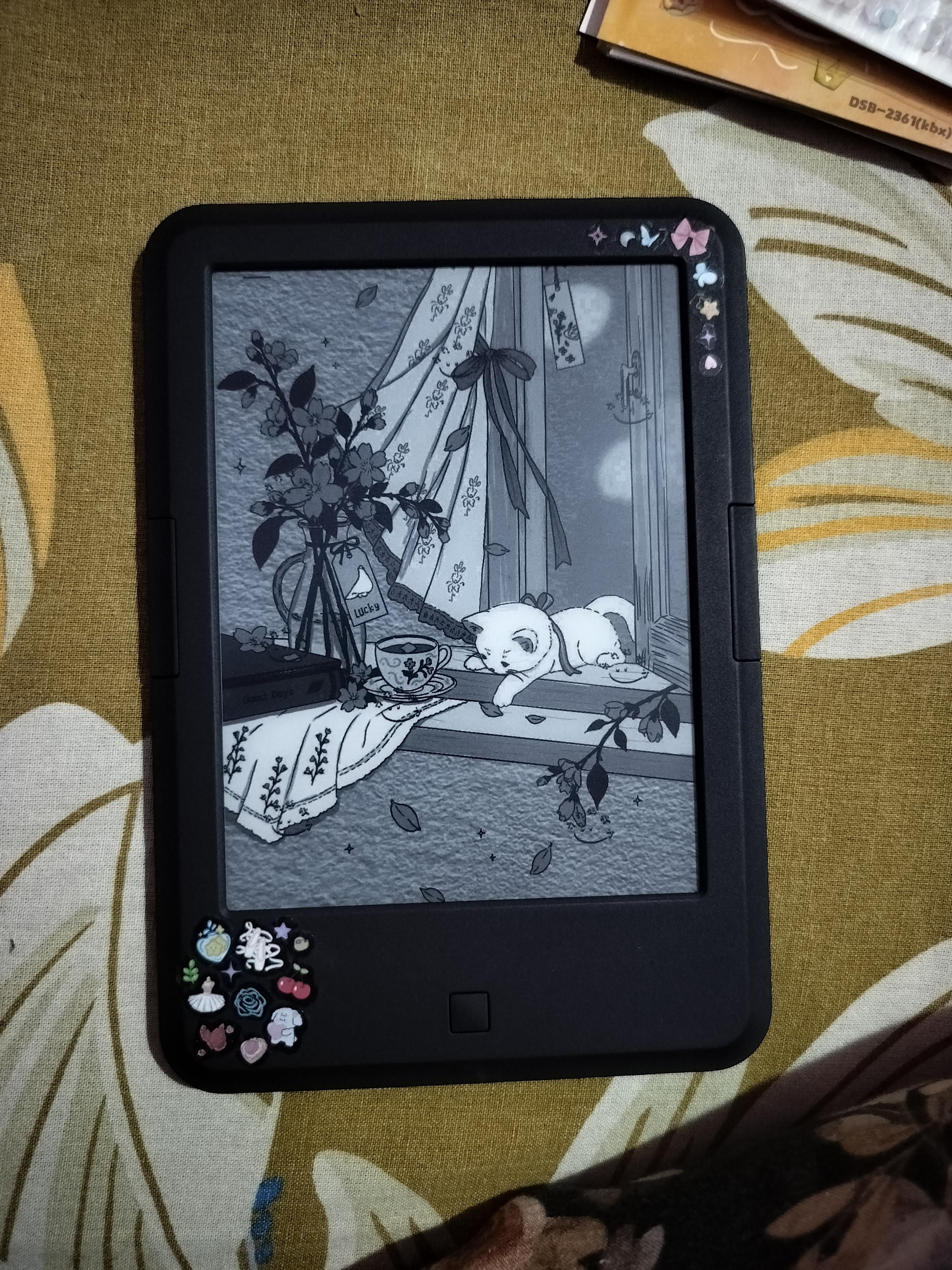
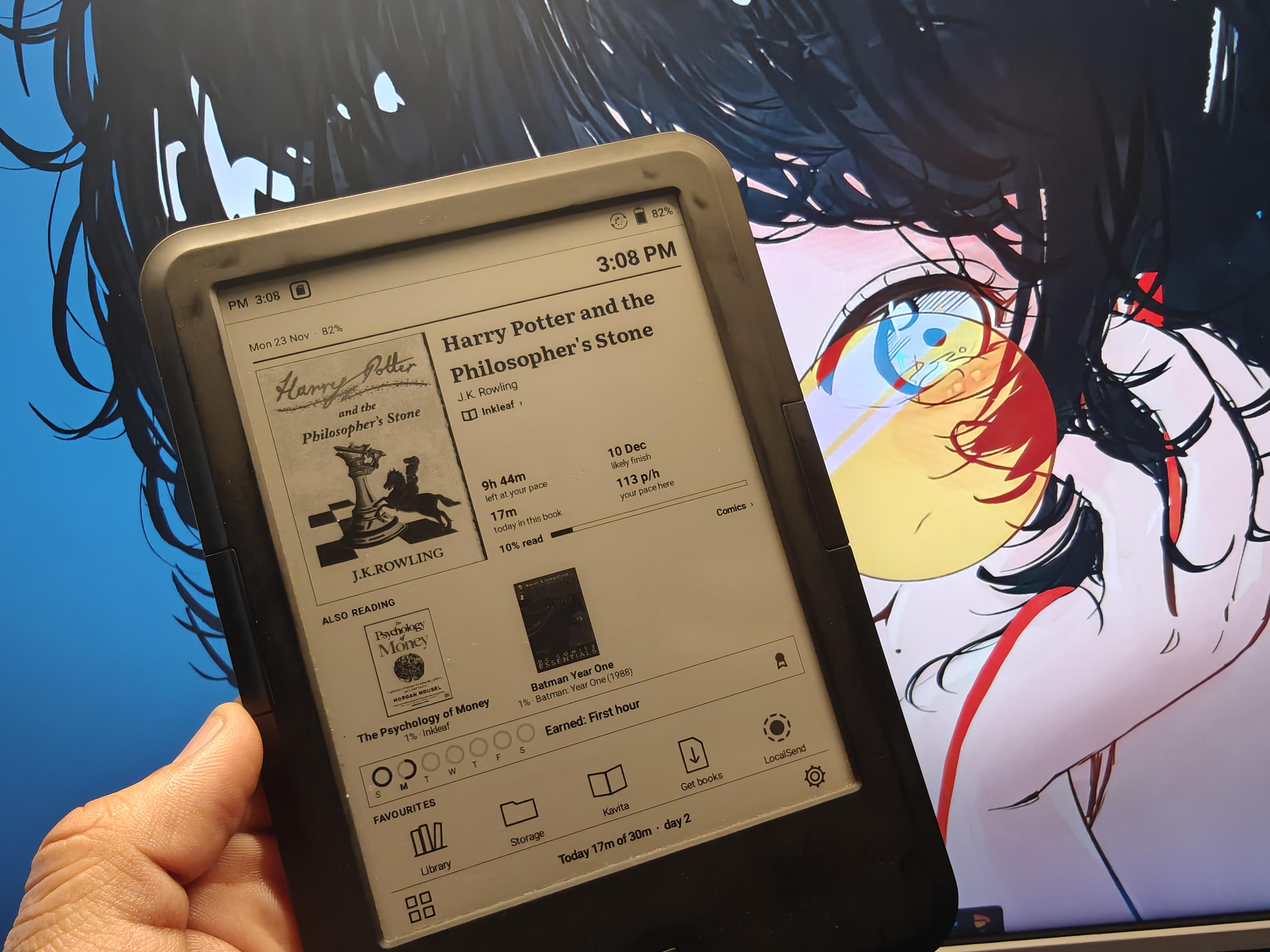
Why would you need this?
On BOOX eReaders, the screen can generally only be woken up using the physical power button. This creates a potential problem: what happens if the power button stops working?
If the power button becomes faulty, you may have no convenient way to wake your device once the screen turns off.
To prevent this, we can use an app called Key Mapper to assign the Sleep/Wake functionality of the power button to another physical button on the device.
This way, even if the original power button stops working, you can use the remapped button to wake your eReader.
The method described below should also work on other Android-based eReaders, provided they support the required accessibility and wireless debugging features.
Requirements
- App: [Key Mapper] App Link
- Download source: F-Droid or Aurora Store.
- A physical button on your eReader that you want to use as an alternative to the power button.
Step 1: Install Key Mapper and enable Accessibility Service
- Install Key Mapper from F-Droid or Aurora Store.
- After opening the app, you should see two warnings.
- The first warning asks you to enable the Accessibility Service. This is necessary for Key Mapper to detect and remap physical key presses.
- Click on Fix.
- You will be redirected to your device's Accessibility Settings.
- Find and select Key Mapper.
- Enable the Use Key Mapper option and click Allow when prompted.
- Go back to the Key Mapper app.
The Accessibility warning should now disappear.
You will still see another warning asking you to disable battery optimization. You can leave this for now and proceed with the setup.
Step 2: Enable Expert Mode
- On the main screen, click on the New Key Map option in the bottom-right corner.
- Navigate to the last tab, Options.
- Find the Enable Expert Mode option and turn it on.
Why is Expert Mode required?
Expert Mode allows Key Mapper to detect and process remapped key presses even when the screen is turned off. This is essential for our purpose because we want to wake the eReader using another physical button.
- Wait for approximately 5 seconds.
- Under the Important section, click on Understood.
- Scroll down to the Setup section.
- Click on Continue under the Setup with Key Mapper option.
Step 3: Complete the Expert Mode setup
The setup wizard will guide you through enabling the required permissions.
In my case, clicking on Continue took me directly to Step 7/10, possibly because some of the earlier steps were already completed.
Your device might start from a different step. If so, simply follow the instructions displayed by the app.
Step 7/10 – Enable Wireless Debugging
- Click on Go to Settings.
- Enable Wireless Debugging in Developer Options.
Step 8/10 – Pair Wireless Debugging
- Click on Go to Settings.
- Wait for a couple of seconds.
In my case, Key Mapper automatically connected to Wireless Debugging after approximately 1–2 seconds and proceeded to the final step. Step 9 did not appear.
If your device displays additional instructions, follow them.
Step 10/10 – Expert Mode is running
- You should now see a confirmation that Expert Mode is running.
- Click on Finish.
You should be taken back to Key Mapper, where you will see a section indicating:
Expert Mode service is running
There should also be a small Stop button beside it.
This means Expert Mode has been successfully enabled.
Step 4: Configure the alternative power button
Now we can create the actual key mapping.
4.1 Configure the trigger
- Go back to the Options tab and navigate to the first tab, Trigger.
- At the bottom, near the Tap to record trigger button, you will find a toggle.
- Switch it to Record with Expert Mode.
- Click on the Record with Expert Mode button.
- The app will now ask you to press the physical key you want to remap.
- Press the button you want to use as your alternative power button.
Once the button is detected, you will see options to configure the type of press:
- Short press
- Long press
- Double press
Choose whichever behaviour you prefer.
I have mapped the Home/Back/Middle physical button on my BOOX device and configured it to work with a short press.
4.2 Configure the action
- Navigate to the second tab, Actions.
- Click on Add Action.
- Search for or scroll down to find Sleep/Wake Device.
- Select it.
You should now see the Sleep/Wake Device action listed and enabled in the Actions tab.
This tells Key Mapper what to do whenever the mapped physical button is pressed.
4.3 Configure the constraints
This is an important step if you want the alternative button to wake the device without also putting it to sleep.
- Navigate to the third tab, Constraints.
- Click on Add Constraint.
- Select Screen is on.
- Once the constraint has been added, you should see a NOT option beside it.
- Enable the NOT option.
The constraint should now read:
Screen is off
This ensures that the mapping only works when the screen is off. Pressing your alternative button will wake the device without accidentally putting it to sleep when the screen is already on.
4.4 Save and enable the mapping
- At the bottom of the configuration screen, you will find an option to name your key map.
- Give it any name you prefer, or leave it as (no name).
- Make sure the enable/disable toggle beside it is switched ON.
- Go back to the main screen.
You should now see your newly created key mapping listed there.
That's it! Your alternative power button should now be configured.
Important Notes
1. Why are Constraints necessary?
You can technically create this mapping without adding any constraints. However, there is an important difference.
The Sleep/Wake Device action works as a toggle:
- If the screen is off, it wakes the device.
- If the screen is on, it puts the device to sleep.
Without constraints, pressing your mapped button will perform both functions.
By adding the Screen is off constraint, the mapping only works when the screen is off.
This means you can continue using your physical button normally when the screen is on, while using it as an alternative power button when the screen is off.
If you are comfortable using the Back button from the Navigation Ball to navigate your device, you can also leave the constraints empty. However, the mapped physical button will then perform the Sleep/Wake action in both situations.
2. Expert Mode must remain running
For this mapping to work, Expert Mode needs to be running in the background at all times.
You can check its status on the main screen of Key Mapper.
- Running: Expert Mode is active and the mapping should work.
- Paused: Expert Mode is paused, so the mapping will not work.
You can tap the status indicator to toggle between Running and Paused.
3. Should you disable Battery Optimization?
If the mapping is not working reliably, you should consider disabling battery optimization for Key Mapper.
Since Key Mapper needs to run in the background to detect button presses while the screen is off, Android's battery optimization can interfere with its operation.
To disable it:
- Open Key Mapper.
- Click on the Fix option next to the battery optimization warning.
- A popup should appear with the relevant settings.
- On BOOX devices, the options in this popup might be difficult to read when using Speed Mode.
- Switch the screen refresh mode to Normal Mode temporarily so that you can read the popup properly.
- Find the option to disable battery optimization and enable/fix it.
Important: If your original power button is completely non-functional, disabling battery optimization is particularly important. If Android kills the Key Mapper background process, the alternative button might stop working, leaving you unable to wake the device.
4. Battery consumption
Disabling battery optimization and allowing Key Mapper to run continuously in the background may result in slightly higher battery consumption.
This is a trade-off worth considering.
If your original power button is working perfectly fine, you don't necessarily need to enable this mapping immediately. You can simply save this guide and follow it later if you ever encounter power button issues.
Final Thoughts
This is a simple preventive workaround that could potentially save you from a major inconvenience if the physical power button on your eReader ever stops working.
I have tested this setup on my BOOX device using the physical Home/Back/Middle button as an alternative wake button.
The process should also be applicable to other Android-based eReaders, although the availability of Expert Mode, Wireless Debugging and physical key detection may vary depending on the device and Android version.
My recommendation: Set this up while your original power button is still working, test the alternative button a few times, and keep the mapping enabled as a backup.