Taskbar App State Indicators 1.0.0
Taskbar App State Indicators
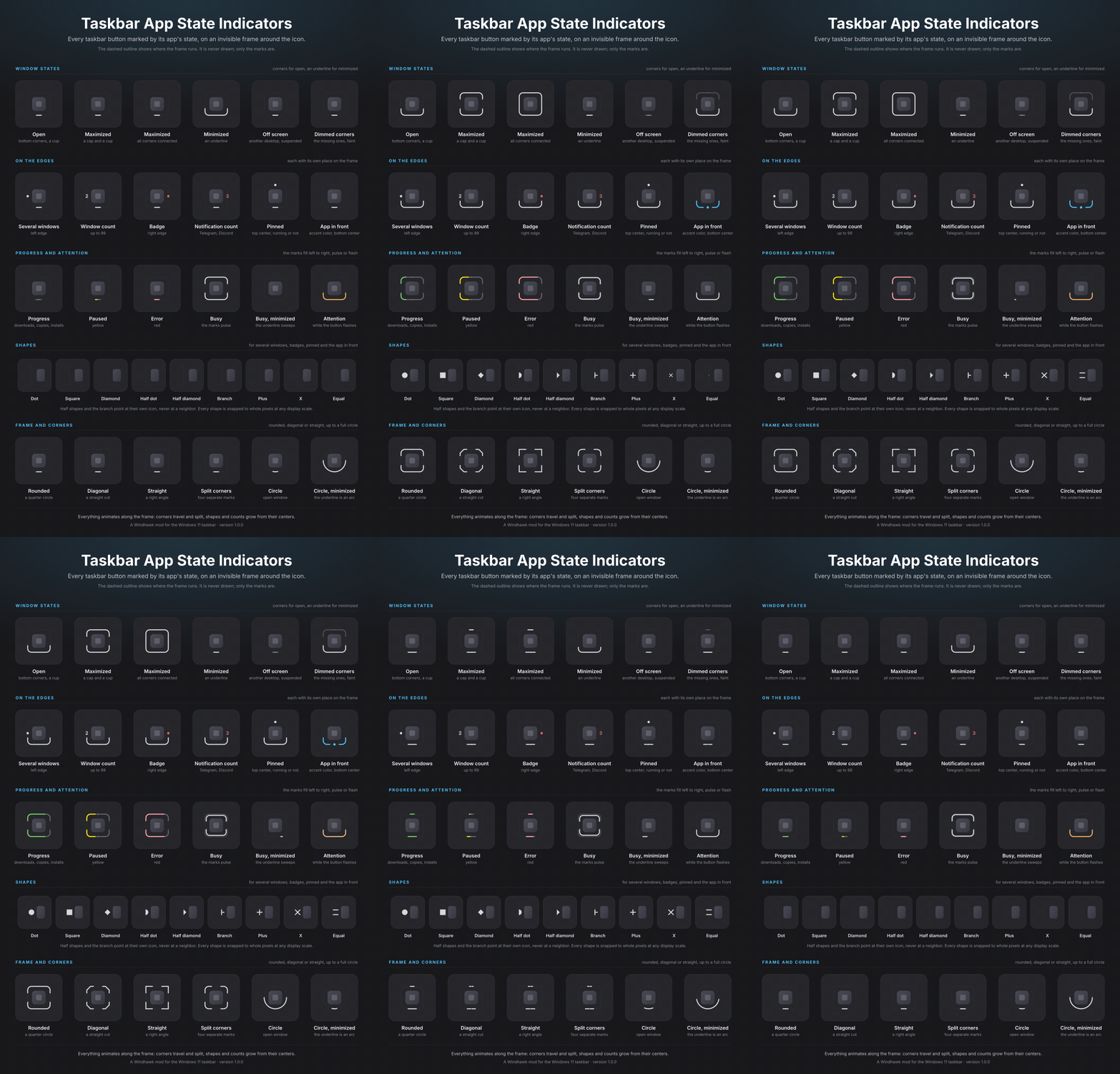
See at a glance which taskbar apps are open, maximized, minimized, busy or waiting for you. Small marks are drawn on an invisible rounded frame around each icon, and they move along that frame whenever something changes.
Demo
What the marks mean
- Open window: the two bottom corners, joined into a cup under the icon.
- Maximized window: all four corners, with a cap over the icon too, or only the top corners if you prefer. With all corners connected, the sides join too wherever no indicator sits on them, so a maximized window can get the whole frame. Optionally, the corners an open or maximized app doesn't get are drawn dimmed, so the whole frame shows.
- Minimized app: an underline. It's dimmed when the app's windows are on another virtual desktop, or suspended like some Store apps. Its length is measured along the frame, so on a round frame it's an arc.
- Several windows: a grey dot on the left edge, or another shape (a square, a diamond, a half dot, half diamond or branch, a plus, X or equal sign), or the number of windows.
- Badge (unread messages, notifications, overlay icons): a red dot on the right edge, in every window state, or another shape, or the badge's count, with the shape for badges without one. For apps that draw their count into an overlay icon (Telegram, Discord), the count is read from the description they give it (Discord's counts from 0, so 1 is added to it, for its PTB and Canary builds too). Without a number there (Outlook's, say), the shape stays.
- Progress (downloads, copies, installs): the marks fill from left to right in green, yellow while paused, red on error. When the end isn't known, the marks pulse, scaling about the frame's center and back twice a cycle, the second time twice as fast (the dots, signs and counts stay put), or the underline sweeps across for a minimized app.
- Attention: the marks turn orange while the app's button flashes.
- Colors: the app in front gets your accent color, every other app grey. The app in front can also get thicker corner marks.
- Pinned apps (optional, off by default): a dot or another shape at the top center, whether the app is running, minimized or not running. A pinned app's top corners then stay apart instead of forming a cap, leaving it its place.
- Active app (optional, off by default): a dot or another shape at the bottom center of the app in front, in your accent color by default. Its bottom corners then stay apart instead of forming a cup.
The half dot and half diamond keep only the half facing the icon: their flat side lies on the frame's line. The branch is a plus without its outer arm: a line along the frame's edge with one arm towards the icon. All three point at their own icon, never at a neighbor's. The equal sign is the square's two edges that cross the frame's line, so its lines run towards the icon whichever edge it sits on.
Counts go up to 99. Counts of one digit read normally; 10 and up turn vertical along the edge, so they don't run into the icon.
The taskbar's own running indicator and progress bar are replaced by these marks. Its multi-window mark and badges are replaced too while the matching indicator is on. Everything comes back when the mod is disabled.
Animations
A minimized app's underline splits into the corners when it's restored, a maximized window's top corners travel up from the top center, and the dots, signs and counts grow from their centers. When the mod is turned on, the marks animate in; when it's turned off, they animate out while the taskbar's own indicators fade back in. Animations are controlled by the mod's own setting only, whatever the Windows animation setting is. Progress keeps moving even with them off, like the native progress bar.
Settings
- Frame: how far the frame sits from the icon, its corner radius, its line thickness (which grows inwards), and how the corners join: not at all, into a cup and a cap, or all around where nothing sits in between.
- Appearance: the colors and opacity of the corner marks and the underline, for the app in front and for every other app, and the corner marks' line thickness on the app in front. Empty colors mean your accent color;
#Light|#Dark sets a color per theme, and #FF0000,#00FF00 a gradient. - Open and Maximized Windows: the marks' shape (rounded, diagonal or straight corners), whether maximized windows keep their bottom corners, and the dimmed missing corners.
- Minimized Apps: the underline's length and ends, and its dimmed variant for apps running off screen.
- Apps With Several Windows, Apps With a Badge: the shape (none, a dot, a square, a diamond, a half dot, half diamond or branch, a plus, X or equal sign), whether the count shows instead, their sizes and color.
- Pinned Apps, Active App: none, a dot, a square, a diamond, a half dot, half diamond or branch, a plus, an X or an equal sign, its size and color.
- Progress: its colors, and the pulse's size.
- Attention: on or off, and its color.
- Animations: on or off, and how long a movement takes.
- Window Rules: what counts as an open window.
Notes
- Colors follow the system live: a new accent color, light and dark themes, high contrast and right-to-left taskbars.
- Taskbar Open Window Underline can also hide the running indicator. If you use both mods, turn that option off there: both use the same switch.
- Works alongside Windows 11 Taskbar Styler: when a theme is applied or removed, the native indicators the mod replaces are hidden again, and when the mod is turned off, they come back as the theme has them (a theme that hides them keeps them hidden).
- For bug reports, turn on Debug logging under Advanced and include the mod's log.
How it works, in short: each button's windows are found through the taskbar's view models and judged with IsIconic, IsZoomed, DWM cloaking and the virtual desktop manager, refreshed on window events. Progress, attention and badges are read from the button's own XAML (an overlay icon's count from the button's help text, where the taskbar puts the icon's description). The marks are composition shapes on a Direct2D path around the icon (two: the corners' follows the active app's thickness, the dots' keeps the frame's), moved by animating their trims along it on the render thread. The other shapes are composition lines, rectangles and small paths snapped to the screen's pixels, and the counts small XAML text blocks, all in the same host. The only layout change is the icon background's right margin, set to 0 while the mod's multi-window indicator takes the place of the native mark (restored when it doesn't). On builds where the needed symbols can't be resolved, the mod stays inactive and the log says so.