r/Windhawk • • 20h ago Bravo

Taskbar App State Indicators 1.0.0

Post image
192 Upvotes

Taskbar App State Indicators 1.0.0

Taskbar App State Indicators

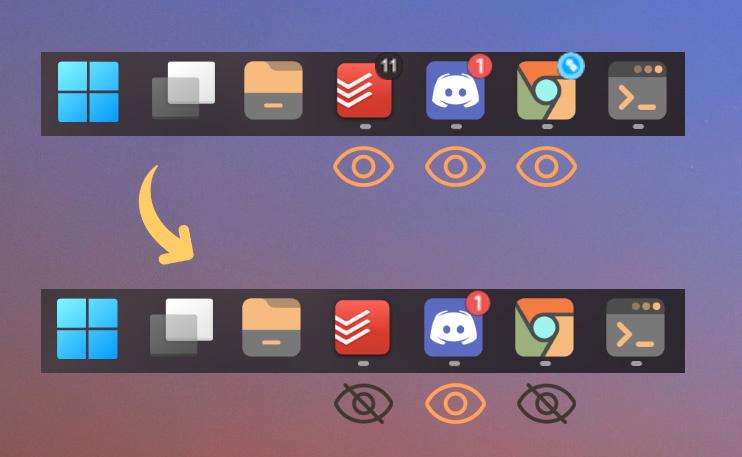
See at a glance which taskbar apps are open, maximized, minimized, busy or waiting for you. Small marks are drawn on an invisible rounded frame around each icon, and they move along that frame whenever something changes.

Demo

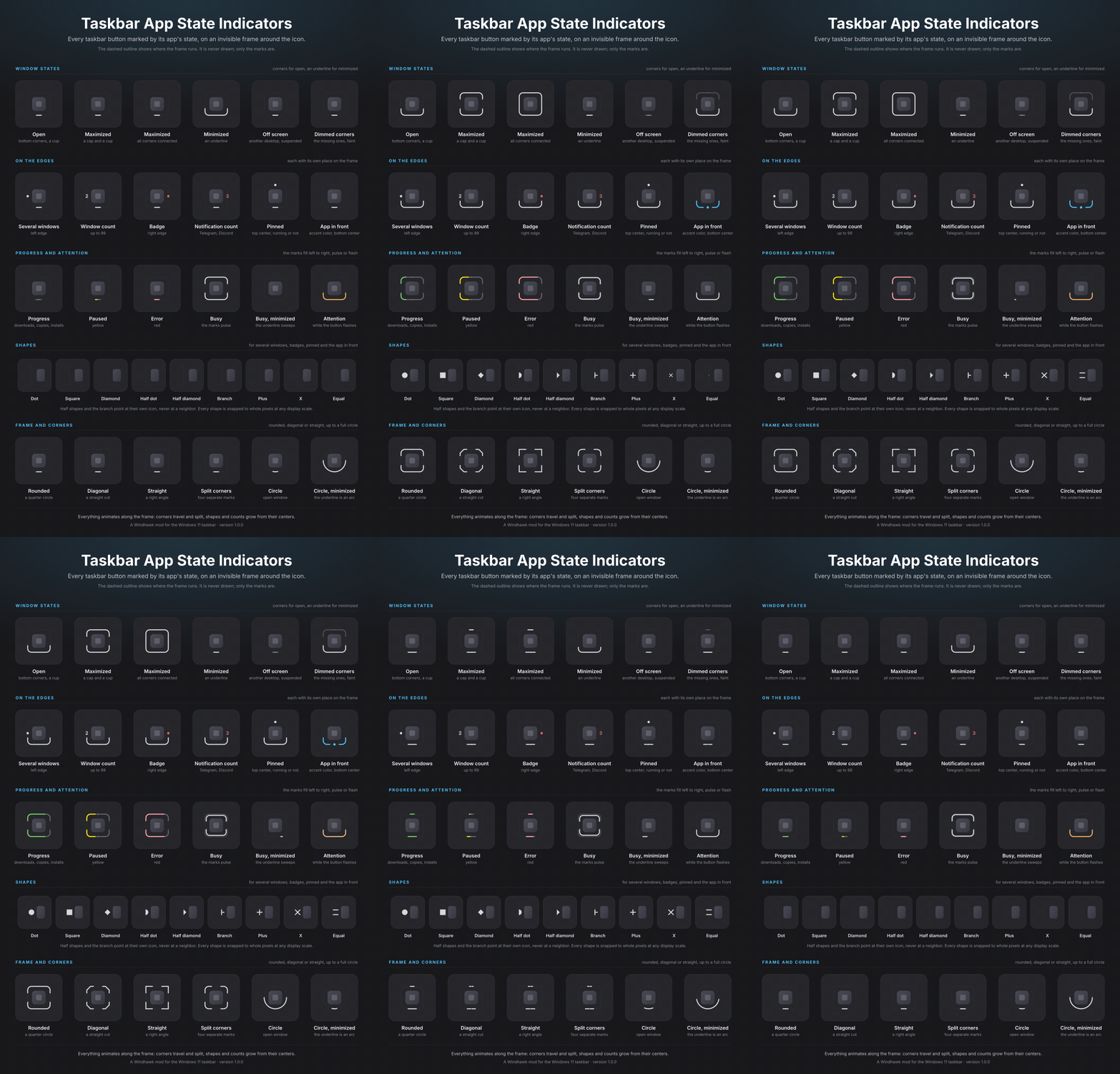
What the marks mean

  • Open window: the two bottom corners, joined into a cup under the icon.
  • Maximized window: all four corners, with a cap over the icon too, or only the top corners if you prefer. With all corners connected, the sides join too wherever no indicator sits on them, so a maximized window can get the whole frame. Optionally, the corners an open or maximized app doesn't get are drawn dimmed, so the whole frame shows.
  • Minimized app: an underline. It's dimmed when the app's windows are on another virtual desktop, or suspended like some Store apps. Its length is measured along the frame, so on a round frame it's an arc.
  • Several windows: a grey dot on the left edge, or another shape (a square, a diamond, a half dot, half diamond or branch, a plus, X or equal sign), or the number of windows.
  • Badge (unread messages, notifications, overlay icons): a red dot on the right edge, in every window state, or another shape, or the badge's count, with the shape for badges without one. For apps that draw their count into an overlay icon (Telegram, Discord), the count is read from the description they give it (Discord's counts from 0, so 1 is added to it, for its PTB and Canary builds too). Without a number there (Outlook's, say), the shape stays.
  • Progress (downloads, copies, installs): the marks fill from left to right in green, yellow while paused, red on error. When the end isn't known, the marks pulse, scaling about the frame's center and back twice a cycle, the second time twice as fast (the dots, signs and counts stay put), or the underline sweeps across for a minimized app.
  • Attention: the marks turn orange while the app's button flashes.
  • Colors: the app in front gets your accent color, every other app grey. The app in front can also get thicker corner marks.
  • Pinned apps (optional, off by default): a dot or another shape at the top center, whether the app is running, minimized or not running. A pinned app's top corners then stay apart instead of forming a cap, leaving it its place.
  • Active app (optional, off by default): a dot or another shape at the bottom center of the app in front, in your accent color by default. Its bottom corners then stay apart instead of forming a cup.

The half dot and half diamond keep only the half facing the icon: their flat side lies on the frame's line. The branch is a plus without its outer arm: a line along the frame's edge with one arm towards the icon. All three point at their own icon, never at a neighbor's. The equal sign is the square's two edges that cross the frame's line, so its lines run towards the icon whichever edge it sits on.

Counts go up to 99. Counts of one digit read normally; 10 and up turn vertical along the edge, so they don't run into the icon.

The taskbar's own running indicator and progress bar are replaced by these marks. Its multi-window mark and badges are replaced too while the matching indicator is on. Everything comes back when the mod is disabled.

Animations

A minimized app's underline splits into the corners when it's restored, a maximized window's top corners travel up from the top center, and the dots, signs and counts grow from their centers. When the mod is turned on, the marks animate in; when it's turned off, they animate out while the taskbar's own indicators fade back in. Animations are controlled by the mod's own setting only, whatever the Windows animation setting is. Progress keeps moving even with them off, like the native progress bar.

Settings

  • Frame: how far the frame sits from the icon, its corner radius, its line thickness (which grows inwards), and how the corners join: not at all, into a cup and a cap, or all around where nothing sits in between.
  • Appearance: the colors and opacity of the corner marks and the underline, for the app in front and for every other app, and the corner marks' line thickness on the app in front. Empty colors mean your accent color; #Light|#Dark sets a color per theme, and #FF0000,#00FF00 a gradient.
  • Open and Maximized Windows: the marks' shape (rounded, diagonal or straight corners), whether maximized windows keep their bottom corners, and the dimmed missing corners.
  • Minimized Apps: the underline's length and ends, and its dimmed variant for apps running off screen.
  • Apps With Several Windows, Apps With a Badge: the shape (none, a dot, a square, a diamond, a half dot, half diamond or branch, a plus, X or equal sign), whether the count shows instead, their sizes and color.
  • Pinned Apps, Active App: none, a dot, a square, a diamond, a half dot, half diamond or branch, a plus, an X or an equal sign, its size and color.
  • Progress: its colors, and the pulse's size.
  • Attention: on or off, and its color.
  • Animations: on or off, and how long a movement takes.
  • Window Rules: what counts as an open window.

Notes

  • Colors follow the system live: a new accent color, light and dark themes, high contrast and right-to-left taskbars.
  • Taskbar Open Window Underline can also hide the running indicator. If you use both mods, turn that option off there: both use the same switch.
  • Works alongside Windows 11 Taskbar Styler: when a theme is applied or removed, the native indicators the mod replaces are hidden again, and when the mod is turned off, they come back as the theme has them (a theme that hides them keeps them hidden).
  • For bug reports, turn on Debug logging under Advanced and include the mod's log.

How it works, in short: each button's windows are found through the taskbar's view models and judged with IsIconic, IsZoomed, DWM cloaking and the virtual desktop manager, refreshed on window events. Progress, attention and badges are read from the button's own XAML (an overlay icon's count from the button's help text, where the taskbar puts the icon's description). The marks are composition shapes on a Direct2D path around the icon (two: the corners' follows the active app's thickness, the dots' keeps the frame's), moved by animating their trims along it on the render thread. The other shapes are composition lines, rectangles and small paths snapped to the screen's pixels, and the counts small XAML text blocks, all in the same host. The only layout change is the icon background's right margin, set to 0 while the mod's multi-window indicator takes the place of the native mark (restored when it doesn't). On builds where the needed symbols can't be resolved, the mod stays inactive and the log says so.


r/Windhawk • • 12h ago

Taskbar Zones 1.0.3

2 Upvotes

Taskbar Zones 1.0.3

  • Fixed compatibility with newer Windows 11 builds where the mod stopped working (tested on build 26300).
  • Fixed drag and drop never settling after a drop.
  • Fixed apps changing zones when used with "Disable grouping on the taskbar".
  • Windows of the same app now stay next to each other and move together between positions and zones.
  • Improved handling of app IDs that change or are briefly unavailable.
  • Added separate icon spacing settings for the left and right zones. The default (0) keeps the standard spacing.

r/Windhawk • • 1d ago

Now Playing... 1.0.0

Post image
69 Upvotes

Now Playing... 1.0.0

Now Playing...

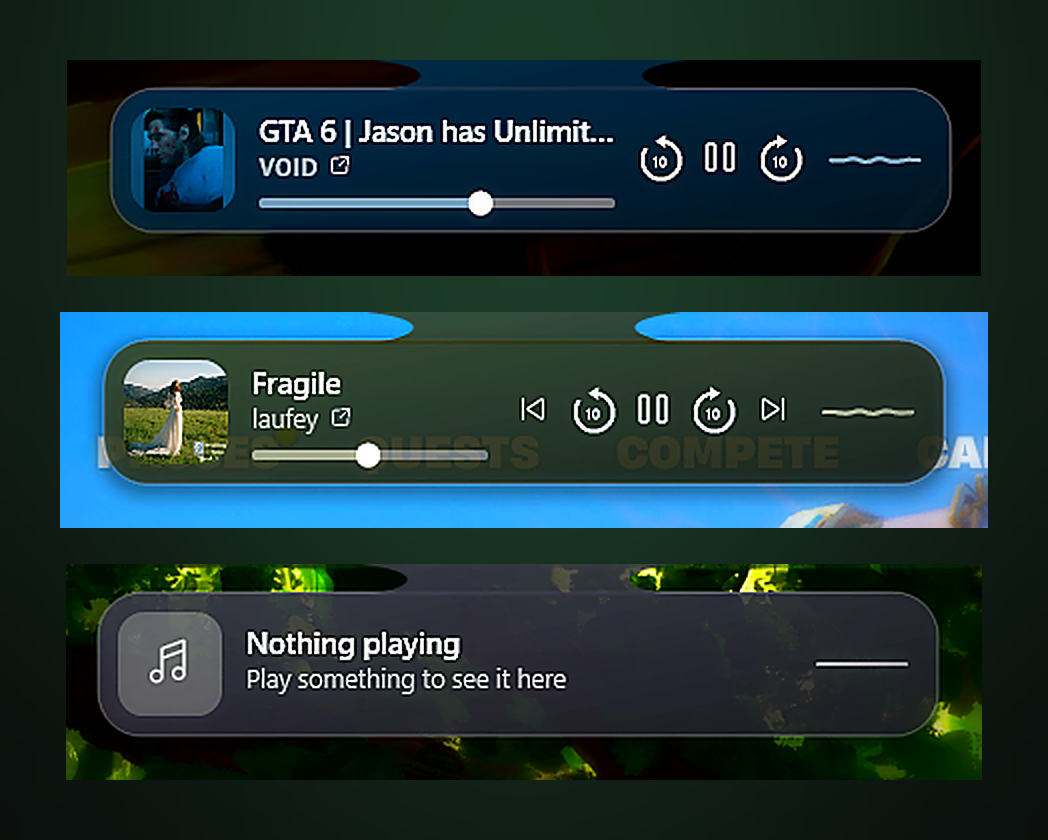
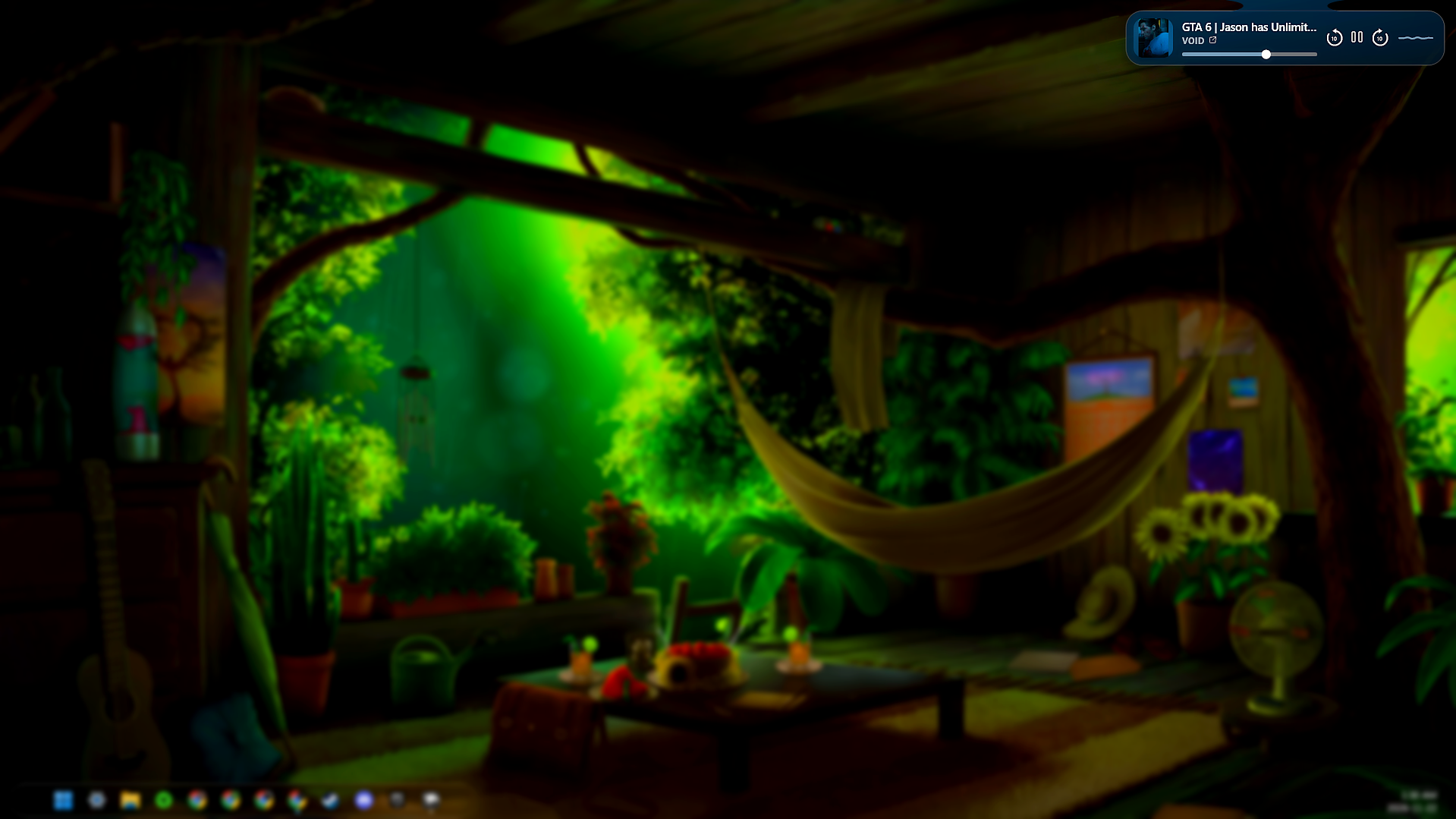
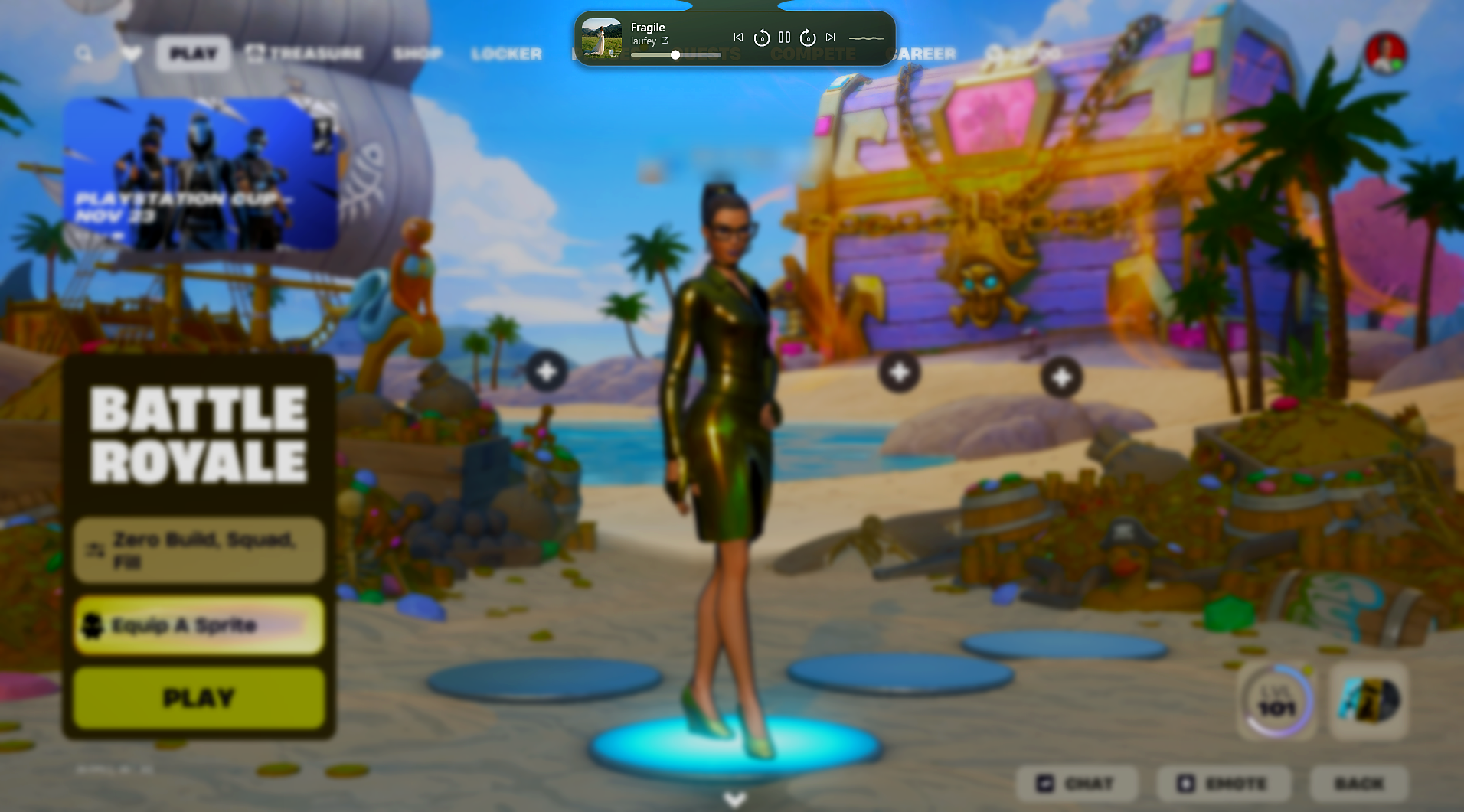
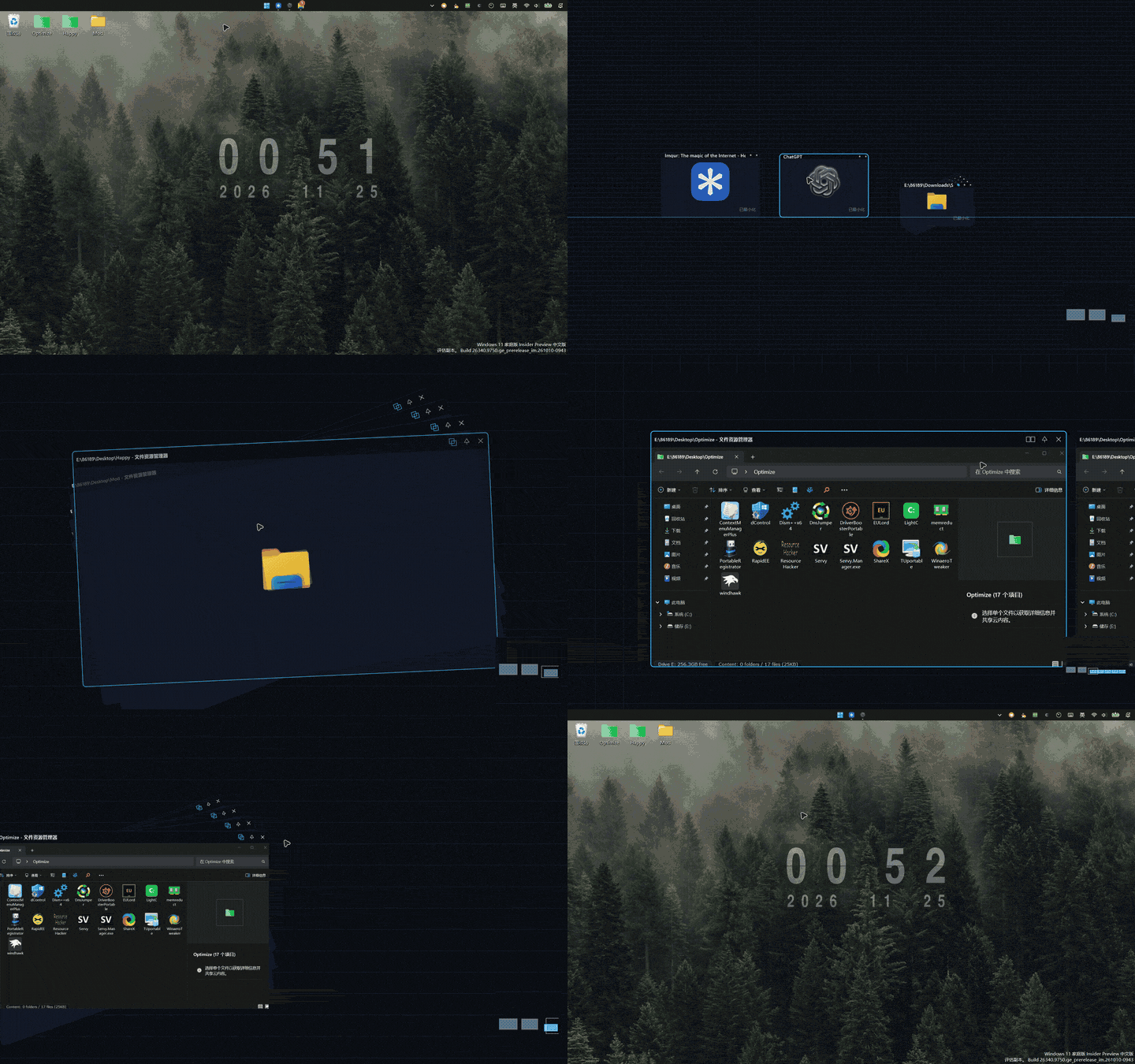
Push your mouse to the top of your screen and a now-playing bar drops down, kind of like the taskbar popping up but upside down. It shows whatever you're listening to: Spotify, SoundCloud, YouTube in your browser, Apple Music, VLC, pretty much anything that shows up in Windows' media controls.

Now Playing... close-ups

On the desktop

In Fortnite

What's on it

  • The album art or video thumbnail, with the app's icon in the corner
  • Song title and artist (fancy fonts in names show up properly, no boxes)
  • A little button next to the artist that jumps you straight to the app
  • Play/pause, plus 10 second skip back and forward
  • A progress line you can click or drag to jump anywhere
  • Previous and next, but only when the app actually lets you skip
  • A wave line that moves with the music

Stuff you can change

  • Put it top center, top left or top right, on any monitor
  • Background: auto (takes its colour from the album art), translucent, a solid colour from the list, or light
  • The drip, which is the little liquid neck that makes it look like it's hanging off the top of your screen
  • Persistent mode: press Ctrl + Shift + ? and the bar pops up instantly and stays up, even in games. Press it again to hide it
  • It can peek for a few seconds when a new song starts

It stays hidden over full screen stuff by default so it won't get in the way of your games or videos (use Persistent mode if you want it in a game).

There's a lot more in the Settings tab to play around with: size, width, corner roundness, animation speed, hover delays, colours, the visualizer style and more. Tweak it however you like, everything applies straight away.

Good to know

  • Some players, like YouTube in a browser, don't let Windows move the position or toggle playback. For those, the skip buttons, the progress bar and play/pause send the player's own keyboard shortcuts (J/K/L and number keys on YouTube, arrows and space elsewhere) to that app's window in the background, only when you click them.
  • Similar mods: Dynamic Island Media Player, Dynamic Island for Windows, SMTC Now Playing Desktop Widgets and Island Media Controls. This one is different because it stays fully hidden until you hover the top edge, then drops down.

r/Windhawk • • 14h ago

Windows 10 Virtual Desktop animations ported to Windows 11

2 Upvotes

The mod is in the process of approval to be on the official catalog but, if anyone want's it already, this is the windows 10 virtual desktop animations ported to windows 11, with all of their glorious smoothness and speed. With an added "Disable virtual desktop indicator popup" option thrown in.

Pretty proud of this one because windows 11 virtual desktop animations are atrocious. And, for the life of me, I couldn't find a way to fix them besides disabling the whole animation itself.

This isn't a custom renderer, a replica or a recreation of the Windows 10 animation.

It turns out that the original Windows 10 virtual desktop animation engine is still present within Windows 11's DWM. The mod intercepts Explorer's desktop switching mechanism and invokes the original legacy DWM transition functions instead.

No custom overlays, no additional processes, no background workers and no injection into DWM itself. Just Windows using its own native animation mechanism again.

When (and if) the mod is accepted, it will be at: https://windhawk.net/mods/win10vd-in-win11vd

Just enable developer settings on windhawk and create a new mod, and paste the text from this:

https://pastebin.com/kw38EVBd


r/Windhawk • • 16h ago

Desktop Clock & Weather 1.0.8

2 Upvotes

Desktop Clock & Weather 1.0.8

  • README: note that the mod was tested on Windows 10

r/Windhawk • • 1d ago

Explorer Extras 1.0.22

Post image
34 Upvotes

Explorer Extras 1.0.22

Explorer Extras

Extra features for File Explorer on Windows 11, one switch per feature.

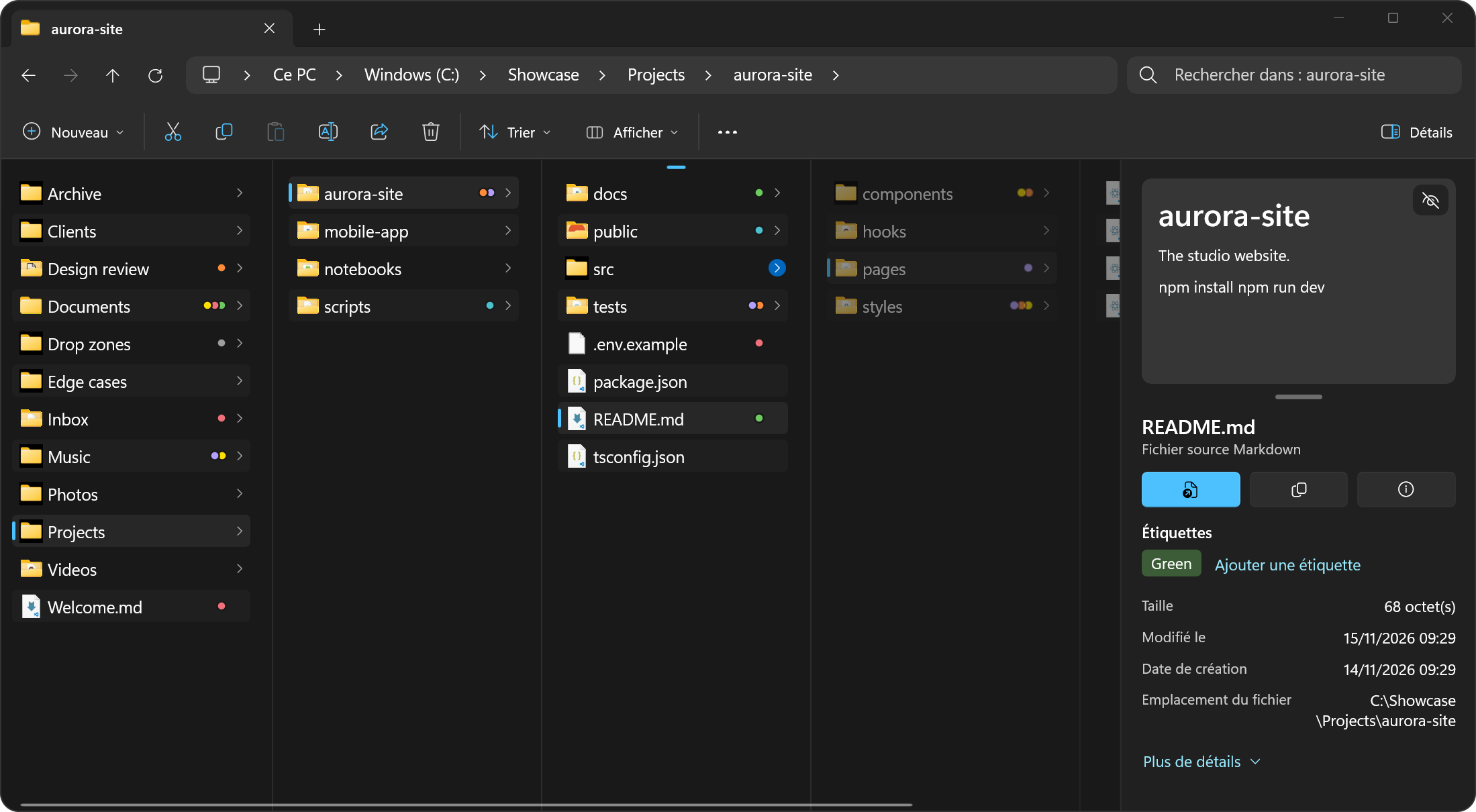
Explorer Extras: the Columns layout, the details pane and colour labels in File Explorer

A 40-second tour is at the top of the project page: https://github.com/AristideBH/windhawk-lib/tree/main/explorer-extras#readme

Explorer Extras adds three independent features to File Explorer. Each has its own section and its own off switch on this page: turn on what you like, and the rest stays out of the way.

Columns

Browse folders the way you do on a Mac: one column per folder level, side by side. Open the View menu of a File Explorer window and choose Columns.

  • It feels like Explorer. Sorting, grouping, icons, thumbnails and the right-click menu all come from Windows itself. The menu is tidied up: quick actions on top, "Show more options" for the full list.
  • Keyboard, selection and undo. Arrow keys, type to jump, F2 (also for several items at once), Delete, copy and paste, a rubber band, and Ctrl+Z to take back a delete, a rename or a new folder.
  • Drag and drop, and touch. Between columns, into the navigation pane, to other windows and apps, and back. Tap, hold, drag and select with a finger.
  • Tabs and memory. Each tab keeps its own columns, and each folder remembers its sort, its grouping, its column widths and whether you showed it in Columns.
  • Archives. Zip, 7z, rar and tar files open like folders.

Details pane

One pane that replaces Explorer's Details and Preview panes, in Columns and in every view. Press Alt+P, or use the View menu or the toolbar button, to show or hide it.

  • Real previews. PDF, text and code, Markdown, images (zoom, pan, animated GIF), video and sound.
  • Details by type. A folder's size and contents are counted when you press Calculate, or by themselves if you turn that on.
  • Several files at once. A fanned stack of thumbnails.
  • You stay in control. Each kind of preview can be switched off, and has a size limit.

Labels

Colour labels, like the tags of macOS, on files and folders.

  • Colours and names. Seven colours and a neutral gray, an optional name, up to 16 on an item. Give each colour a meaning in the settings, such as "Red = Urgent".
  • Seen everywhere. A dot after the name, in every view of Explorer's list and in Columns, in step with the light or dark theme.
  • Easy to set. In the Tags section of the details pane, or from the right-click menu: a Tags entry with the colours, Add tag and Clear tags. The last eight names you typed are listed, so you type each one once.
  • Sort and group. Explorer's own Group by and Sort by use them: choose Tags (Étiquettes in French; under More for Sort by) and each label becomes a group. An item with two labels is in both groups.
  • They follow the file. A label is stored in the file itself, so it survives copying or moving on NTFS drives, and the file's dates do not change. See "Good to know" below.

Good to know

  • Labels stay in your files. Labels are off by default, because they are the one part of the mod that changes files: turn on Show labels to use them. They are written into the files themselves (an NTFS stream), so they stay there after the mod is disabled or uninstalled, and also on a network share that supports named streams. To take them off, use Clear tags (in the pane or the right-click menu) while the mod is still running.
  • Removing the mod leaves Explorer as it was, apart from those labels.
  • Works with QuickLook. Explorer's own view follows the active column, so QuickLook previews the selected item as it does anywhere else.
  • Tested daily on Windows 11 24H2 (build 26100) on ARM64, in French and English. x86-64 was tested up to version 0.55.
  • Built with AI assistance (Claude Code) under the author's direction, and tested by hand. It has not had an independent code audit, so please report anything odd.

Bug reports and ideas: https://github.com/AristideBH/windhawk-lib/issues (the issue forms ask for the mod's version and the log).

If you like it, you can support the work on Ko-fi: https://ko-fi.com/aristidebh


r/Windhawk • • 1d ago

Wheel Context Menu 0.1

Post image
20 Upvotes

Wheel Context Menu 0.1

Wheel Context Menu

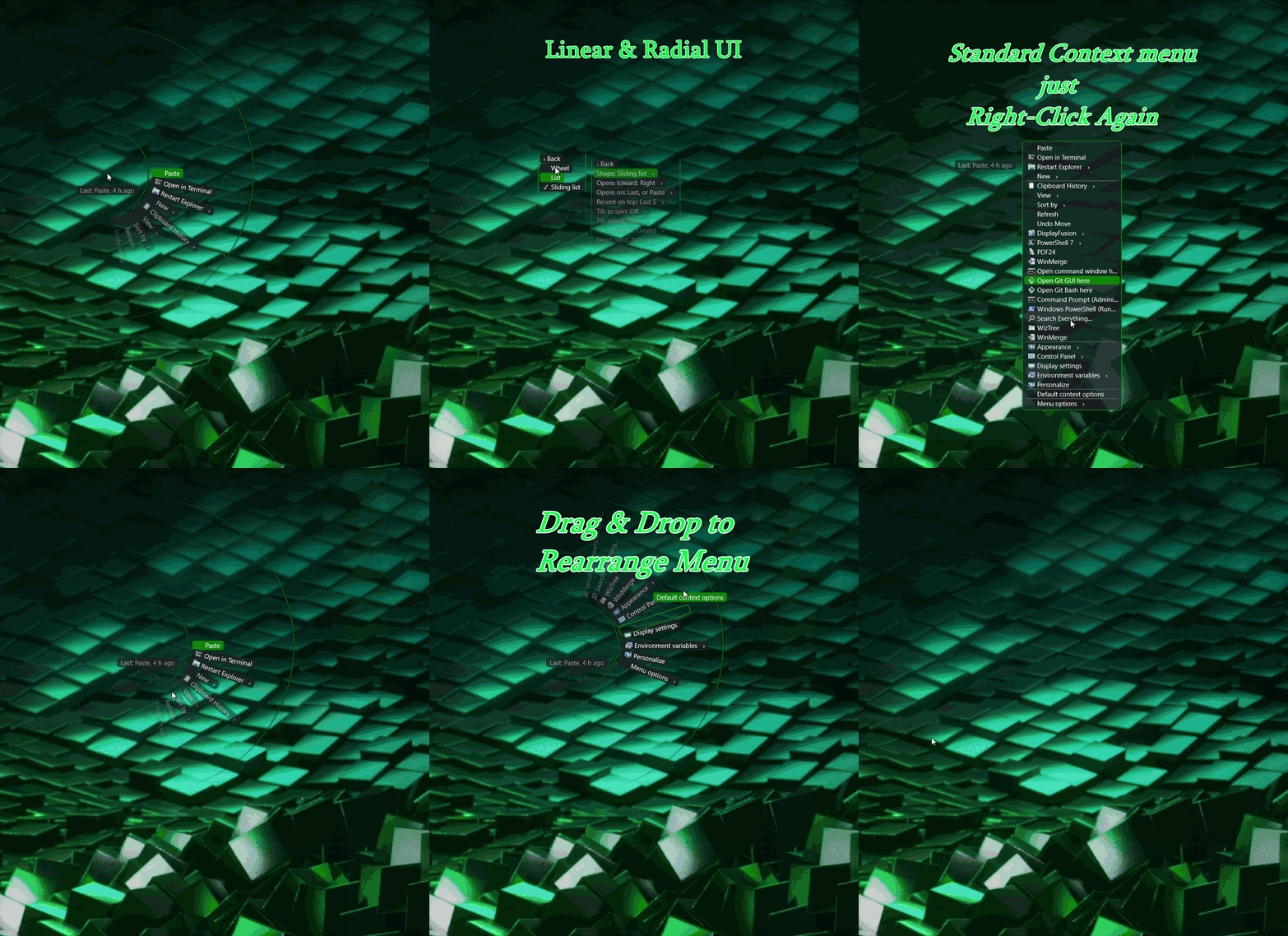
Shows classic (Win32) context menus as a half wheel around the cursor. The item on the centre line, or the one under the cursor, is highlighted; items fade out toward the top and bottom of the arc.

Wheel Context Menu in use

Using it

Mouse

  • Scroll inside the wheel to step one item. Scroll outside it to dismiss.
  • Optional "Tilt to spin": move above or below the centre band to spin the wheel, faster the further you go.
  • Click a label to choose it. A click on empty space inside the wheel chooses the highlighted item by default; that can be changed to do nothing, close the menu, or go back out of a submenu. Click outside to dismiss.
  • Press and pull a label to rearrange. The order is remembered for that menu.
  • Right-click inside the wheel for the standard menu.

Keyboard

  • Type a name to jump to it. Up / Down step, Left / Right jump to the ends.
  • Enter chooses, Backspace goes back, Esc closes.

Shape can be changed from the wheel to a straight menu that keeps every feature: "List" is a regular box, "Sliding list" is the wheel straightened into a column.

Last choice note (off by default) shows what you last chose from a wheel, and how long ago, as a greyed entry at the top or bottom of the list or in the centre of the wheel. Handy after an accidental click.

Menu options (last entry in the menu) changes most settings on the spot. A change made there holds until you next change the mod's settings in Windhawk, which then take over again.

Windows 11

Explorer's modern context menu is not a classic menu, so the wheel only appears where the classic one would: after "Show more options", with Shift + right-click, or everywhere if you restore the classic menu (for example with the "Classic context menu on Windows 11" mod).

Other programs

Only explorer.exe is targeted by default. Any program that shows classic menus through TrackPopupMenu can be added from the mod's Advanced tab. Programs that draw their own menus (browsers, Office, most Electron apps) are not affected. A program that is not per-monitor DPI aware may misjudge clicks on a scaled display.

Other context menu mods

Mods that replace the same menus, such as Custom Cached Context Menu, hook the same functions. With two of them enabled, whichever hook runs first takes the menu, so use one at a time.

Known limits

  • A menu whose top level has owner-drawn items with no readable text is shown as the standard menu instead. Inside a submenu such items show as "Item N".
  • Menu icons are not shown.
  • Stacked submenus can run past the screen edge when a menu is deep.

r/Windhawk • • 1d ago

Notepad Pro 1.1.0

9 Upvotes

Notepad Pro 1.1.0

  • Added indent guides, faint vertical lines inside the indentation
  • Added a live preview pane for Markdown, RTF, CSV, TSV, JSON, XML and INI files
  • Fixed the change markers being partly hidden when the window is maximized
  • Improved syntax highlighting

r/Windhawk • • 1d ago

Native Windows Screen Recorder 2.0.4

Post image
16 Upvotes

Native Windows Screen Recorder 2.0.4

Native Windows Screen Recorder

ℹ️ Compatibility Note (Smart App Control) / Lưu ý tương thích:

  • 🌐 English: Like all Windhawk mods, this mod is compiled locally into an unsigned .dll file. It runs in a dedicated Windhawk tool process. If Windows Smart App Control is active on your PC, Windows will block the compiled .dll and the mod will not load.
  • 🇻🇳 Tiếng Việt: Giống như mọi bản mod trên Windhawk, mod này được biên dịch cục bộ thành tệp .dll không có chữ ký số và chạy trong một tiến trình công cụ độc lập của Windhawk. Nếu máy đang bật Smart App Control (Kiểm soát Ứng dụng Thông minh), Windows sẽ chặn tệp .dll này khiến mod không thể hoạt động.

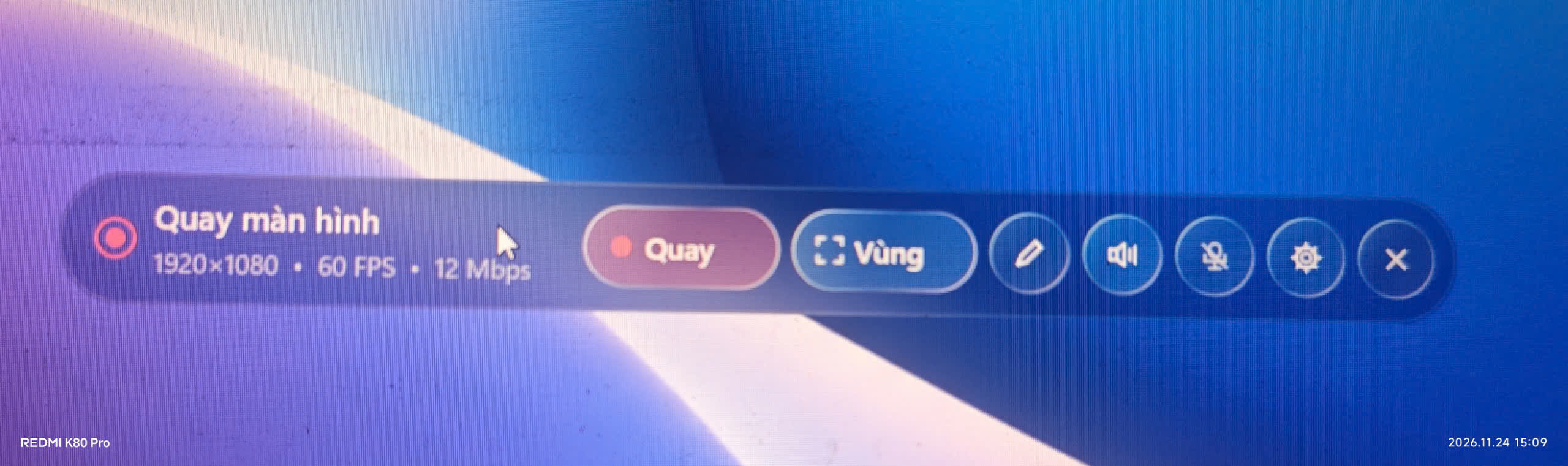
Native Windows Screen Recorder Preview (Floating Pill Bar)

Floating Pill Bar (13 Themes & Windows 11 Blur / Liquid Glass)

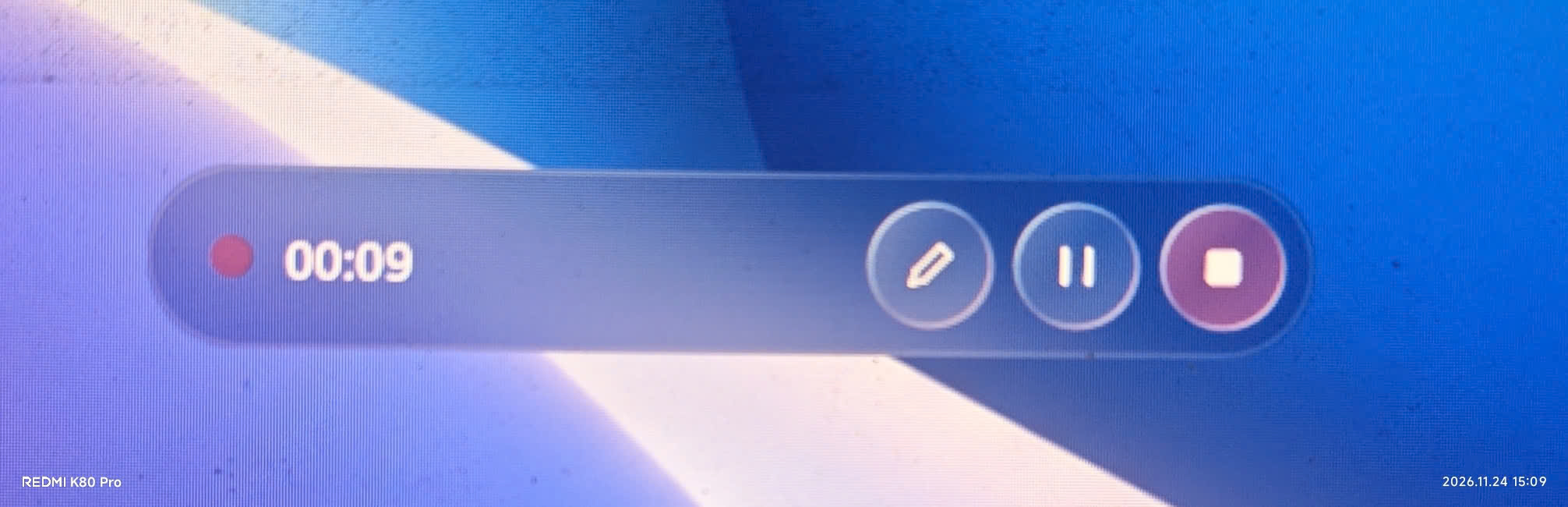
Native Windows Screen Recorder Preview (Active Recording HUD)

Active Recording HUD

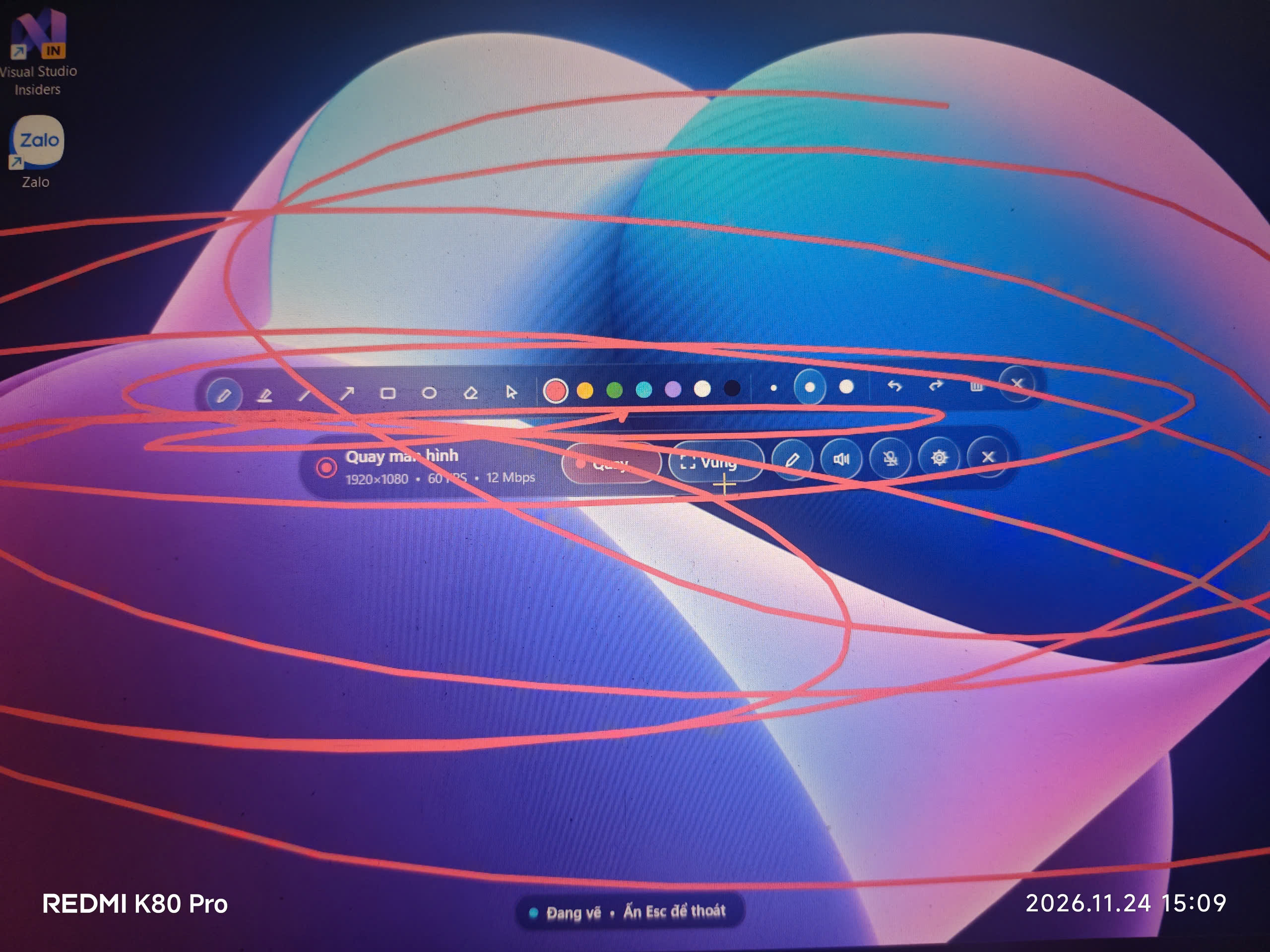
Native Windows Screen Recorder Preview (Live Screen Drawing)

Live Screen Drawing / Annotation Toolbar & Esc Hint Pill

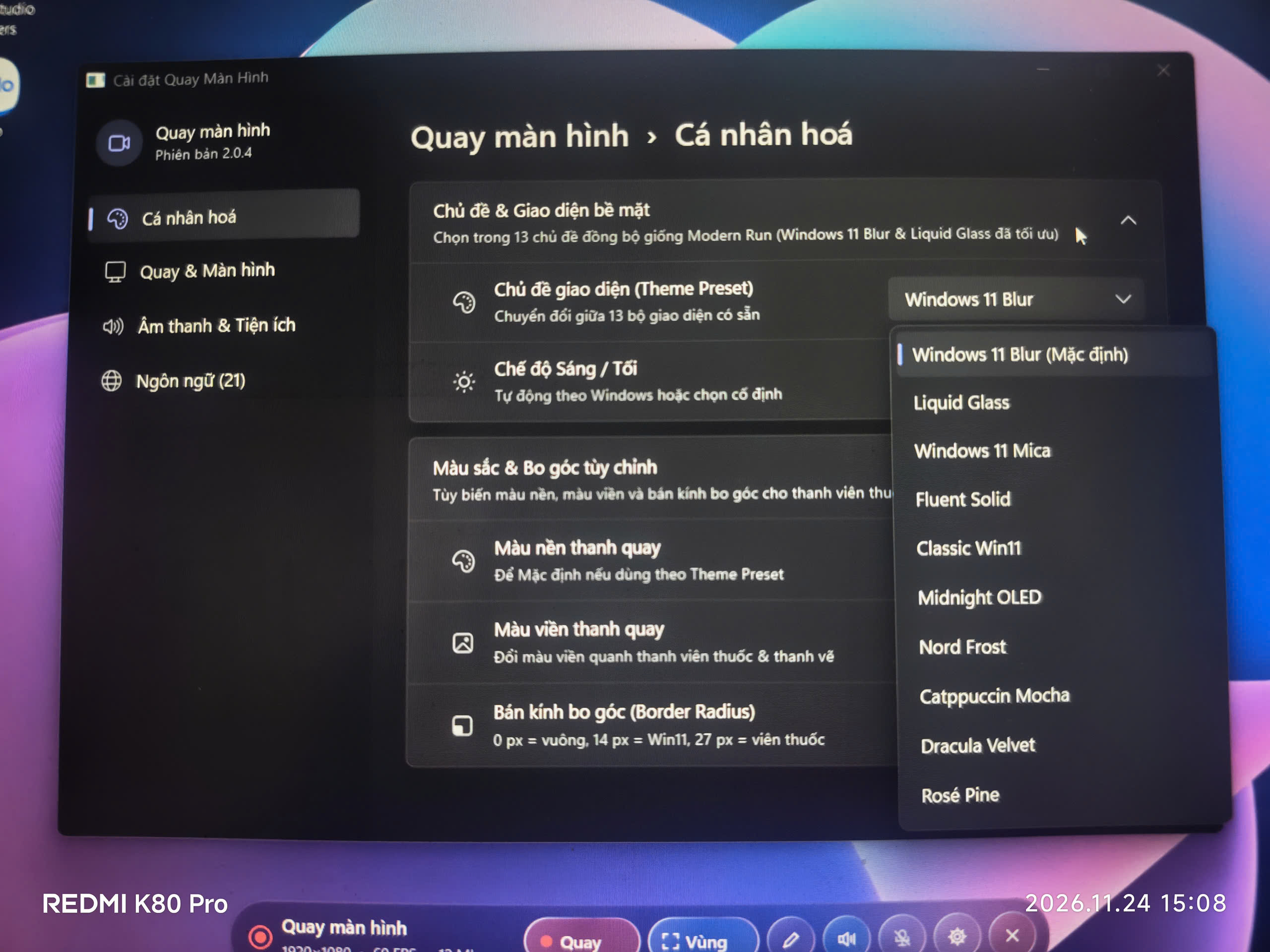
Native Windows Screen Recorder Preview (WinUI 3 Settings Window)

Dedicated WinUI 3 Settings Window (Hosted in windhawk.exe)

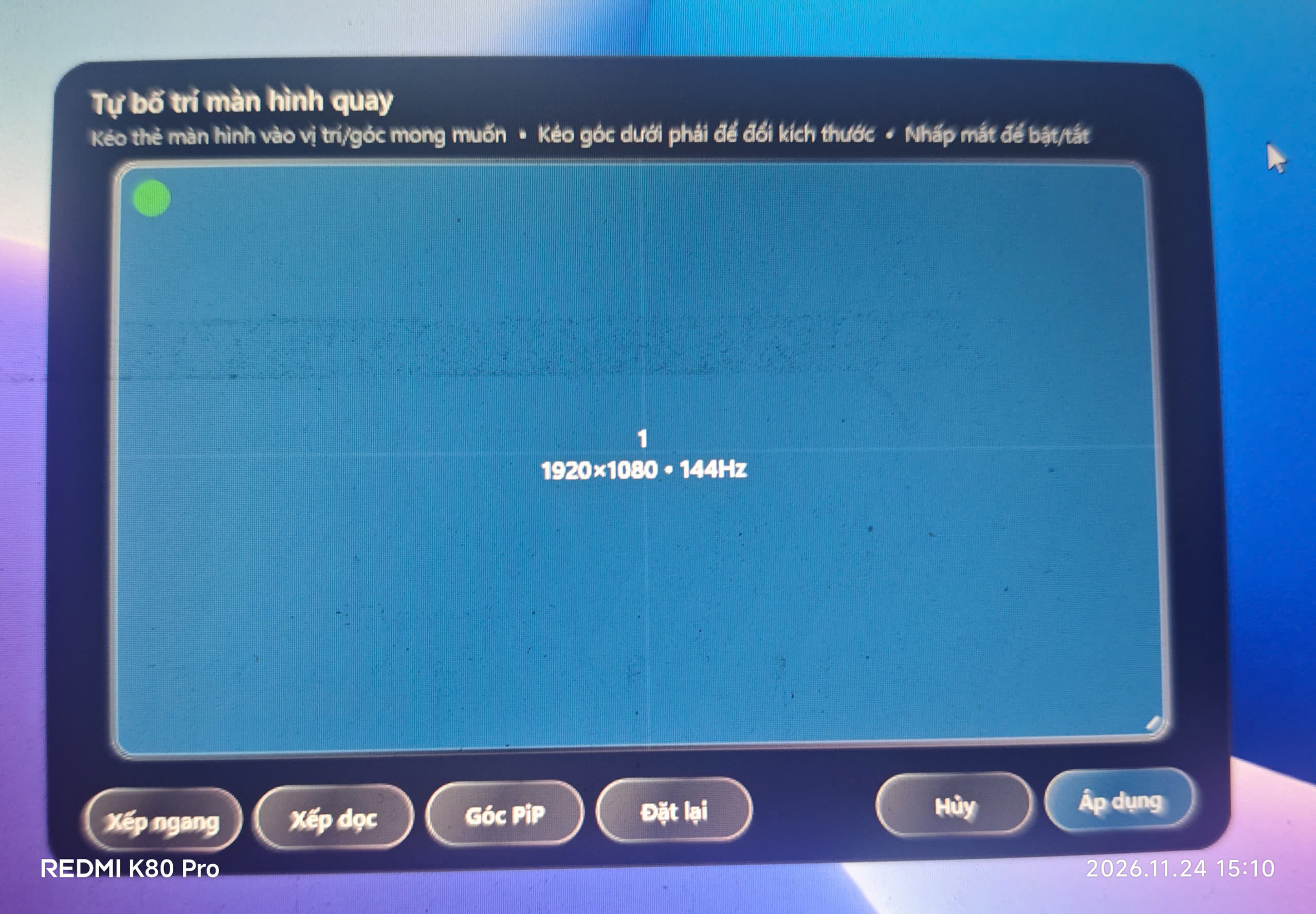
Native Windows Screen Recorder Preview (Multi-Monitor Layout Arranger)

Interactive Multi-Monitor Custom Layout Arranger


🌐 English

A lightweight, native Windows screen recorder running in an isolated Windhawk tool process (windhawk.exe / windhawk-mod.exe — never injecting into explorer.exe) with 13 built-in visual themes, a dedicated WinUI 3 Settings window, hardware-capped resolution & active refresh-rate FPS selector, live screen drawing/annotation toolbar, multi-monitor custom layout arranger, and 21-language support — no third-party apps required.

Key Features

  • Dedicated WinUI 3 Settings Window & Isolated Tool Process:

    • The entire recorder runs in its own isolated Windhawk tool process (windhawk.exe / windhawk-mod.exe), keeping explorer.exe completely untouched. Clicking ⚙️ on the floating pill bar opens the built-in Windows 11 Settings–style window for themes, resolution, FPS, monitor layout, audio, and language.
    • Built end-to-end with Direct2D WinUI 3 controls: grouped SettingsExpander cards, WinUI 3 ComboBox flyouts with vertical accent indicators, and a native-style WinUI 3 HSV ColorPicker with 16 Fluent swatches. Changes apply immediately to the live pill bar.
  • 13 Built-In Themes & Full Visual Customization:

    • Defaults to Windows 11 Blur (authentic frosted Fluent Acrylic), with Liquid Glass (refractive 3D glass pill) and 11 more curated themes (Windows 11 Mica, Fluent Solid, Classic Win11, Midnight OLED, Nord Frost, Catppuccin Mocha, Dracula Velvet, Rosé Pine, Emerald Slate, Warm Paper, and Custom).
    • Customize Background Color, Border Color, and Corner Radius (0–28 px) across the pill bar, drawing toolbar, and layout arranger, excluded from recorded video via WDA_EXCLUDEFROMCAPTURE.
  • Hardware-Capped Resolution & Active Refresh-Rate FPS:

    • Automatically detects each monitor's native hardware resolution and active Windows display refresh rate (ENUM_CURRENT_SETTINGS), only exposing presets up to your current hardware limits (e.g., 60 Hz caps at 60 FPS; 144 Hz unlocks up to 144 FPS; 240 Hz unlocks up to 240 FPS) with automatic GPU H.264 encoder step-down fallback.
  • Multi-Monitor Capture & Interactive Custom Layout Arranger:

    • Record the monitor under your cursor, pick any individual monitor (Monitor 1, Monitor 2, ...), record All Monitors Combined, or open the Custom Monitor Layout arranger directly from Settings to drag, snap, resize, and toggle monitors into any corner or Picture-in-Picture layout.
  • Live Screen Drawing / Annotation (✏️), WASAPI Audio & 21 Languages:

    • Toggleable from the Idle Pill Bar or Active Recording HUD with Pen, Highlighter, Line, Arrow, Rectangle, Ellipse, Eraser, Mouse Pass-through, 7 colors, 3 sizes, Undo / Redo, Clear All, and a "Press Esc to exit" hint pill.
    • DXGI Desktop Duplication with automatic GDI fallback, Media Foundation H.264 + AAC (192 kbps) direct MP4 encoding, WASAPI System Audio Loopback + Microphone mixing, automatic Explorer reveal on finish, and 21 built-in languages.

Default Hotkeys

  • Ctrl + Alt + R: Open / Close the floating Pill Launcher bar (or Stop if currently recording)
  • Ctrl + Alt + S: Drag-select a custom screen region and start recording
  • Ctrl + Alt + P: Pause / Resume active recording
  • Esc: Exit Live Screen Drawing mode (or cancel region selection)

🇻🇳 Tiếng Việt

Trình quay màn hình native gọn nhẹ cho Windows chạy trong tiến trình công cụ độc lập của Windhawk (windhawk.exe / windhawk-mod.exe, không can thiệp vào explorer.exe) với 13 chủ đề giao diện, cửa sổ Cài đặt WinUI 3 tích hợp, tùy chỉnh độ phân giải & FPS giới hạn theo tần số quét thực tế của phần cứng, bộ công cụ vẽ trực tiếp lên màn hình khi quay, trình tự bố trí đa màn hình trực quan và hỗ trợ 21 ngôn ngữ — không cần cài thêm phần mềm bên thứ 3.

Tính năng chính

  • Cửa sổ Cài đặt WinUI 3 & Tiến Trình Công Cụ Độc Lập:

    • Toàn bộ trình quay màn hình chạy tách biệt hoàn toàn trong tiến trình công cụ của Windhawk (windhawk.exe / windhawk-mod.exe), an toàn tuyệt đối cho explorer.exe. Bấm nút ⚙️ trên thanh viên thuốc để mở cửa sổ Cài đặt Quay Màn Hình phong cách Windows 11.
    • Thiết kế đồng bộ chuẩn WinUI 3 với thẻ nhóm SettingsExpander, menu thả xuống ComboBox Flyout có thanh nhấn dọc và bảng chọn màu WinUI 3 ColorPicker 16 ô màu nhanh Fluent — mọi thay đổi áp dụng tức thì lên thanh viên thuốc.
  • 13 Chủ Đề Giao Diện & Tùy Chỉnh Màu Sắc, Bo Góc:

    • Mặc định Windows 11 Blur (Acrylic mờ dịu mắt chuẩn Windows 11), kèm Liquid Glass (kính trong suốt khúc xạ 3D) và 11 chủ đề tinh chọn khác (Windows 11 Mica, Fluent Solid, Classic Win11, Midnight OLED, Nord Frost, Catppuccin Mocha, Dracula Velvet, Rosé Pine, Emerald Slate, Warm Paper và Tự tùy chỉnh).
    • Tự do đổi Màu nền, Màu viền và Bán kính bo góc (0–28 px) đồng bộ trên toàn bộ thanh viên thuốc, thanh vẽ và trình bố trí màn hình, tự ẩn khỏi video quay nhờ WDA_EXCLUDEFROMCAPTURE.
  • Độ Phân Giải & FPS Giới Hạn Thông Minh Theo Phần Cứng:

    • Tự động nhận diện độ phân giải gốc và tần số quét Windows đang thiết lập (ENUM_CURRENT_SETTINGS), chỉ mở khóa mức FPS tương ứng (60Hz tối đa 60 FPS; 144Hz mở lên 144 FPS; 240Hz mở lên 240 FPS) kèm cơ chế tự hạ bậc an toàn theo bộ mã hóa H.264 của GPU.
  • Quay Đa Màn Hình & Tự Bố Trí Màn Hình Trực Quan:

    • Chọn màn hình chứa con trỏ, từng màn hình riêng lẻ (Màn hình 1, Màn hình 2, ...), quay tất cả màn hình cùng lúc, hoặc mở trình Tự bố trí màn hình ngay từ cửa sổ Cài đặt để kéo thả, phóng to/thu nhỏ và sắp xếp các màn hình (Xếp ngang, Xếp dọc, Góc PiP).
  • Vẽ Trực Tiếp Lên Màn Hình (✏️), Thu Âm WASAPI & 21 Ngôn Ngữ:

    • Trang bị đầy đủ Bút vẽ, Dạ quang, Đường thẳng, Mũi tên, Hình chữ nhật, Elip, Tẩy, Xuyên chuột, 7 màu, 3 cỡ nét, Hoàn tác / Làm lại, Xóa hết kèm viên thuốc nhắc "Đang vẽ • Ấn Esc để thoát".
    • Ghi hình DXGI Desktop Duplication (tự chuyển GDI dự phòng), xuất MP4 H.264 + AAC (192 kbps), thu âm thanh hệ thống & Micro, tự mở thư mục chọn tệp video khi xong và hỗ trợ 21 ngôn ngữ phổ biến.

Phím tắt mặc định

  • Ctrl + Alt + R: Mở / Ẩn thanh viên thuốc quay màn hình (hoặc Dừng nếu đang quay)
  • Ctrl + Alt + S: Kéo chuột chọn vùng màn hình và quay ngay
  • Ctrl + Alt + P: Tạm dừng / Tiếp tục quay
  • Esc: Thoát chế độ vẽ lên màn hình (hoặc hủy chọn vùng)

r/Windhawk • • 1d ago

Vision 1.2026.2511

Post image
7 Upvotes

Vision 1.2026.2511

Vision

Vision Screenshot

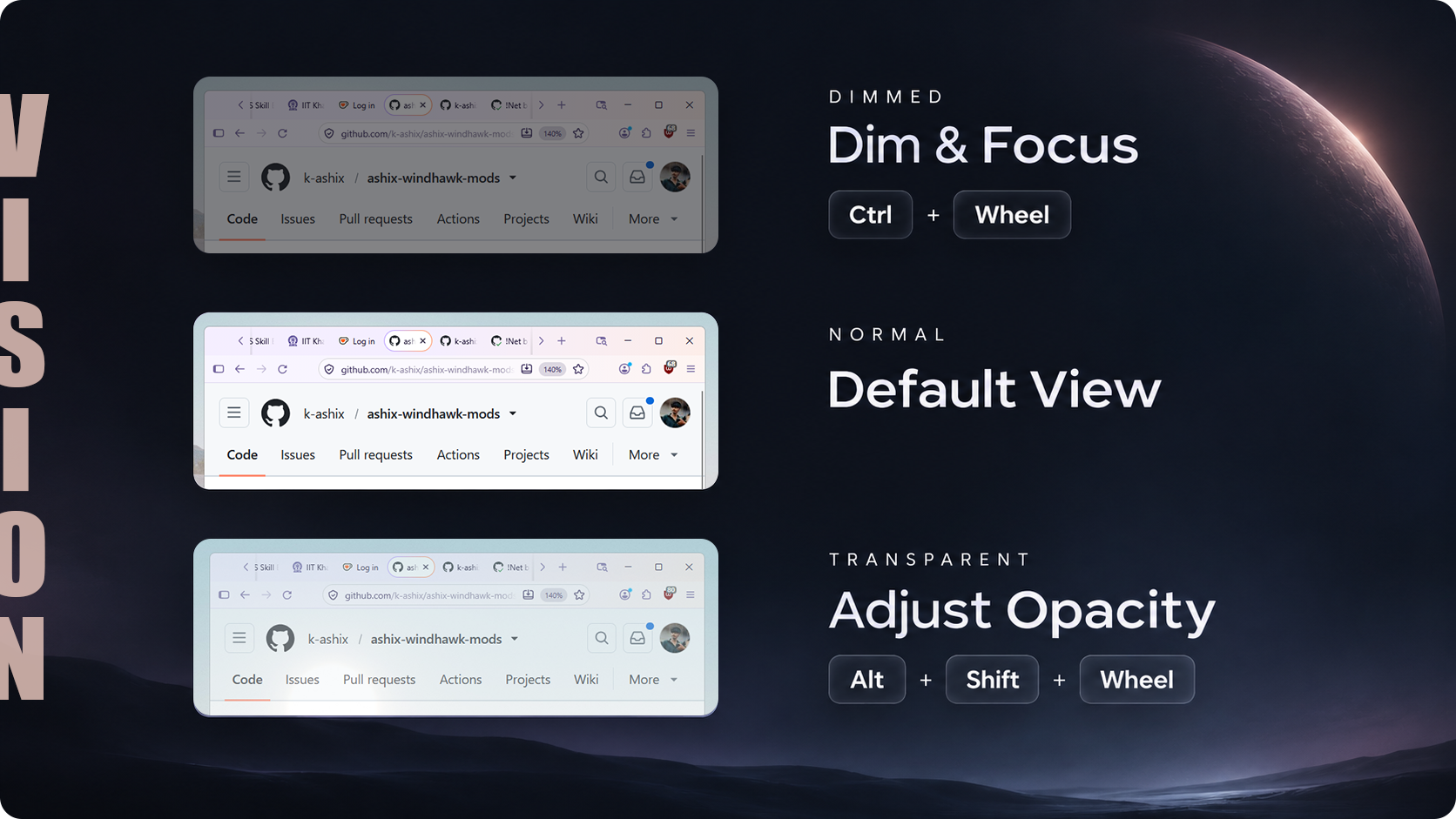
Control any window's opacity, always-on-top state, and per-window dimming overlay directly from its title bar.

ActionDefault TriggerNotes
Adjust OpacityAlt + Shift + Wheel over title bar25%–100%, 5% step
Toggle Saved App OpacityAlt + Shift + Double-Click over title barToggles ON/OFF without erasing saved app opacity
Toggle Pin (Always on Top)Alt + Shift + Middle-Click over title barPins or unpins the window
Adjust DimCtrl + Wheel over title barSoft per-window overlay, never 100% pitch black
Toggle Saved App DimCtrl + Double-Click over title barToggles ON/OFF without erasing saved app dim
Header % Button & SliderOptional (disabled by default)Minimal % indicator in the title bar; hover reveals a dim slider

Highlights

  • Per-Window Dimming Relative to Your Current Monitor Brightness: Dim any individual window (such as a bright PDF, browser, or editor) without changing your monitor's hardware brightness, gamma ramp, or OSD settings. Whatever brightness your display is set to is always treated as 100%.
  • Saved Per-App Dim & Opacity Levels: Each app remembers your last dim and opacity percentages per Windows user, so you can toggle them back on with a quick title-bar click.
  • Optional Title-Bar % Control: Enable a compact % badge in the active window's title bar that reveals a smooth slider on hover for one-handed dim adjustments.
  • Screenshot & Recording Control: Choose whether dim overlays, reduced opacity, and the title-bar slider are hidden from or included in screenshots and screen recordings (exclude_all, show_dim, show_controls, show_all).
  • Clean Resize & Window Tracking: Dim overlays follow window moves and resizes smoothly without flashing black or white strips, and never interfere with monitor control utilities or per-pixel transparent windows.
  • Standalone Tool Mod: Runs in its own dedicated Windhawk tool process (compatible with both Windhawk 1.7.3 and 2.0) and restores all modified windows when disabled or unloaded.

How Vision Differs from Similar Mods

  • Background Dimmer dims all inactive windows behind the active one using a global backdrop. Vision instead lets you manually dim any specific window (including the active one you are reading) to its own level with the scroll wheel or title-bar slider, and remembers that dim level per app.
  • Scroll Window Opacity adjusts window transparency with a modifier + scroll wheel, but does not offer a per-window dimming overlay, saved per-app dim/opacity quick-toggles, or a title-bar % slider.
  • Middle Click Minimize and Always On Top Windows focus on window state actions (minimize/close/pin via click or hotkey) without per-window dimming or opacity controls.
  • Window Rules applies static rules automatically when matching windows open, whereas Vision is designed for instant, interactive on-the-fly adjustments directly from any title bar.

r/Windhawk • • 1d ago

Devices and drives in Explorer Home 1.0.0

Post image
12 Upvotes

Devices and drives in Explorer Home 1.0.0

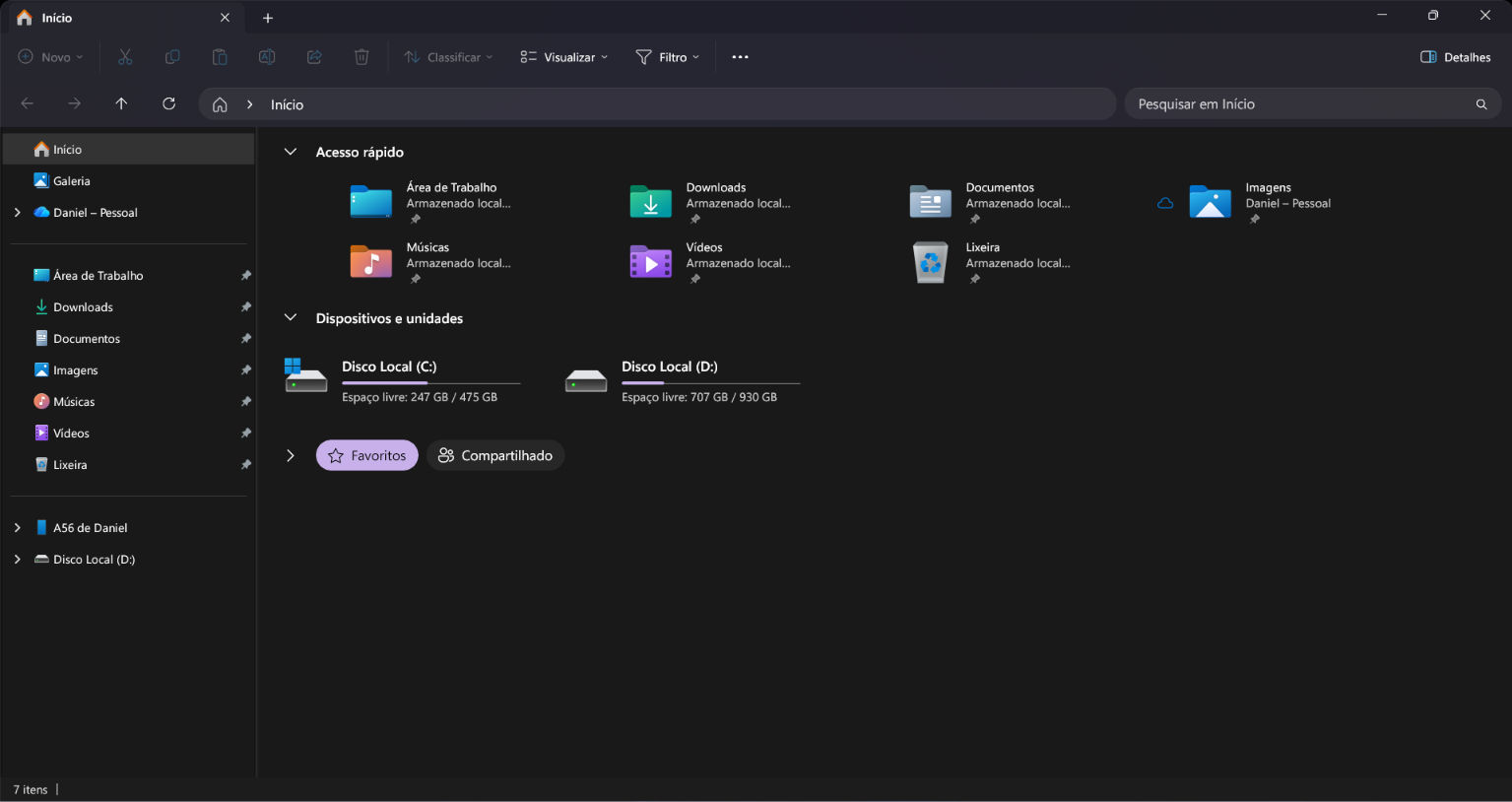
Devices and drives in the File Explorer Home folder

Devices and drives in Explorer Home

The This PC folder in Windows File Explorer shows your drives, this mod brings that to the Home folder. It adds a native Devices and drives section right after Quick access, built with the same WinUI the rest of the Home page already uses.

What you get:

  • Drive cards with the real name, icon, type and free-space bar, taken straight from the Shell, the same info you'd see in "This PC".
  • Double-click a card to open the drive in the current tab; drag one out to create a shortcut, or drag files onto it to copy or move them there.
  • Right-click a single file-system drive (or use your keyboard's context-menu shortcut) for Explorer's native Windows 11 menu. Hold Shift while right-clicking to open the extended classic menu; multiple selections and virtual devices automatically use the classic menu too.
  • Rename works inline, just like a normal folder.
  • The section header can collapse the whole grid if you want it out of the way.
  • The grid keeps itself up to date automatically whenever a drive is plugged in, removed, or its free space changes.

A quick technical note: the mod reads Explorer's own WinUI page and inserts the section directly into it, without relying on XAML Diagnostics, so it plays nicely alongside other Explorer styling mods that need that facility for themselves. One consequence: a File Explorer window already sitting on Home when the mod is enabled may not pick up the section right away. Navigate away and back to Home (or open a new tab) to refresh it; windows opened after enabling the mod are unaffected. On some older Windows 11 builds, the section shows up at the bottom of Home instead of right after Quick access, and the native selection rectangle doesn't draw over it during a drag-select — everything else (drive cards, drag and drop, context menu, rename) works the same. The modern context menu is obtained and rendered through Explorer's own WinRT contracts, including its native commands, ordering and icons. If those contracts aren't available, or the selection can't be represented as one real file-system item, the mod falls back to the complete classic Shell menu.


Dispositivos e unidades na pasta Início do Explorador de Arquivos

A pasta Este Computador do Explorador de Arquivos do Windows mostra suas unidades, esse mod traz isso para a pasta Início. Ele adiciona uma seção nativa de Dispositivos e unidades logo depois do Acesso rápido, construída com o mesmo WinUI que o resto da Página Inicial já usa.

O que você ganha:

  • Cards de unidade com nome, ícone, tipo e barra de espaço livre reais, vindos direto do Shell, a mesma informação que você veria em "Este Computador".
  • Dê duplo clique num card pra abrir a unidade na aba atual; arraste um card pra fora pra criar um atalho, ou arraste arquivos pra dentro dele pra copiar ou mover.
  • Clique com o botão direito numa única unidade do sistema de arquivos (ou use o atalho de menu de contexto do teclado) pra abrir o menu nativo do Windows 11 do Explorador. Segure Shift durante o clique direito pra abrir o menu clássico estendido; seleções múltiplas e dispositivos virtuais também usam o menu clássico automaticamente.
  • Renomear funciona direto ali, igual numa pasta comum.
  • O cabeçalho da seção pode recolher a grade inteira se você quiser tirá-la do caminho.
  • A grade se atualiza sozinha sempre que uma unidade é conectada, removida, ou o espaço livre muda.

Um detalhe técnico rápido: o mod lê a própria página WinUI do Explorador e insere a seção diretamente nela, sem depender do XAML Diagnostics, então ele convive bem com outros mods de estilo do Explorador que precisam desse recurso pra si. Uma consequência disso: uma janela do Explorador de Arquivos que já esteja aberta na pasta Início quando o mod for ativado pode não mostrar a seção na hora. Saia da pasta Início e volte (ou abra uma nova aba) pra atualizar; janelas abertas depois de ativar o mod não têm esse problema. Em algumas builds mais antigas do Windows 11, a seção aparece no final da Página Inicial em vez de logo depois do Acesso rápido, e o retângulo de seleção nativo não é desenhado sobre ela durante uma seleção por arraste — o resto (cards de unidade, arrastar e soltar, menu de contexto, renomear) funciona igual. O menu moderno é obtido e renderizado pelos próprios contratos WinRT do Explorador, inclusive com comandos, ordem e ícones nativos. Se esses contratos não estiverem disponíveis, ou a seleção não puder ser representada como um único item real do sistema de arquivos, o mod volta automaticamente ao menu clássico completo do Shell.


Dispositivos y unidades en la carpeta Inicio del Explorador de archivos

La carpeta Este equipo del Explorador de archivos de Windows muestra tus unidades, este mod trae eso a la carpeta Inicio. Agrega una sección nativa de Dispositivos y unidades justo después de Acceso rápido, construida con el mismo WinUI que ya usa el resto de la página de Inicio.

Qué obtienes:

  • Tarjetas de unidad con el nombre, ícono, tipo y barra de espacio libre reales, tomados directamente del Shell, la misma información que verías en "Equipo".
  • Haz doble clic en una tarjeta para abrir la unidad en la pestaña actual; arrastra una hacia afuera para crear un acceso directo, o arrastra archivos sobre ella para copiarlos o moverlos.
  • Haz clic derecho en una sola unidad del sistema de archivos (o usa el atajo de menú contextual del teclado) para abrir el menú nativo de Windows 11 del Explorador. Mantén Shift durante el clic derecho para abrir el menú clásico extendido; las selecciones múltiples y los dispositivos virtuales también usan automáticamente el menú clásico.
  • Cambiar el nombre funciona en línea, igual que en una carpeta normal.
  • El encabezado de la sección puede contraer toda la cuadrícula si quieres quitarla de en medio.
  • La cuadrícula se actualiza sola cada vez que se conecta o quita una unidad, o cambia el espacio libre.

Un detalle técnico rápido: el mod lee la propia página WinUI del Explorador e inserta la sección directamente en ella, sin depender de XAML Diagnostics, así que convive bien con otros mods de estilo del Explorador que necesitan ese recurso para sí mismos. Una consecuencia de esto: una ventana del Explorador de archivos que ya esté abierta en la carpeta Inicio cuando se active el mod puede no mostrar la sección de inmediato. Sal de Inicio y vuelve a entrar (o abre una pestaña nueva) para actualizarla; las ventanas abiertas después de activar el mod no tienen este problema. En algunas builds más antiguas de Windows 11, la sección aparece al final de Inicio en lugar de justo después de Acceso rápido, y el rectángulo de selección nativo no se dibuja sobre ella durante una selección por arrastre — el resto (tarjetas de unidad, arrastrar y soltar, menú contextual, cambiar nombre) funciona igual. El menú moderno se obtiene y se renderiza mediante los propios contratos WinRT del Explorador, incluidos sus comandos, orden e iconos nativos. Si esos contratos no están disponibles, o la selección no se puede representar como un único elemento real del sistema de archivos, el mod vuelve automáticamente al menú clásico completo del Shell.


r/Windhawk • • 1d ago

Uninstall Here 1.0.0

Post image
25 Upvotes

Uninstall Here 1.0.0

Uninstall Here

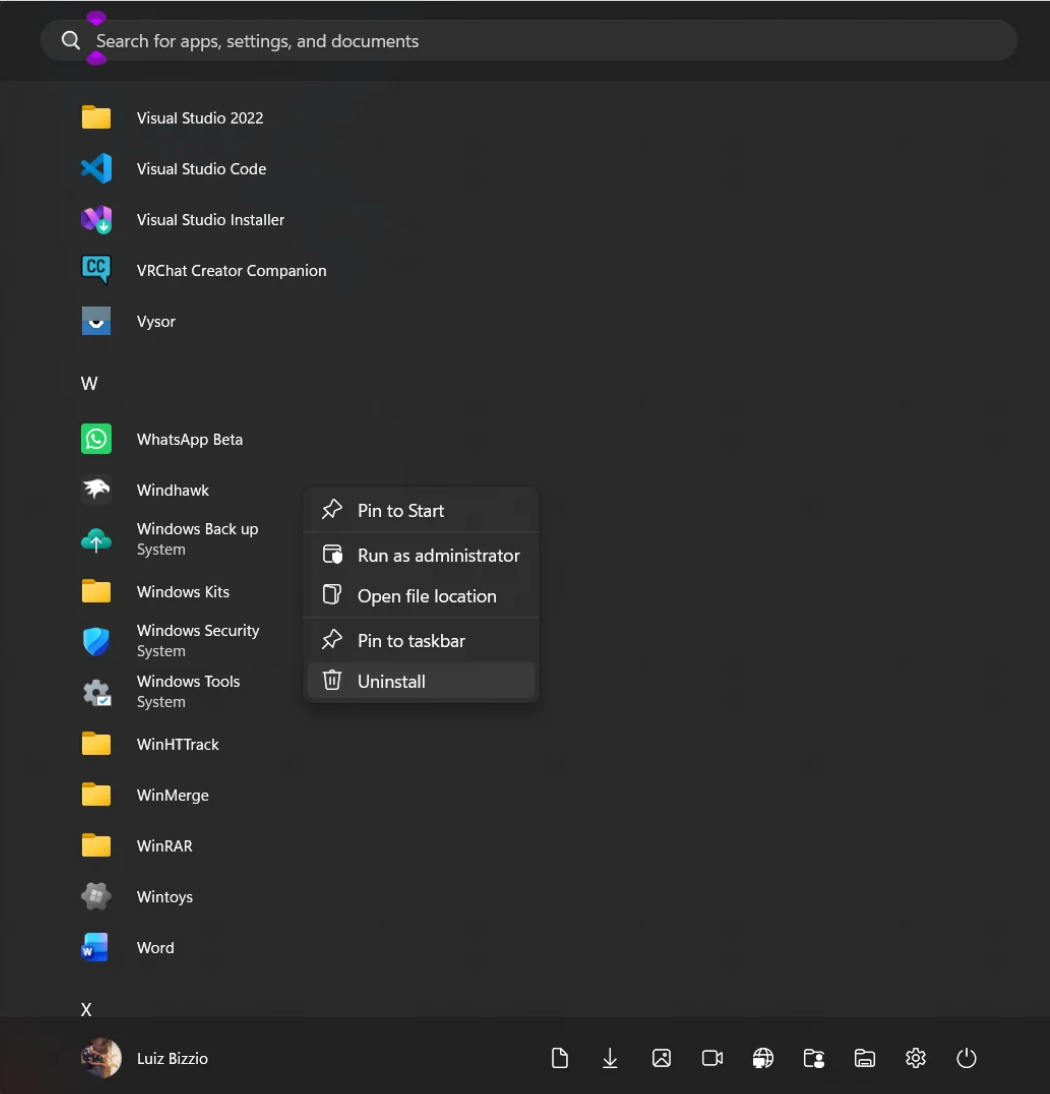
Open a desktop app's own uninstaller from the Windows 11 Start menu. Uninstall Here saves you a trip through Installed apps when it can identify the app's uninstaller.

How to use

Start → All apps → right-click the app → Uninstall

Confirm the product name before its uninstaller opens. MSI products open Windows Installer in uninstall mode. Follow any subsequent prompts from the uninstaller or Windows.

This mod targets 64-bit Windows 11. The All apps flow was tested on x64 build 26300.10075.

If Installed apps still opens

Windows handles packaged apps and desktop apps without one identifiable registered installation.

If you expected the app to work, enable logging for Uninstall Here in Windhawk and repeat the click. Include the app version, Windows build, and the mod's log entries in your report. Report an issue

Screenshot

The Uninstall command highlighted in the Windows 11 Start menu

Project on GitHub


r/Windhawk • • 1d ago

Taskbar Edge Stop 1.0

Post image
11 Upvotes

Taskbar Edge Stop 1.0

Taskbar Edge Stop

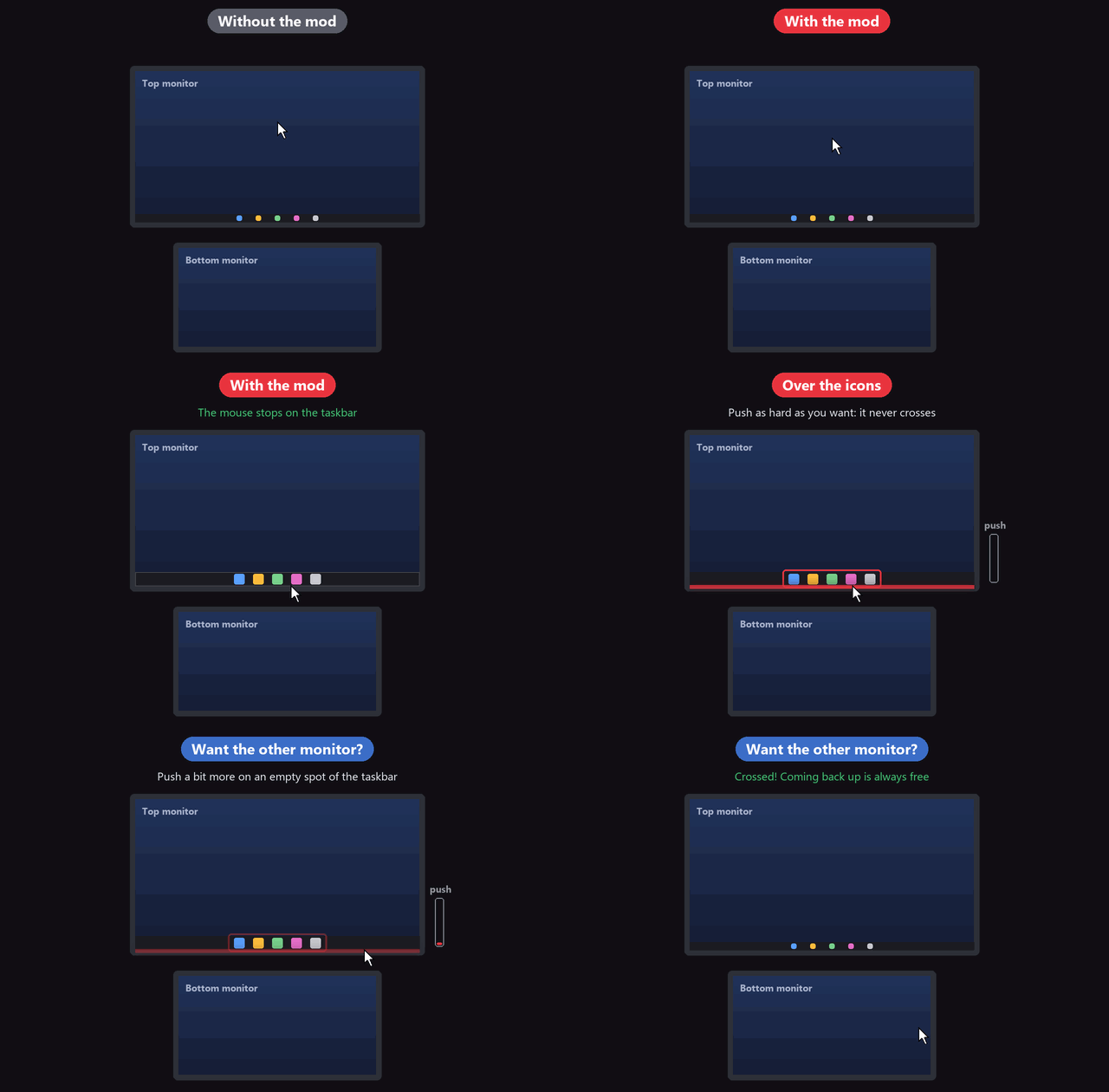
The problem: with two monitors, you move the mouse to the taskbar and it slips right past it onto the other monitor. With a small or auto-hidden taskbar this happens all the time.

The fix: the taskbar becomes a "stopper". The mouse stops on it, so you can click your icons without overshooting.

Demo

How it works

  • Moving to the taskbar, the mouse stops on it (and an auto-hidden taskbar shows up).
  • Want to go to the other monitor? Keep pushing the mouse a little more.
  • Over the taskbar icons, you can make it never cross, no matter how hard you push (option below). Cross through the empty part of the taskbar instead.
  • Coming from the other monitor straight onto the taskbar, the way is free.
  • Moving sideways into the taskbar strip of a neighboring monitor (monitors side by side) is also stopped, so the mouse doesn't slide onto the wrong taskbar.
  • Nothing changes anywhere else on the screen.

Works with

  • Monitors stacked vertically or side by side, any size (ultrawide included).
  • Small taskbars (other Windhawk mods), auto-hide, and taskbars on any screen edge.
  • Plugging in, unplugging or rearranging monitors, and Explorer restarts: the mod adapts within a second.

Limitations

  • Injected mouse input is ignored, so the mod does nothing in Remote Desktop sessions, in virtual machines with guest tools, and with some tablets or touchpads that report their movement as injected input.
  • Other mods that also act on the mouse crossing between monitors with a low-level mouse hook (for example Proportional cursor between monitors) may conflict: whichever hook was installed last decides.

Settings

  • Extra height above the taskbar: increase it if the mouse still slips through. It follows each monitor's scale, so it looks the same on a 100% and a 200% monitor.
  • Push force to cross: how much to push against the taskbar to cross (0 = never).
  • Never cross over the icons: over the app icons, Start and the system tray icons, the mouse never crosses, even when pushing.

r/Windhawk • • 1d ago

Taskbar Badge Control 1.0.0

Post image
11 Upvotes

Taskbar Badge Control 1.0.0

Taskbar Badge Control

This mod lets you show or hide taskbar badges per application, instead of turning them all on or off through Windows. It's useful for apps that don't offer their own setting to disable taskbar badges.

Taskbar before and after selectively hiding application badges

Usage

Use the filtering mode to show badges by default or hide badges by default, then populate Applications with the apps that should behave differently.

Add process names (process.exe), full executable paths, or AppUserModelIDs under Applications. Entries are case-insensitive exact matches; wildcards are not supported.

Required Windows setting

Enable Show badges on taskbar apps under Settings → Personalization → Taskbar → Taskbar behaviors.

If this setting is disabled, Windows hides all taskbar badges regardless of the mod's rules. The mod cannot show badges for allowed applications while the global setting is off.

Windows taskbar settings with Show badges on taskbar apps enabled

Limits

  • Only the native Windows 11 taskbar is supported (x64 and ARM64).
  • Badges drawn into an application's base icon cannot be removed.
  • Applications whose identity cannot be resolved keep their badges.

r/Windhawk • • 1d ago

Aleph - Infinite Window Canvas 1.8.0

Post image
5 Upvotes

Aleph - Infinite Window Canvas 1.8.0

Aleph - Infinite Window Canvas

Aleph presents eligible application windows on a navigable canvas. Live windows use DWM thumbnails; minimized and other-desktop windows use icon cards. Drag cards to arrange them without moving the real desktop windows.

[Aleph Canvas demo](https://imgur.com/a/qpERhgR)

Controls

  • Ctrl+Alt+Shift+F12: toggle the canvas. Leave the setting empty to disable the hotkey. If the hotkey does nothing, another program may already use it; pick a different combination.
  • Mouse wheel: zoom around the pointer.
  • Alt+wheel over a stacked card: cycle the stack; plain wheel still zooms.
  • The card header carries up to three buttons: pin, group (windows of the same application only), and close. Hovering a button shows its localized label.
  • Group joins the windows of one application into a stack; pressing it again splits the stack into a row. The grouped state is saved with the layout.
  • Hold Alt and drag a card onto another one to make a stack of your own, even across different applications; a drop only counts when the cards overlap solidly. Hold Alt and drag a member out to release just that window. A plain drop never groups anything. Custom stacks are saved with the layout.
  • Close sends WM_CLOSE to the real window, so the application closes; the card leaves the canvas once the next scan reports the window gone.
  • Middle mouse drag: pan the canvas.
  • Hold Space and drag empty canvas: pan.
  • Drag a card: arrange it; nearby edges snap into alignment.
  • Shift+click a stacked card: bring the next window of the same app to the front.
  • Double-click a card or press Enter: focus the window; for an other-desktop window, first try to move it here.
  • Tab / Shift+Tab: select a card; arrow keys pan; Home fits all cards; Escape hides the canvas.
  • Click or drag the minimap: navigate the canvas.
  • The canvas hides when another window takes input focus.

Notes

Card positions are saved in the Windhawk mod storage directory as layout-<user-SID>.json. Canvas coordinates use physical pixels relative to the virtual desktop origin. Card badges and the empty-canvas hint follow the interface language setting. Auto uses the system UI language and falls back to English when that language is not one of the thirteen supported ones. Icon cards ask the shell for the largest available icon (256 px when the jumbo image list exists) and fall back to smaller lists, then to the window icon. Arranging cards never moves real application windows. Activating an other-desktop card asks the documented IVirtualDesktopManager interface to move that window onto the desktop displaying the canvas. Windows can reject requests for windows owned by another process. A failed move is logged and the mod still attempts normal foreground activation, which can also fail.


r/Windhawk • • 1d ago

Windows 7 User Account Page Restorer 1.0.0

Post image
5 Upvotes

Windows 7 User Account Page Restorer 1.0.0

Windows 7 User Account Page Restorer

About

This mod restores the User Accounts page of Control Panel as it was in Windows 7: the user tile with its glass frame, "Create a password for your account", "Change your picture", "Manage another account", "Create a new account", the guest account pages, and the classic task list on the left.

Windows 10 and 11 still have a User Accounts page, but it is a reduced one that sends most tasks to the Settings app. This mod puts the original Windows 7 page (NT 6.1) back in its place. The page is the real one, not a recreation: it is Microsoft's usercpl.dll 6.1.7600.16385 running on its own Windows 7 DirectUI engine.

No system file is replaced or modified, and nothing is written to the registry. Disable the mod and the Windows 10/11 page is back.

Screenshots

User Accounts page, main view

User Accounts page, account view

What is downloaded, from where, and when

The mod contains no Microsoft binaries and never asks you for a file. The first time it runs it downloads four files, 2 MB in total, from Microsoft's public symbol server (https://msdl.microsoft.com/download/symbols/):

FileVersionUsed for
usercpl.dll6.1.7600.16385 (Windows 7)the page
dui70.dll6.1.7601.23403 (Windows 7 SP1)the DirectUI engine the page was built for
shacct.dll10.0.10240.16384 (Windows 10 1507)only the picture frame bitmap; never loaded as code
duser.dll6.1.7600.16385 (Windows 7)only the text of the "common" style sheet; never loaded as code

The size and the SHA-256 of each file are checked against values pinned in the mod; a file that does not match is discarded. The originals are kept in the mod's storage folder (dl). From them the mod builds, in bin, a private copy of the page for the selected language (see How it works). Nothing is downloaded again while dl is present, so after the first run the mod works offline.

The download cannot be turned off, and the mod cannot work without it. With Keep downloaded files when the mod is disabled off, the files are deleted at every unload, so the download is repeated after every disable or update. The only thing sent is the HTTPS request for the four fixed URLs, with the user agent Microsoft-Symbol-Server/10.0.0.0.

Offline at first run: the Windows 10/11 page simply stays, and the reason is written to the mod's log. Connect to the internet and restart explorer.exe (or toggle the mod).

How it works

  • The page. Control Panel is told to read the page definition and the layouts from the mod's private copy instead of System32\usercpl.dll (one documented function, PSPropertyBag_ReadStr, answers differently for that one value). The private copy is Microsoft's file with no code byte changed; only its resources are extended: the strings (the symbol server has no .mui files, so the strings are embedded in the mod, in English, Italian, French, Spanish, Portuguese and German), the picture frame, and the page definition.
  • The "modified page". The original Windows 7 layouts cannot load on Windows 10/11 as they are, for two reasons, and both are solved inside the private copy, with nothing in System32 involved:

    • they take the picture frame from shacct.dll, which no longer contains it since Windows 10 1607 (this is why the manual method needs a patched shacct.dll): the frame is put into the private copy and the layouts are pointed to it;
    • they use the "Common" style sheet, which DirectUI reads from the system's DUser.dll; since Windows 8 that sheet is stored in a binary format the Windows 7 DirectUI cannot read: the Windows 7 text of the sheet is put into each layout.
  • The accounts. The Windows 7 page talks to the system's account objects through interfaces that changed in Windows 10. The mod translates between the two layouts, so the page works on the Windows 10/11 implementation (with the system's own elevation prompt) instead of on old code. Creating a local account also runs net.exe user "<name>" /add elevated, which can show a second UAC prompt. It creates an account without a password; the page then performs any further changes through its account object. If the command times out or the account cannot be read back, creation may already have succeeded: check the account list before retrying.
  • Scope. The mod runs only in explorer.exe. Until the page is opened for the first time it loads nothing.

Settings

  • Page language: Automatic follows the Windows display language (English, Italian, French, Spanish, Portuguese or German; English if Windows uses another language). Applies to windows opened after the change; if the page was already used in this session, restart explorer.exe.
  • Show a generic user name: off by default. When on, the name of the signed-in user is shown as a generic one ("User", "Utente", "Benutzer", ...) on this page only; Windows and the account keep the real name. Saving the generic name unchanged in "Change the account name" does nothing, so the account is never renamed by mistake.
  • Show legacy online ID and fingerprint links: off by default. When enabled, the page's original visibility checks apply; fingerprint hardware may be required. Close and reopen the page after changing the setting. These links can remain unavailable or nonfunctional because their Windows 7 targets are normally absent on Windows 10/11.
  • Keep downloaded files when the mod is disabled: on by default, so that enabling the mod again needs no download.

Notes and limitations

  • Best effort. This mod is provided on a best-effort basis. It runs a Windows 7 page on top of Windows 10/11 components that Microsoft can change at any time, so some features may not work, or may stop working after a Windows update. The translations of the page (French, Spanish, Portuguese and German in particular) were also written without the original Microsoft files and may differ from the official wording.
  • Account removal is disabled. Because of a limitation of the legacy provider, removing an account from the classic page does nothing: the page shows a localized message and opens Settings > Accounts > Other users, where the account can be removed. Back up important files first: Settings can also delete the account data. The reason is that the provider's remove method runs inside the elevated account server, which for about 20 seconds blocks every other call to it, and with it the window of the page; its profile/file handling is also unverified.
  • The Guest account is an edge case and is not supported by modern Windows. The Windows 7 page can turn the Guest account on and off, but the Guest account is not supported by Windows 10/11, and it has been reported to work correctly only with a custom shell such as Explorer7/Windows7ExplorerRestorer (or equivalent software). For normal (non-Guest) profiles the page is expected to work.
  • The mod has been created for Windows 10 1607 or later or Windows 11; 64-bit (x64).
  • The mod has been tested on Windows 10 21H2 and Windows 11 24H2. Other versions from Windows 10 1607 on may work, but have not been tested.
  • This is the Windows 7 page: it does not know Microsoft accounts as such (they appear as the local accounts they are bound to).
  • Legacy online ID and fingerprint links are best effort. "Link online IDs" and "Manage your fingerprint data" are suppressed by default and can be allowed by a setting. Their original availability checks still apply, and functionality depends on specific legacy components or separate restorations that this mod does not provide or verify. The Windows 7 targets are normally absent on Windows 10/11, and even a restored component or provider may not be compatible or operational. In particular, this mod removes the online IDs page definition from its private copy: enabling the link does not restore that page, and a test produced a file-not-found error when it was clicked. No working restoration is guaranteed. "Parental Controls" remains conditional on a Family Safety applet being present.
  • "Change your picture" lists the pictures of ProgramData\Microsoft\User Account Pictures\Default Pictures, which Windows 10/11 do not ship; "Browse for more pictures..." works.
  • When the mod is disabled or updated, it closes the Explorer windows that currently show the User Accounts page and waits until they are gone (a window that has moved on to another folder is left alone). The whole window closes, including any other tabs in it, and so do the dialogs the page has open; save your work in those tabs first. The close request is repeated every second and the wait is logged every few seconds. A pending UAC prompt cannot be closed by the mod: answer it. The three links of the page that the mod hides come back. The page and its DirectUI file (private copies in the mod's storage folder) stay loaded in explorer.exe until it restarts, but nothing in them points into the mod.
  • If the Windows 7 page cannot be loaded for any reason, the Windows 10/11 User Accounts page is used.
  • After changing a setting, close open User Accounts windows.

Credits

  • RandomGuy5747 (WinClassic) for the German translation of the page.
  • RandomGuy5747 (WinClassic) for pointing out that the Windows 7 page can run on Windows 10 with the Windows 7 DirectUI, in the thread "Secure restoration of Control Panel applets in Windows 10/11".
  • Brawllux (CPL Restoration Pack) for the finding that the page needs the picture frame of shacct.dll.
  • AdmXP8 for the technique of running an older Control Panel page from Microsoft's symbol server (Language Applet Restorer, Family Safety Applet Restorer).

r/Windhawk • • 1d ago

Super Topmost Windows 1.0

Post image
2 Upvotes

Super Topmost Windows 1.0

Super Topmost Windows

  • This mod allows pinning any window on top of immersive UI components (Action Center, Start Menu, search, volume HUD, taskbar flyouts, etc.), fullscreen UWP apps, games in borderless or optimized fullscreen mode, Task Manager, and any other ordinary "Always On Top" windows.
  • Press the configured hotkey (default: Win+Ctrl+Shift+T) to toggle the super-topmost state of the current foreground window.
  • This mod absolutely requires the UIAccess privilege, so it may not work with a portable Windhawk installation running without admin.

    • The mod runs inside ctfmon.exe. This mod won't work if ctfmon.exe is disabled by debloating tools. Also, the mod process will show up in Task Manager as second CTF Loader process.
  • Known issue: It won't work with UWP windows and layered windows (WS_EX_LAYERED).
  • Fullscreen games might minimize when focusing the topmost window. You will need a workaround, such as the Ignore Focus Loss mod.

⚠ Important security notice ⚠

  • Windows set as super-topmost by this mod may show on top of Windows 10/11's default lock screen, which might expose sensitive information or allow logon bypass.
  • This mod tries its best to avoid this issue by temporarily restoring all super-topmost windows to the original state while locked, but it could go wrong (e.g., the mod process dies with super-topmost windows left).
  • If this concerns you, either do not use this mod, or disable the lock screen entirely (use the NoLockScreen registry/GPO) and/or enable the mod's mitigation in the options page.

    • If your system requires pressing Ctrl+Alt+Del on logon, you must enable the mod's mitigation, as NoLockScreen still doesn't disable LockApp.exe in that case.

Animated Screenshot

Hotkey

Change the hotkey in the mod's settings. Write any modifiers and exactly one key, joined by +, for example Ctrl+Alt+M, Win+Shift+F9 or Pause.

  • Modifiers: Ctrl, Alt, Shift, Win.
  • Keys: A-Z, 0-9, F1-F24, Space, Tab, Enter, Esc, Backspace, Insert, Delete, Home, End, PageUp, PageDown, Up, Down, Left, Right, Pause, ScrollLock, PrintScreen, Numpad0- Numpad9, VolumeMute, VolumeDown, VolumeUp, MediaPlayPause, MediaNext, MediaPrev, MediaStop.
  • Any other key: its virtual-key code in hexadecimal, such as 0x4D.

Windows gives a hotkey to only one program at a time, and other apps stop receiving that key combination. If the hotkey does nothing, another program may already own it. Turn on logging in the mod's Advanced tab to see why.


r/Windhawk • • 1d ago

Taskbar Recent Focus Highlight 0.12.3

1 Upvotes

Taskbar Recent Focus Highlight 0.12.3

  • Highlights now last from when you last used an app (keyboard or mouse input while it was in front), not from when you switched to it, so the app you are working in keeps its highlight.
  • taskbar.dll is no longer hooked (12 symbols instead of 26), and preview cards are matched to their windows through Explorer's own card data, improving reliability.
  • New icon styles: Plate (the button's own plate, tinted) and Plate with accent (half tint plus an accent border, the look of Taskbar Active Window Highlight) replace Full and Frame. The side bar lost its halo. On multi-window buttons the plates also tint the stacked edge.
  • Previews: separate styles for rank 1 and ranks 2+, new Title (a plate over the card's title row) and "with accent" variants (after Taskbar Active Window Highlight), and ranks 2+ can be left unmarked. A previously chosen preview style is kept until you save the settings.
  • New option to also mark single-window previews (off by default).
  • Ranks 4 and up fade further instead of repeating rank 3.
  • Icons are matched by Explorer's own app ID, so two buttons of one program (e.g. Total Commander and its Lister) are told apart; the exclude list accepts app IDs too.
  • No native taskbar element is modified any more (the icon size boost is gone), and highlights take no layout space: they follow Taskbar Styler themes that resize the buttons.
  • Less work on the taskbar thread, nothing done in Explorer processes without a taskbar, and a quieter log.
  • The settings page is reordered: the four Taskbar settings first, the exclude list last. Stored settings are kept.
  • Removed settings: icon roundness, glow layers, size boost and "Only apps on the taskbar" (always on now).

r/Windhawk • • 1d ago

Taskbar Live HUD 1.2.2

1 Upvotes

Taskbar Live HUD 1.2.2

  • Added widget anchoring setting: dynamic (left of tray), fixed right edge, or fixed left edge.
  • Added border thickness customization (0 to 5 px, setting to 0 disables border).
  • Fixed GPU percentage color in automatic mode when idle (now uses normal text color instead of green).
  • Updated author profile and repository links to @its-lemon.

r/Windhawk • • 1d ago

Environment Variable Spoofer 1.0

1 Upvotes

Environment Variable Spoofer 1.0

Environment Variable Spoofer

Makes selected processes see fake values for environment variables such as TEMP and TMP. The system and other processes are not affected.

By default, the mod only intercepts the Win32 APIs that read environment variables, and the real environment block of the process is left untouched.

Choosing the target program

The mod targets nothing by default, so it does nothing until you tell it which process to apply to. Open the mod in Windhawk, go to the Advanced tab, and put the executable name of your target in the Custom process inclusion list. The mod takes effect as soon as you save.

Settings

SettingDefaultDescription
Spoofed variablesTEMP=C:FakeTemp, TMP=C:FakeTempThe environment variables to spoof, one NAME=VALUE entry per item. Names are case-insensitive.
Also write into the process environment blockoffAlso write the values into the process environment block, so that CRT getenv, GetEnvironmentStrings and child processes see them too. The original values are restored when the mod is unloaded.

Intercepted APIs

  • GetEnvironmentVariableW/A
  • ExpandEnvironmentStringsW/A, i.e. the expansion of %TEMP% and similar
  • GetTempPathW/A and GetTempPath2W/A, which look at TMP, TEMP and USERPROFILE in that order

GetTempPath keeps the lookup order of the system: if the process has a real TMP and only TEMP is spoofed, the real TMP still wins. Spoof both.

Notes

Changing the settings reloads the mod automatically.

With the environment block option turned off, programs that cache a copy of the environment at startup (CRT getenv / _wgetenv, Python os.environ) and child processes created by the target process still see the real values. Turn the option on to cover these cases.

With the option turned on, the mod must be injected before the target program caches its environment. A cache made earlier cannot be changed.

Programs that parse the environment block in the PEB directly, or call ntdll!RtlQueryEnvironmentVariable* themselves, are not affected by the API hooks. The environment block option covers them.

Implementation notes

The mod hooks the exports in kernelbase.dll, falling back to kernel32.dll. GetTempPath2W/A do not exist on older systems and are skipped there.

ExpandEnvironmentStrings is only taken over when the source string contains at least one spoofed variable. Everything else goes to the original function, so without a spoofed variable in the string the behavior is unchanged.

The environment block option writes the values with SetEnvironmentVariableW before the hooks are installed, so the original values can be read back and restored when the mod is unloaded.


r/Windhawk • • 1d ago

Twinkle Brightness 1.2.0

4 Upvotes

Twinkle Brightness 1.2.0

  • Type an exact level: double-click a display's level in the panel, or press F2 or Enter on the focused row.
  • The tray icon shows the brightness level: the sun's rays light up like a gauge. It can be turned off in the settings.
  • New setting for the position of the on-screen indicator: the top or the bottom of the screen, centered or in a corner.
  • Tooltips for the buttons at the bottom of the panel.
  • Turkish translation of the panel, the menus and the settings.
  • Brightness changes made outside the mod are picked up. Laptop screens report them right away, and monitors are read again before a hotkey step.
  • Fixed: some monitors showed "Brightness control is not available" until the displays were refreshed by hand. DDC/CI reads are retried, and monitors that don't answer are detected again, up to three times in the first minute.
  • Fixed: scrolling with a touchpad in the panel changed the brightness much too fast.

r/Windhawk • • 1d ago

Taskbar System Utilities 1.3.1

4 Upvotes

Taskbar System Utilities 1.3.1

  • Fixed the taskbar menu items not showing on newer Windows 11 builds (25H2 26200.7171 and later), thanks to @Logiinx.
  • Added localized mod names and descriptions.

r/Windhawk • • 2d ago

Taskbar Weather 1.6.1

Post image
29 Upvotes

Taskbar Weather 1.6.1

Taskbar Weather

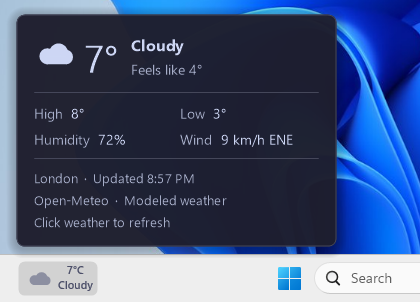
The current weather at the left end of the taskbar, with a details card when you hover over it. It works on its own, without Windows Widgets.

Taskbar Weather preview

Features

  • Weather icon, temperature and conditions on the taskbar, updated every ten minutes by default.
  • Hover card with the feels-like temperature, today's high and low, humidity and wind.
  • Click to refresh at any time.
  • Follows the Windows theme: dark text on a light taskbar, light text on a dark one. A setting can force either.
  • Celsius and km/h, or Fahrenheit and mph.
  • No Widgets, MSN, Edge or location permission. Data comes from Open-Meteo, with no account or API key.

How it differs from other weather mods

Taskbar Clock Customization can put weather text inside the clock, and Micrographics Taskbar Clock replaces the clock with one that can show a weather line. TopBar for Windows has a weather flyout in its own bar, and Desktop Live Overlay shows weather on the desktop. This mod adds its own icon and label at the left end of the stock taskbar, keeps the regular clock, shows a details card on hover, and needs no other mod.

Setup

Open the settings and enter your town's latitude and longitude in decimal degrees with a dot, for example 51.5074 and -0.1278 (in most map apps, right-click a place to copy them). Add a place name to show it in the hover card.

Privacy and network use

The mod needs internet access. Your latitude and longitude, rounded to three decimals (about 100 m), are sent to api.open-meteo.com with every request: when the taskbar appears, after every settings change, at each update interval, once a minute while requests fail, when you click the label, when the PC wakes up and when the clock or time zone changes. Open-Meteo also sees your IP address. Nothing else is sent. Nothing is sent until both coordinates are filled in; clear them to stop all requests.

Notes

  • The label sits on top of the taskbar at the left offset you choose and does not push other buttons aside. With a centered taskbar, turn off Windows Widgets (it shows its own weather in the same place). With a left-aligned taskbar, raise the left offset so the label clears the Start button.
  • Only the main taskbar shows the weather.
  • The mod runs in its own background process, not inside Explorer, so a crash in the mod can't take Explorer down with it.
  • If a request fails, the last reading stays and the card says when it was fetched. A reading is marked as stale once it is older than 30 minutes, or twice the update interval if that is longer.
  • Vertical taskbars (left or right on Windows 10) are not supported. The label is not shown on them.

Credits

Weather data by Open-Meteo.com (CC BY 4.0).


r/Windhawk • • 2d ago

Lock Screen Clock Styler v3.0 is out! - New ANSI Shadow Clock, Per-Theme Settings, Custom Fonts & More

10 Upvotes

Lock Screen Clock Styler v3.0.0 is out on Windhawk! Here is a quick showcase of the clock styles included in the mod.

🆕 What's New in v3.0.0

  • New ANSI Shadow Style: Retro terminal ASCII clock with 4 terminal color themes (Matrix Green, Amber CRT, Cyber Cyan, Classic Monochrome).
  • Per-Theme Customization Groups: Dedicated settings for every style (100% backward compatible with existing configs):

    • 14 curated color options
    • Built-in font selector (8 fonts) & drop-shadow toggle for Vertical & Sonoma clocks
    • LED dot shape (Circle, Square, Rounded), frosted backplate opacity, flip card corner radius & split seam, and Cyberpunk HUD chassis/preset controls

🔗 Links

Feedback and theme ideas for future updates are always welcome!